You opened TikTok, tapped the + button, looked for LIVE, and it was not there. So you searched, and now you are drowning in videos promising a "secret 2026 method" to unlock it. Most of them are wrong, and some of them will get your account banned.
Here is the honest version. There is a real wall: TikTok gates its mobile LIVE button behind roughly 1,000 followers, and there is no legitimate trick that switches it off. But the wall is not the whole map. There are official routes worth checking, a desktop app with its own rules, and a realistic plan for getting through the gate faster than you think. This guide covers all of it: what is possible, what is not, and how to go live on TikTok the moment you qualify.
TikTok LIVE Requirements in 2026
Before anything else, know exactly what TikTok asks for. As of 2026, in most regions:
- Age: 18 or older. TikTok raised the minimum LIVE age from 16 to 18 in late 2022, and it has stayed there. This applies to every route, mobile or desktop, and there is no exception.
- Followers: about 1,000 for the in-app mobile LIVE button. This is the famous wall.
- Good standing. Recent Community Guidelines violations can hide the LIVE option even if you meet the other two.
There are three different ways to actually broadcast, and they do not all behave identically:
| Path | Follower requirement | Age | What you can do |
|---|---|---|---|
| Mobile app LIVE | ~1,000 (most regions) | 18+ | Go live from your phone camera, add effects, guests, gifts |
| TikTok LIVE Studio (desktop) | Own published check (account age, recent LIVE time, followers, standing; varies by country), plus an application form for creators established elsewhere | 18+ | Stream your screen, games, or camera from a Windows PC or Mac with overlays |
| Stream key + encoder (OBS etc.) | Requires LIVE access on your account | 18+ | Full production control, and the door to multistreaming |
Two honest caveats. First, TikTok does not publish an exact global rulebook, and thresholds have varied by region and account over the years. Second, LIVE Studio runs its own check, and TikTok publishes what it looks at, while the web LIVE Center uses the same LIVE access as the app. The only way to know what your account qualifies for is to check each door. We will show you where each one is.
How to Go Live on TikTok From Your Phone (Step by Step)
Once your account is eligible, going live takes about a minute:
- Open TikTok and tap the + (create) button at the bottom center.
- Swipe through the options under the record button (Camera, Story, and so on) until you reach LIVE. If it is not there, your account does not have access yet; skip to the next section.
- Add a title. TikTok caps the title at about 32 characters, so make them count: say what viewers will actually see, like "Sketching your requests" instead of "Come hang out".
- Pick a topic (Gaming, Chat, Music, and so on). This helps TikTok recommend your stream to the right feeds.
- Optional but smart: tap the settings gear to review who can comment, add moderators, and filter keywords before you start, not mid-stream.
- Check your framing and lighting in the preview.
- Tap Go LIVE. After a 3-second countdown, you are broadcasting.
While live, you can flip the camera, add effects, invite guests, and pin comments. To end, tap the power icon and confirm. TikTok will offer stats on viewers, new followers, and gifts once you finish.
Before every stream: face a window or light source (never behind you), get on Wi-Fi or strong 5G and close background apps, frame yourself vertically with headroom, set up comment filters and at least one moderator, and have your first 30 seconds planned so early viewers do not arrive to silence.
Go Live on TikTok Without 1,000 Followers: What Actually Works
This is the section most guides get dishonest about, so let us be precise. There is no legitimate method that removes the follower requirement on the mobile LIVE button. Anyone selling you one is selling something else. But there are real things you can do.
Check the doors that use different rules
The 1,000-follower figure is the mobile app's gate. TikTok LIVE Studio runs its own check, and TikTok publishes what it looks at: how old your account is, how recently you have gone LIVE, your follower count, and whether LIVE access has been suspended recently, with thresholds that vary by country. There is also an official application form inside LIVE Studio for streamers who are already established on Twitch, YouTube, or another platform; TikTok reviews it over a few days and notifies you in the app. Open LIVE Studio, click Your LIVE access in the top right corner, and see which path your account is offered.
The web LIVE Center (livecenter.tiktok.com) uses the same LIVE access as the app, and TikTok grants its stream key option to only some of those accounts, so it is a place to check what you have, not a way around the follower gate.
The official support route
TikTok has an in-app path for reporting a missing LIVE option: Settings and privacy > Report a problem, then describe that you cannot start a LIVE. If your account is 18+ and in good standing, support sometimes reviews and grants access, particularly when the button seems to be missing due to a bug or regional rollout rather than the follower count. Be truthful in the report. This is a request, not a cheat code: many people are declined, and lying to support is a fast way to get flagged. It is not the only way to ask TikTok directly: LIVE Studio has an official LIVE access application for creators who already stream on another platform (see the desktop section below). Report a problem is the route for accounts that should already qualify but see no LIVE button, and it is worth one honest attempt.
The reliable route: get to 1,000 fast
Unromantic but true: most creators clear 1,000 followers quicker than they expect once they post with intent. The playbook that consistently works:
- Post 1-3 short videos daily in one niche, so TikTok learns who to show you to.
- Hook in the first second. Watch time drives the algorithm; front-load the payoff.
- Use trending sounds early in their cycle, adapted to your niche.
- Reply to comments with video replies. They count as content and compound engagement.
- Tell viewers why to follow ("I go live the day I hit 1k") to give the follow a purpose.
A focused month of this beats a year of passive posting. And the followers you gain this way will actually show up to your streams, which fake followers never do.
What to avoid (seriously)
- Buying followers. Bots do not watch LIVEs, TikTok purges them regularly, and inflated-then-deflated accounts get suppressed. You can pay to cross the line and end up further from it.
- "LIVE unlock" services and modded apps. These need your login. Best case, they do nothing; worst case, your account is stolen or banned for inauthentic behavior.
- Agency invite scams. Real TikTok LIVE agencies exist, but so do fakes that promise instant LIVE access, then take a cut of your gifts, lock you into contracts, or harvest your credentials. If an "agency" DMs you promising to bypass requirements, treat it like the phishing attempt it usually is. Legitimate programs never need your password and never promise to break TikTok's rules.
The pattern is simple: anything that promises to bypass the requirement is either lying or violating TikTok's terms. The routes above are the only ones that respect both your account and your time.
TikTok Live From a Computer or PC
Streaming from a desktop is where TikTok LIVE gets seriously more capable, and for gamers, artists, and anyone running overlays, it is the better home.
Option 1: TikTok LIVE Studio
TikTok LIVE Studio is TikTok's free official desktop app for Windows and macOS (TikTok added the Mac build in late 2025). It works like a lightweight OBS made only for TikTok:
- Download LIVE Studio from TikTok's official download page at tiktok.com/studio/download and install it.
- Sign in with your TikTok account. The app checks your LIVE eligibility here, and the Your LIVE access button shows your status or the application form for creators established on other platforms.
- Add sources: your webcam, a game capture, a screen share, images, or text.
- Set your stream title and topic, choose portrait or landscape layout, and check audio levels.
- Click Go LIVE. Chat appears in a panel so you can read and reply while streaming.
LIVE Studio handles all the encoding settings for you, which makes it the easiest desktop route by far. Its limits: lighter production tools than OBS, and it streams to TikTok only.
Option 2: Stream key + any encoder
If you want OBS, vMix, or a hardware encoder, eligible accounts can generate a Server URL and stream key, which is a private address-and-password pair that tells your encoder where to send video. New to the concept? Our explainer on what a stream key is covers it in plain language. For the TikTok-specific mechanics, where to find the key, how to paste it into OBS, and the vertical encoder settings that fit TikTok, follow our full TikTok stream key guide. The short version: LIVE access is still the gate, TikTok issues keys per session, and once you have one, any encoder can go live on your account.
Leveling Up: Stream to TikTok and Other Platforms at Once
Here is the thing nobody tells you at the 1,000-follower stage: the creators who grow fastest rarely stream to one platform. Your TikTok LIVE audience, your YouTube subscribers, and your Twitch community can all watch the same broadcast at the same time.
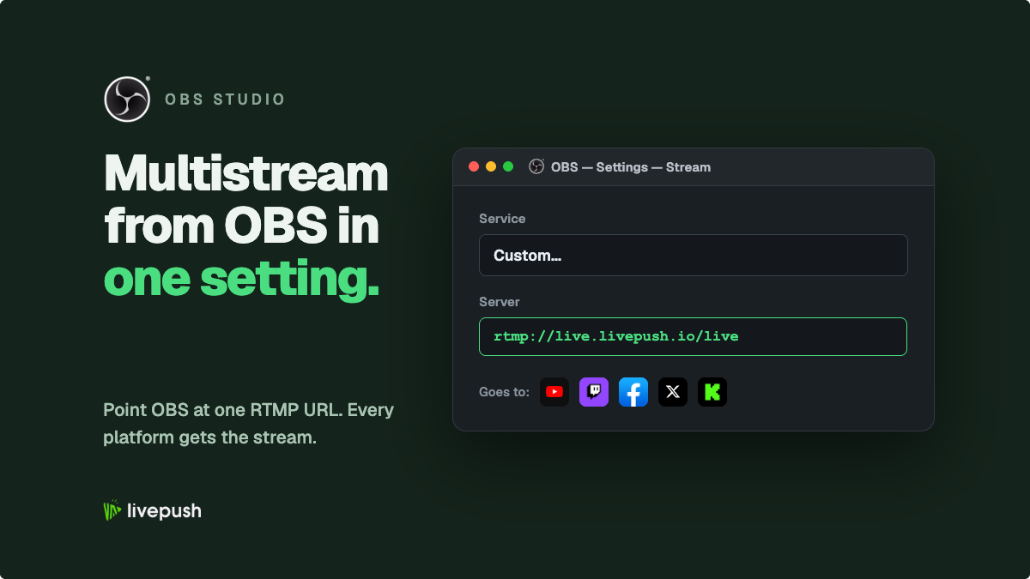
One encoder can only push to one destination, and LIVE Studio only pushes to TikTok. The fix is a multistreaming service: you send one stream to it, and it fans that stream out to every platform you have connected, with no extra upload bandwidth from your side.
That is exactly what Livepush does. You connect your social media accounts once, add TikTok, YouTube, Twitch, or any of 40+ destinations, then use multistreaming to go live everywhere from a single OBS stream. Our walkthrough on how to multistream from OBS shows the whole setup.
Two honest notes. First, no multistreaming service can bypass TikTok's eligibility rules; you still need LIVE access and a stream key on your own account. Second, if you have joined a TikTok LIVE agency or monetization program, read your agreement before simulcasting, since some programs include exclusivity clauses. For unaffiliated creators, streaming to multiple platforms at once is standard practice across the industry.
The Bottom Line
The 1,000-follower wall is real, the 18+ rule is absolute, and every "instant unlock" you will find on YouTube is either outdated, regional luck, or a scam. What is equally real: LIVE Studio's own published eligibility check and its application form for established streamers, the official support request path, and the fact that 1,000 followers is a weeks-not-years goal with consistent posting. Check what your account qualifies for today, put the growth playbook to work, and set up your desktop streaming early, because the moment the gate opens, you want to walk through it ready, ideally to more platforms than one.
Stream to multiple platforms without extra bandwidth
Send one stream to Livepush and we fan it out to 40+ destinations.