OBS Studio is the most popular free encoder in the world, but it has one surprising limitation: it does not multistream on its own. Out of the box, OBS sends your video to exactly one RTMP server. If you want to reach YouTube, Twitch, and Facebook at the same time, you have to add something on top.
There are two ways to do that, and they behave very differently. This guide explains both fairly, walks through the setup for each, and does the bandwidth math so you can see why one route wins for most people.
OBS Does Not Multistream Natively
Before choosing an approach, it helps to understand the constraint. In Settings → Stream, OBS gives you a single Service, a single Server, and a single Stream Key. One output, one destination. That is the whole native feature.
To send to multiple platforms, you add multistreaming through one of two paths:
- The local route: a plugin (or multiple OBS instances) that creates extra RTMP outputs on your own machine.
- The cloud route: a single output to a multistreaming service that receives your stream once and re-sends it to every platform.
Both get your stream onto multiple platforms. The difference is where the work happens: on your PC and internet connection, or in the cloud.
The Two Approaches at a Glance
| Local plugin route | Cloud service route | |
|---|---|---|
| Where fan-out happens | Your PC | The service's servers |
| Outputs OBS runs | One per platform | One total |
| Upload bandwidth | Multiplies per platform | Flat, one stream |
| CPU / encoder load | Multiplies per platform | Single encode |
| Cost | Free plugin | Free tier or paid plan |
| Setup complexity | Moderate | Low |
| Best for | High-upload, high-CPU rigs | Almost everyone else |
The table already hints at the core tradeoff. The plugin is free, but it spends your bandwidth and your processor. The cloud service offloads both, and that is usually the deciding factor.
The Bandwidth Math (This Is the Whole Argument)
This is the single most important thing to understand about multistreaming from OBS.
When a local plugin pushes to three platforms, it opens three separate RTMP connections and uploads three full copies of your video. When a cloud service handles it, OBS uploads one copy and the service duplicates it downstream on infrastructure with far more bandwidth than your home connection.
Here is what that looks like for a 1080p stream at 6 Mbps:
| Destinations | Local plugin upload | Cloud service upload |
|---|---|---|
| 1 platform | 6 Mbps | 6 Mbps |
| 2 platforms | 12 Mbps | 6 Mbps |
| 3 platforms | 18 Mbps | 6 Mbps |
| 5 platforms | 30 Mbps | 6 Mbps |
With the plugin, upload scales linearly. Three platforms at 6 Mbps is 18 Mbps of sustained upload, and you want real headroom above that (at least 1.4x, so the bitrate stays at or below about 70% of your upload) to avoid dropped frames, so you are really asking for a 25 Mbps upload connection just for three destinations. Most home connections cannot hold that steady, and cellular or hotel Wi-Fi certainly cannot.
With the cloud route, the number never moves. One stream out, always 6 Mbps, whether you are on two platforms or ten.
Multiply your bitrate by the number of platforms, then add 40% headroom (the total should use no more than about 70% of your upload). If that total exceeds your reliable upload speed, use the cloud route. For a 6 Mbps stream to 3 platforms locally, you need about 25 Mbps of stable upload.
CPU and Encoder Load
Bandwidth is only half the cost of the local route. Every extra RTMP output can also mean an extra encode.
If each platform needs a different bitrate or resolution (Facebook publishes a 1080p range topping out at 6,000 Kbps for 30 fps and 9,000 Kbps for 60 fps, Twitch stops at 6,000 Kbps over standard RTMP, and YouTube accepts far more), the plugin encodes the video multiple times. Even when outputs share one encode, running several simultaneous RTMP uploads adds overhead, and any dropped-frame problem now cascades across every destination at once.
On a machine that is also running a game, a webcam, and browser sources, this is exactly when you least want extra encoder load. A cloud service sidesteps it entirely: OBS runs one encode, and any transcoding into per-platform bitrates happens in the cloud, not on your GPU. If you want to get that single encode right first, see our best OBS settings for 1080p live streaming for encoder, bitrate, and keyframe recommendations.
Route 1: The OBS Multi Stream Plugin (Local)
If you have decided the local route fits your setup, here is how to add multiple outputs to OBS with a plugin.
What you need
- OBS Studio (current version)
- A multi-output plugin such as the Multiple RTMP Output plugin or Aitum Multistream
- Enough upload bandwidth for every destination combined (see the math above)
- A capable CPU or GPU for the encoding load
Setup steps
- Download a multi-output plugin compatible with your OBS version and install it (most drop into the OBS plugins folder or ship with an installer).
- Restart OBS. The plugin usually appears as a new dock (View → Docks) or under the Tools menu.
- In the plugin panel, click to add a new output.
- For each platform, paste its RTMP server URL and stream key. YouTube, Twitch, Facebook, and Kick each provide these in their own creator dashboards.
- Set the bitrate for each output. If any destination has a lower limit than your main stream (Twitch at 6,000 Kbps over standard RTMP, for example), set that output to respect it, or the platform may reject or degrade the stream.
- Start your main OBS stream, then start each plugin output. Watch OBS's stats dock closely for dropped frames as the uploads stack up.
Where the plugin route still makes sense
The local route is not wrong, it is just narrow. It is a genuinely good choice when:
- You have a symmetric fiber connection with 50 Mbps or more of reliable upload.
- You have a strong GPU encoder (NVENC on a recent NVIDIA card) with headroom to spare.
- You want to avoid any third-party cloud hop for privacy or contractual reasons.
- You are streaming to only two destinations and want zero recurring cost.
Outside those conditions, the bandwidth and CPU multiplication tends to cause more dropped frames than it is worth.
Route 2: Cloud Multistreaming (One Stream Out)
The cloud route flips the model. Instead of your PC doing the fan-out, you send one clean stream to a service that duplicates it for you.
OBS → single RTMP output → Cloud service → YouTube
                                         → Twitch
                                         → Facebook
                                         → [any other platform]
Your upload is exactly one stream. Your OBS runs exactly one encode. Everything else happens off your machine. This is the approach we detail platform-by-platform in our guide to streaming to YouTube and Facebook at the same time.
Setup steps with Livepush
- Create a stream in Livepush and copy the RTMP URL and stream key it gives you.
- Add your destinations in the dashboard: connect YouTube, Facebook, Twitch, or any of the 40+ supported platforms, plus custom RTMP targets.
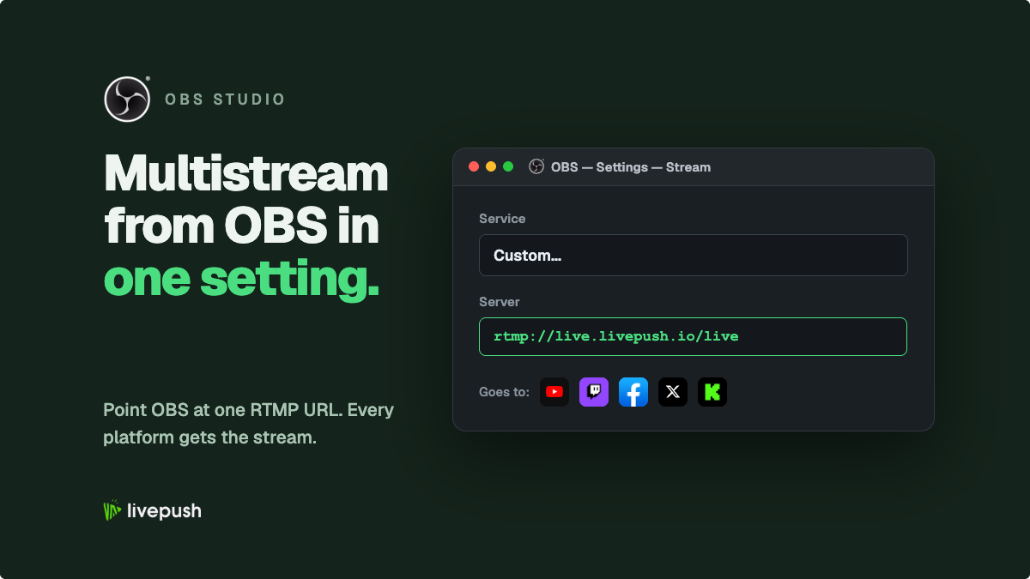
- In OBS, open Settings → Stream, set Service to Custom, and paste the Livepush RTMP URL and stream key.
- Set your OBS bitrate once. A single 6 Mbps 1080p encode is plenty, and Livepush can transcode down for platforms with lower caps.
- Click Start Streaming in OBS. Every connected destination goes live from that one output.
Because the duplication happens in the cloud, adding a fourth or fifth platform costs you nothing extra in upload or CPU. You manage all destinations from one dashboard and see the health of each in real time. You can compare the main options in our roundup of the best multistreaming platforms.
Livepush's free plan includes 3 simultaneous destinations and 20 hours per month, no credit card required. It is an easy way to feel the difference between one flat upload and a plugin multiplying your bandwidth.
Which Should You Choose?
Run through this quick decision table:
| Your situation | Recommended route |
|---|---|
| Streaming to 3+ platforms | Cloud |
| Upload under ~30 Mbps | Cloud |
| On Wi-Fi, hotel, or cellular | Cloud |
| CPU or GPU already near its limit | Cloud |
| Only 2 platforms, fiber upload, spare CPU | Either |
| Need per-platform quality without local strain | Cloud |
| Must avoid any third-party cloud hop | Local plugin |
For the large majority of streamers, the cloud route wins on the two costs that matter most during a live broadcast: upload bandwidth and encoder load. The plugin is a fine tool for a specific, well-resourced setup, but it does not change the underlying math. Sending five copies of your video up a home connection will always be harder than sending one.
If you want the cloud approach and a single dashboard for every platform, that is exactly what Livepush multistreaming is built for: one RTMP output from OBS, unlimited reach.
A Note on Ingest Protocol
Whichever route you pick, your OBS-to-service connection is still RTMP by default. If you stream over an unstable connection and see dropped frames, consider SRT ingest instead, which handles packet loss more gracefully. Our comparison of RTMP vs SRT vs HLS explains when each protocol is the right call, and most cloud multistreaming services accept both.
The Short Version
OBS cannot multistream by itself. You add it locally with a plugin that multiplies your upload and CPU per platform, or you send one stream to a cloud service that fans it out for free of extra bandwidth. The bandwidth math (18 Mbps for three platforms locally versus a flat 6 Mbps in the cloud) is the whole story. Unless you have a high-upload, high-CPU rig and a specific reason to keep everything local, the cloud route is the calmer, more reliable way to reach every platform at once.
Multistream from OBS with one upload
Connect OBS to Livepush and go live to 40+ platforms at once.