Streaming to two platforms at once sounds complicated, but with the right setup it takes about 5 minutes. You still use OBS. You just change where OBS sends the stream.
How Multistreaming Works
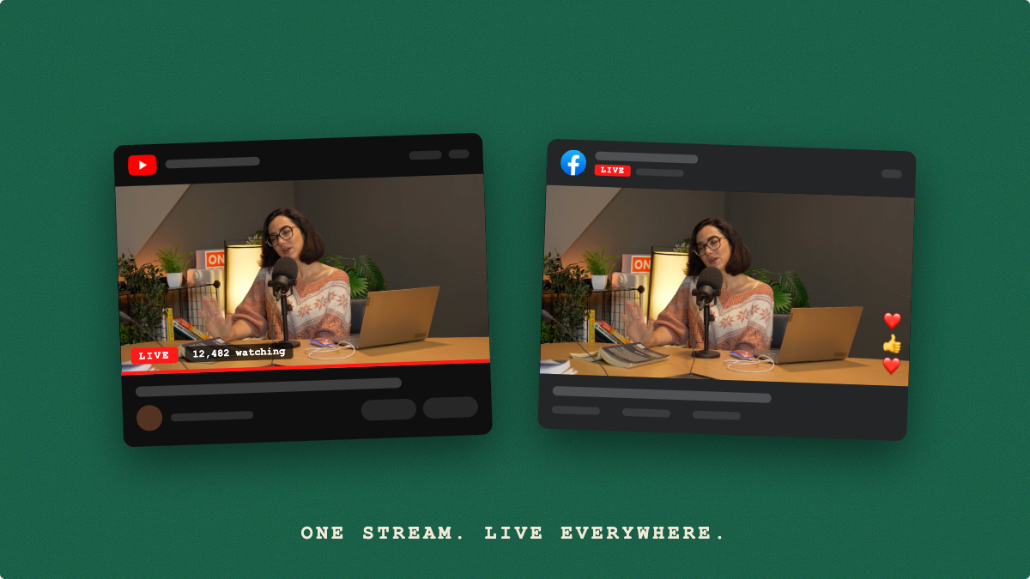
OBS sends your video to one RTMP address. To reach YouTube and Facebook (and more) at the same time, you point OBS at a multistreaming service. The service receives your single stream and simultaneously re-sends it to all your connected destinations.
OBS → RTMP to Livepush → YouTube Live
                       → Facebook Live
                       → Twitch
                       → [any other platform]
Your upload usage: exactly one stream's worth of bandwidth.
What You Need
- OBS Studio (free, download from obsproject.com)
- A Livepush account (Facebook streaming requires a paid plan, starting with Pro at $15/month)
- YouTube channel with Live enabled
- Facebook Page with at least 100 followers on an account at least 60 days old (Facebook's requirements since June 2024)
Step 1: Create a Stream on Livepush
- Log in to app.livepush.io
- Click New Stream
- Name your stream (e.g. "My Weekly Show")
- You'll get a Livepush RTMP URL and Stream Key. Keep this tab open
Step 2: Connect YouTube as a Destination
- In Livepush, click Add Destination → YouTube
- Click Connect YouTube and authorize with your Google account
- Select your channel
- Livepush will now push your stream to YouTube when you go live
Step 3: Connect Facebook as a Destination
- Click Add Destination → Facebook
- Click Connect Facebook and authorize
- Select your Facebook Page (not a personal profile; Pages support better streaming features)
- Done
Step 4: Configure OBS
- Open OBS → Settings → Stream
- Service: Custom
- Server: paste the RTMP Server shown in your Livepush stream dashboard (it looks like
rtmp://us-ws.livepush.io/rtmp/; the host depends on your region) - Stream Key: paste your Livepush stream key
- Click OK
Recommended OBS Settings for Multistreaming to Facebook
Facebook's ceiling is 6,000 Kbps for 1080p30 and 9,000 Kbps for 1080p60. Set OBS accordingly:
- Settings → Output → Bitrate: 6,000 Kbps
- Settings → Video → Output Resolution: 1920×1080
- Settings → Video → FPS: 30
- Keyframe Interval: 2 seconds
These settings produce a clean 1080p stream that both YouTube and Facebook can handle. Make sure your measured upload speed has headroom: keep the bitrate at or below about 70% of it, so 6,000 Kbps needs roughly 8.5 Mbps of upload.
Step 5: Go Live
- In OBS, click Start Streaming
- Open the Livepush dashboard. Your stream should show as active
- Check that YouTube Studio's Live Control Room and Facebook's Live Producer both show an incoming stream
- Click Go Live in the Livepush dashboard (or set it to auto-start)
Your stream is now live on both platforms simultaneously from a single OBS session.
Monitoring Your Multistream
The Livepush dashboard shows the health of each destination in real time. If one platform has an issue (e.g. Facebook authentication expired), you'll see it flagged without affecting the other destinations.
If this is your first time streaming to YouTube, verify your channel and enable live streaming in YouTube Studio a day ahead; first-time activation has historically taken up to 24 hours. Do this in YouTube Studio → Go Live.
Adding More Platforms
Livepush supports 40+ destinations including Twitch, LinkedIn, Twitter/X, Kick, and custom RTMP servers. Add more destinations in the Livepush dashboard under Destinations. Each connection takes under a minute.
Multistreaming Without OBS
If you don't use OBS, you can also multistream from:
- Hardware encoders (Teradek, ATEM Mini Pro) via RTMP
- Zoom: use Livepush as a custom RTMP destination in Zoom's live streaming settings
- StreamYard: connect Livepush as a custom RTMP output
Any encoder that supports custom RTMP works with Livepush.
Common Issues
Facebook isn't showing my stream as live: Since June 2024 Facebook requires the account to be at least 60 days old, and a Page or professional-mode profile needs at least 100 followers before it can go live. Check the Page meets both and that the destination is connected to that Page.
Stream looks good on Livepush but poor on YouTube: OBS bitrate might be too low if you set it to Facebook's 1080p30 ceiling of 6,000 Kbps while YouTube would happily take more. Consider using Livepush's transcoding feature to send different quality levels to different platforms.
Dropped frames in OBS: Lower your OBS bitrate, or switch from RTMP to SRT ingest if you're on an unstable connection. See our OBS dropped frames guide for full diagnosis steps.
Multistream from OBS with one upload
Connect OBS to Livepush and go live to 40+ platforms at once.