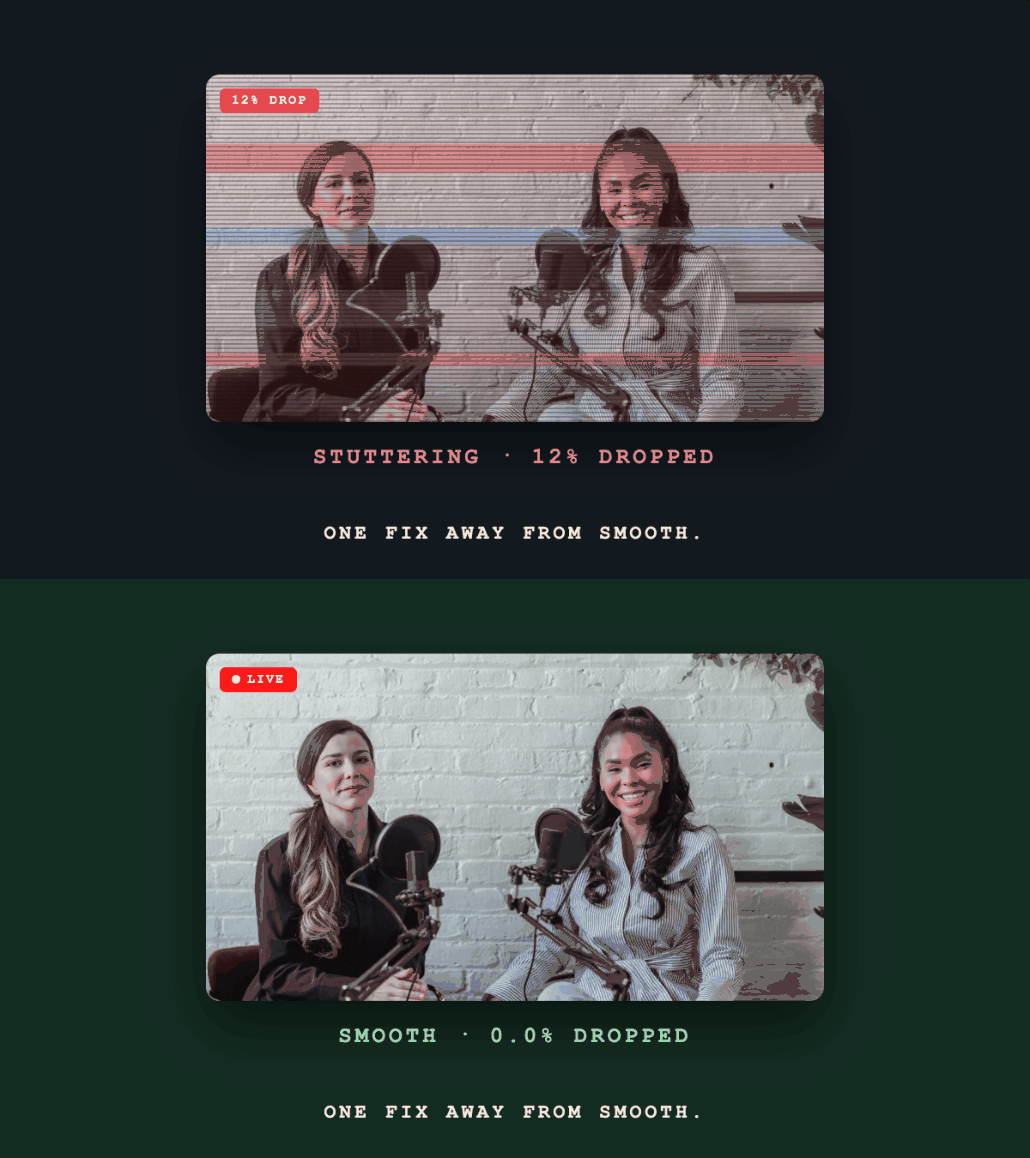
Dropped frames in OBS are one of the most common live streaming problems, and one of the most solvable. OBS distinguishes between two types: dropped frames (network) and skipped frames (encoding lag). Each has different causes and fixes.
Reading the OBS Status Bar
Before fixing anything, open OBS and check the bottom status bar while streaming:
- Dropped Frames: green box → red = frames lost to network issues
- Skipped Frames: shown in OBS Stats window (
View → Stats): frames the encoder couldn't process in time - CPU Usage: shown in Stats; high CPU usage causes skipped frames
Open the full Stats window for more detail: View → Stats.
Type 1: Dropped Frames (Network)
Cause
OBS encoded the frame successfully but couldn't deliver it to the RTMP/SRT server. The packet was lost or the connection couldn't sustain the bitrate.
Fix 1: Lower Your Bitrate
This is the first and most effective fix. In Settings → Output:
- Current bitrate 6,000 Kbps → try 5,000 → 4,500 → 4,000
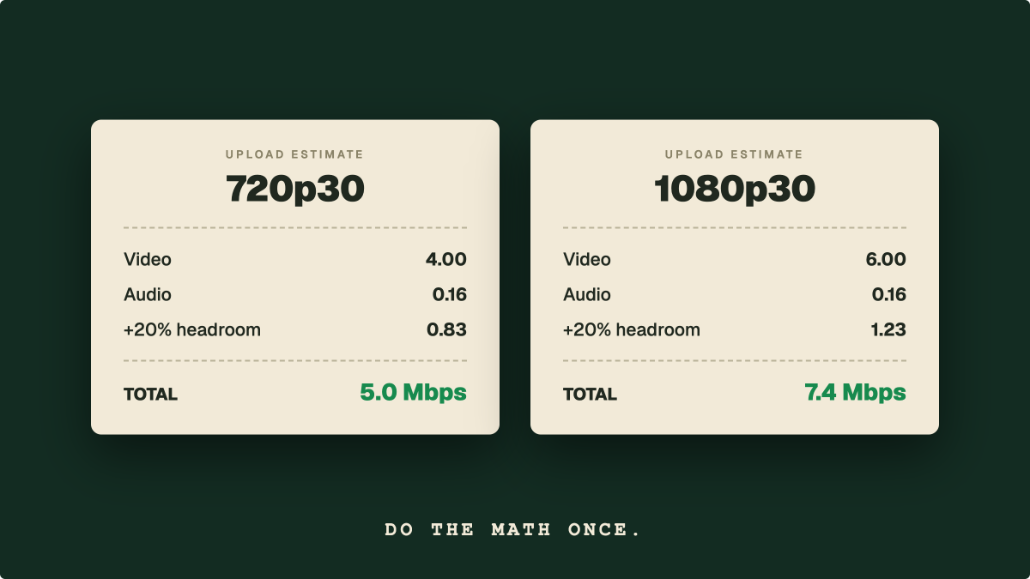
Lower in 500 Kbps steps until dropped frames disappear. For most home connections, staying under 70% of your measured upload speed prevents drops.
Fix 2: Switch to Wired Connection
Replace Wi-Fi with Ethernet. Wi-Fi introduces jitter and intermittent packet loss that causes exactly this symptom. A direct Ethernet connection is the single most reliable fix for network-based dropped frames.
Fix 3: Close Network-Heavy Applications
Streaming and downloads (Windows Update, Steam, Dropbox sync) compete for upload bandwidth. Close or pause any background downloads while streaming.
Fix 4: Change Your DNS Server
Occasionally, DNS resolution delays cause connection problems to the streaming server. Switch to Google (8.8.8.8) or Cloudflare (1.1.1.1) DNS:
- Windows: Control Panel → Network Settings → Adapter Properties → IPv4 → DNS
- macOS: System Settings → Network → DNS
Fix 5: Switch to a Different Ingest Server
In OBS Settings → Stream, if using a platform with multiple servers (or Livepush), try connecting to a geographically closer server. Network congestion between you and a distant server can cause drops even on a fast connection.
Fix 6: Use SRT Instead of RTMP
SRT's error recovery handles packet loss by retransmitting dropped packets, so the stream stays intact even on lossy connections. Switch OBS to SRT if your streaming service supports it:
Settings → Stream → Service: Custom → Server: the SRT address from your streaming service's dashboard, copied exactly as the service shows it (a typical SRT address looks like srt://HOST:PORT?streamid=...&latency=2000, but the exact form varies by service). Livepush supports SRT ingest and shows the SRT connection details on your stream page; they are separate from the RTMP URL and key.
Type 2: Skipped Frames (Encoding Lag)
Cause
Your CPU or GPU can't encode frames fast enough to keep up with the requested output. OBS skips frames to avoid a growing encoding backlog.
Fix 1: Reduce x264 CPU Usage Preset
In Settings → Output → Advanced → Streaming:
Change CPU Usage Preset from slower to faster:
- Current:
medium→ tryfast→faster→veryfast→superfast→ultrafast
The fastest presets use less CPU but produce lower quality at the same bitrate. veryfast is the standard recommendation for streaming.
Fix 2: Switch from x264 to NVENC/AMF
Hardware encoders (NVENC for NVIDIA, AMF for AMD) offload encoding from CPU to GPU. They move the encode off the CPU almost entirely, so OBS's CPU use falls to whatever compositing, capture, and browser sources cost on their own.
In OBS Settings → Output:
- Change Encoder from
x264toNVIDIA NVENC H.264orAMD HW H.264
This is the most impactful change for CPU-limited systems.
Fix 3: Lower Output Resolution
In Settings → Video → Output (Scaled) Resolution:
Downscale from 1920×1080 to 1280×720 to reduce encoding workload significantly. 720p has less than half the pixels of 1080p, so x264's encoding load drops by roughly half.
Fix 4: Lower FPS
Change Settings → Video → Common FPS Values from 60 to 30. Halving the frame rate halves encoding work.
Fix 5: Close Background Applications
Check Task Manager (Windows) or Activity Monitor (Mac) for CPU-heavy processes:
- Chrome browser tabs (each tab uses CPU)
- Game launchers (Origin, Steam, Epic Games)
- Antivirus scans
- Windows Update
Close or pause anything that's competing for CPU while streaming.
Fix 6: Check GPU Driver Version
Outdated or corrupted GPU drivers can cause NVENC/AMF encoding issues. Update drivers:
- NVIDIA: nvidia.com/drivers or GeForce Experience
- AMD: AMD Software: Adrenalin Edition
OBS Auto-Config Wizard
If you're unsure where to start, run the OBS Auto-Configuration Wizard (Tools → Auto-Configuration Wizard). OBS will run an encoding test and suggest optimal settings for your hardware and connection.
Summary Table
| Symptom | Type | Primary Fix |
|---|---|---|
| Frames lost during stream | Network | Lower bitrate, use Ethernet |
| Frames lost before network | Encoding | Faster preset, switch to NVENC |
| CPU constantly >80% | Encoding | Switch to NVENC, lower resolution |
| Drops only on Wi-Fi | Network | Switch to Ethernet |
| Drops on unstable connection | Network | Switch to SRT |
| Drops after long stream | Both | Heat/throttling: improve ventilation |
Multistream from OBS with one upload
Connect OBS to Livepush and go live to 40+ platforms at once.