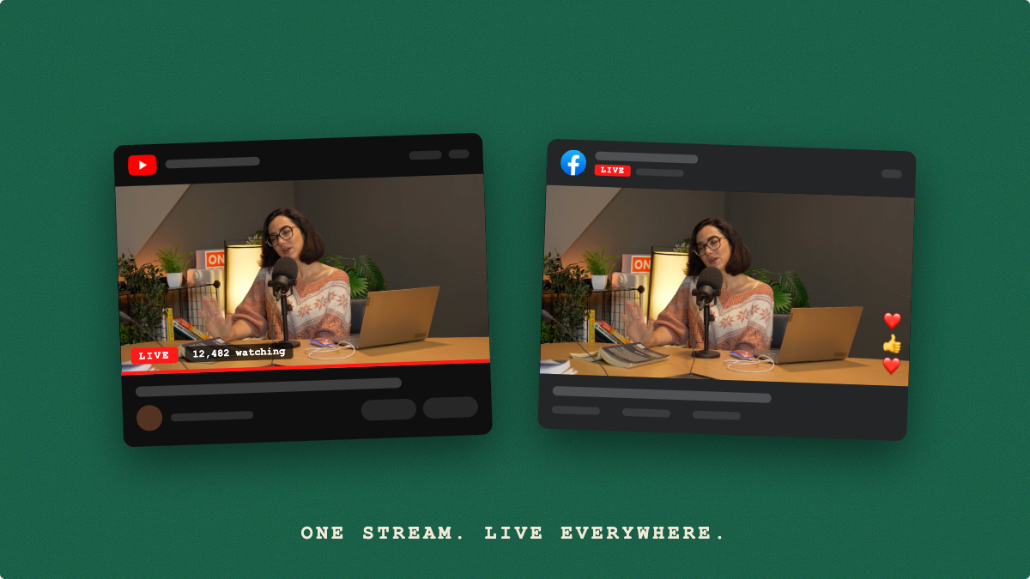
A 24/7 live stream runs continuously, looping your video content indefinitely as a live channel on YouTube, Facebook, or wherever your audience watches. It's used by news channels, music channels, meditation channels, crypto trackers, ambient video creators, and anyone who wants a persistent live presence.
The old way to do 24/7 streaming required a computer left running OBS around the clock, with all the power, hardware, and reliability concerns that come with it. The cloud way requires uploading your videos once.
What You Need
- Videos encoded as MP4 (H.264 + AAC)
- A Livepush account (Editors plan or above for unlimited 24/7 looping)
- A YouTube channel or Facebook Page
How 24/7 Looping Works in Livepush
Livepush stores your uploaded videos on its servers. When you start a 24/7 stream, Livepush plays your playlist from the cloud and outputs it as a live RTMP stream to your connected platforms. When the playlist ends, it loops back to the first video. This runs indefinitely: no computer, no OBS, no local hardware required.
Step 1: Prepare Your Videos
For a 24/7 channel, prepare your video library:
- Encode all files as MP4, H.264, AAC
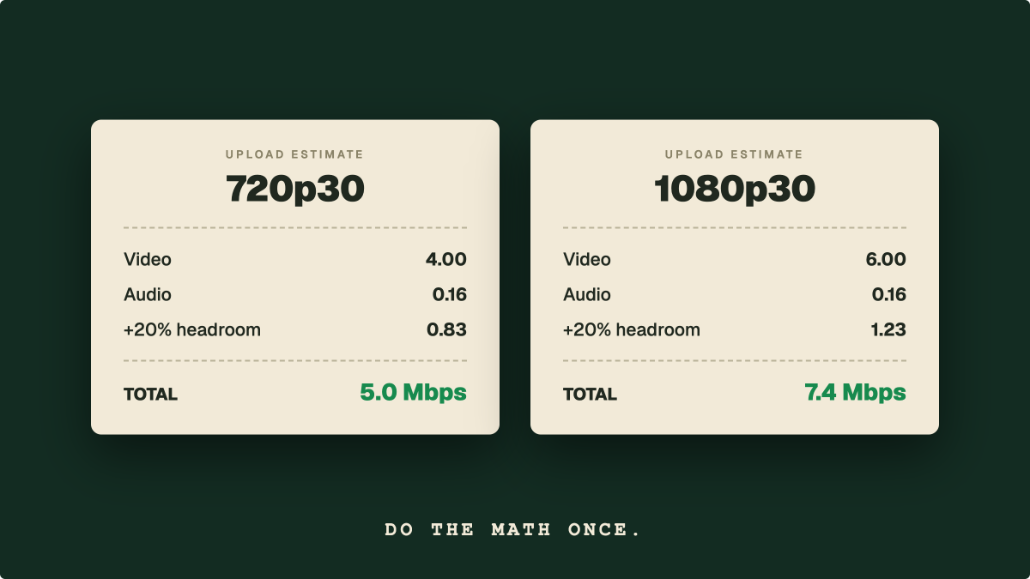
- 1920×1080 at 30 FPS recommended (720p acceptable for smaller channels)
- Use CBR (Constant Bitrate) at 4,000–6,000 Kbps
- Keep individual files under your plan's storage limit
Name files descriptively before uploading (e.g.
episode-01-intro.mp4). They'll appear in this order in the Livepush playlist manager.Step 2: Upload Videos to Livepush
- Log in to Livepush → Pre-recorded Live dashboard
- Click Upload Videos
- Upload all your MP4 files
- Wait for the upload and processing to complete (a green checkmark appears)
Storage depends on your plan; the available space is shown in the dashboard, and higher plans include more.
Step 3: Create a Playlist
- Go to Playlists in the Livepush dashboard
- Click New Playlist
- Drag and drop your uploaded videos into the order you want them to play
- Enable Loop Playlist toggle. This makes the stream repeat indefinitely when it reaches the end
You can create multiple playlists (e.g. one for daytime, one for nighttime) and switch between them.
Step 4: Connect YouTube for 24/7 Streaming
For YouTube 24/7 channels:
- Go to Destinations → Add Destination → YouTube
- Authorize with Google
- Select your channel
Important for YouTube: YouTube only archives live streams that run under 12 hours; a stream that runs longer may not be saved as a replay at all. The live broadcast itself is not cut off, so a 24/7 channel keeps streaming, but do not expect a VOD of it. If you want replays, split the schedule into sessions shorter than 12 hours.
Step 5: Launch Your 24/7 Stream
- Go to Streams → New Pre-recorded Event
- Select your looping playlist
- Set Start Time (now, or scheduled)
- Click Go Live
Your channel is now streaming 24/7. Livepush will:
- Loop the playlist indefinitely
- Auto-restart if any connection issue occurs
- Keep the broadcast running continuously (YouTube's 12-hour rule affects replay archiving, not the live stream)
- Continue broadcasting even if your computer is off
Managing a Live 24/7 Channel
Dynamic Playlist Updates
You can edit your playlist while it's live:
- Open the active playlist in Livepush
- Add, remove, or reorder videos
- Changes apply after the current video finishes
This means you can add new episodes to your channel without ever restarting the stream.
Monitoring
The Livepush dashboard shows:
- Current video playing and position
- Destination health status
- Estimated time until loop restart
Stopping the Stream
To pause or end your 24/7 stream, click Stop Stream in the dashboard. The stream ends immediately. Restart it any time from the same playlist.
Content Ideas for 24/7 Channels
| Channel Type | Content |
|---|---|
| Music | Curated playlist of original or licensed tracks with visuals |
| Ambient/Relaxation | Rain sounds, fireplace, nature scenes, lo-fi music |
| News/Commentary | Repeat loop of video essays, analysis, commentary |
| Language Learning | Lessons, phrases, vocabulary videos on loop |
| Product Showcase | Product demos, tutorials, customer testimonials |
| Live TV Style | Mix of shows, ads, intros, formatted like a TV channel |
24/7 Streaming on Facebook
Facebook Live caps a single broadcast at 8 hours. A continuous channel on Facebook therefore has to be restarted as a new live video at least every 8 hours, which also creates a new post each time. Facebook also deletes live replays 30 days after the broadcast (policy since February 2025), so Facebook works for the live moment, not as an archive. Connect a Facebook Page rather than a personal profile, and note that Facebook destinations require a paid Livepush plan (from Pro at $15/month).
Rather than one endless broadcast, plan a Facebook schedule of repeating sessions shorter than 8 hours so each one ends cleanly before the limit is reached.
Run a 24/7 live channel
Livepush loops your playlist indefinitely, with no computer running.