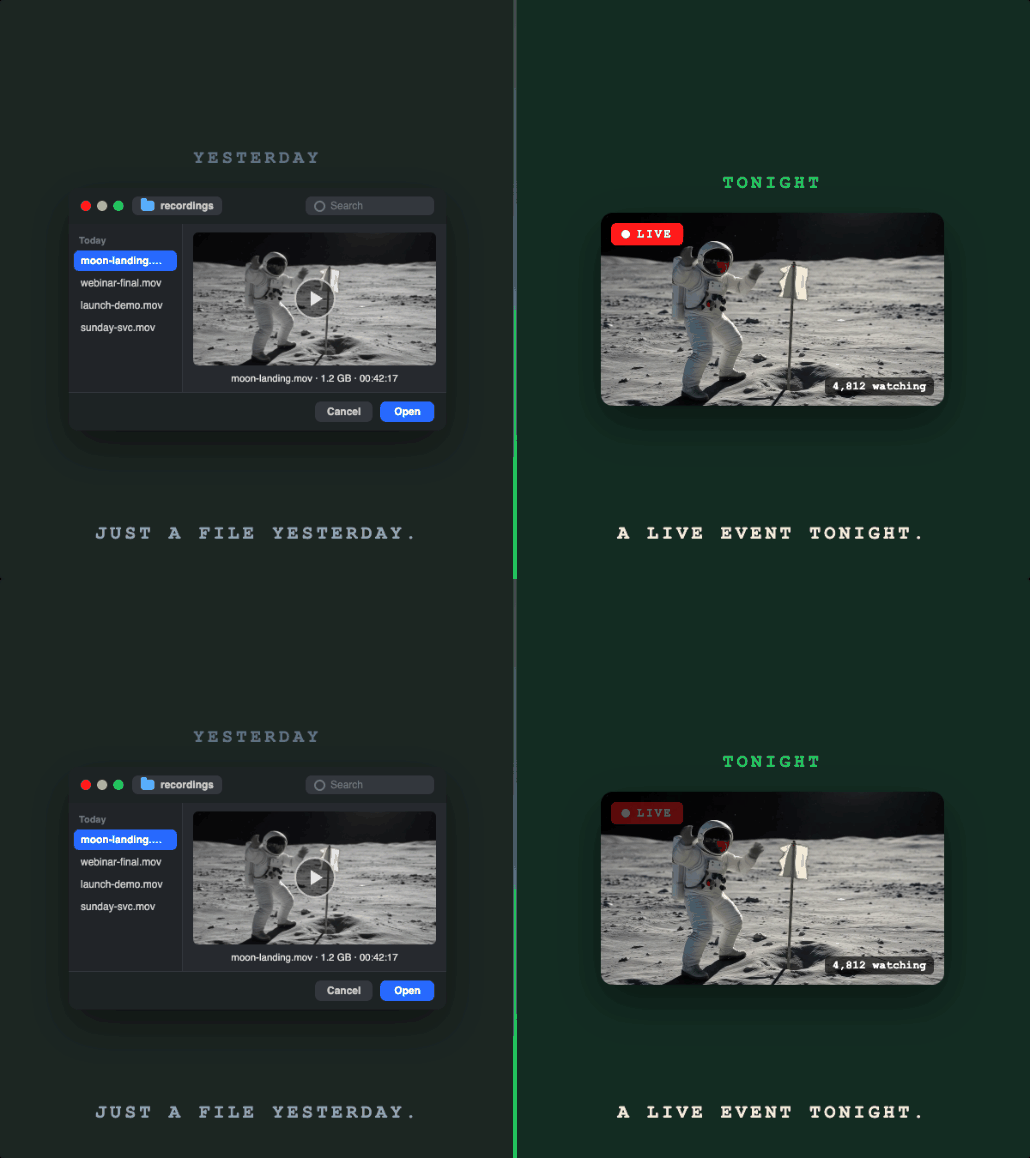
Pre-recorded live streaming lets you broadcast uploaded videos as live events, complete with the live notification, live chat, and viewer experience of a real-time stream. You don't need to be at your computer when it airs.
It's used for webinars, product launches, training series, 24/7 channels, global time zone coverage, and content creators who want to batch-record and schedule weeks of content in advance.
How Pre-recorded Live Streaming Works
- You upload an MP4 video to Livepush
- You schedule a date and time for the stream to start
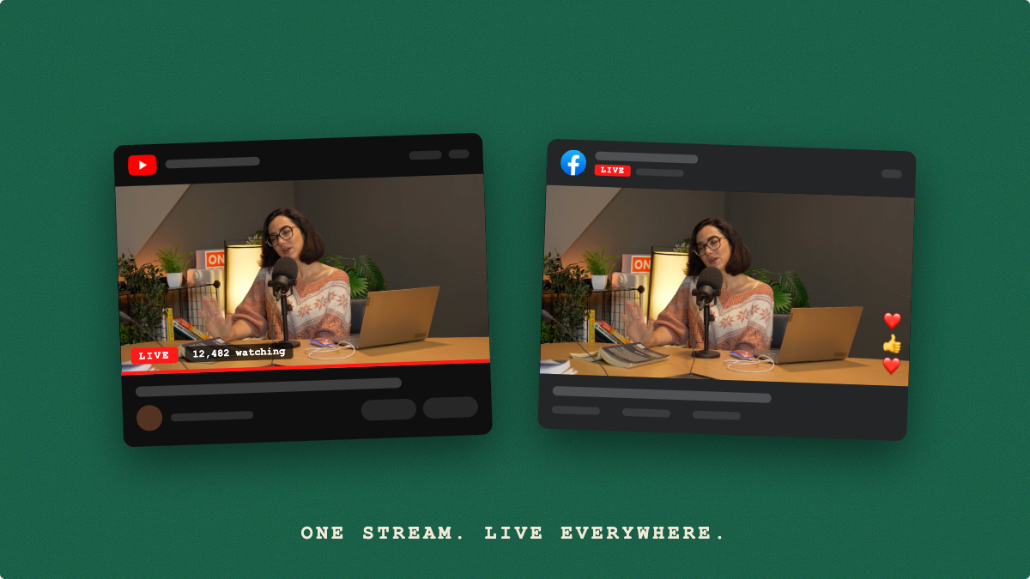
- At the scheduled time, Livepush plays the video and broadcasts it via RTMP to your connected platforms (YouTube, Facebook, Twitch, etc.)
- Viewers see a live stream with a viewer count, live badge, and live chat
No OBS required. No computer left running. Livepush handles it entirely in the cloud.
Step-by-Step: Stream Pre-recorded Video as Live
Step 1: Prepare Your Video File
Encode your video as:
- Format: MP4
- Video codec: H.264
- Audio codec: AAC
- Resolution: 1920×1080 (1080p)
- Bitrate: 4,000–6,000 Kbps CBR (Facebook accepts up to 6,000 Kbps at 1080p30; YouTube recommends higher but plays this range cleanly)
- Frame rate: 30 FPS
If you're exporting from editing software, look for an H.264 MP4 export preset. Adobe Premiere, DaVinci Resolve, and Final Cut all have suitable presets.
Step 2: Upload to Livepush
- Log in to Livepush and go to the Pre-recorded Live dashboard
- Click Upload Video
- Select your MP4 file. Upload time depends on the file size and your connection's upload speed
Step 3: Connect Your Streaming Destinations
In the Livepush dashboard:
- Click Add Destination
- Connect YouTube, Facebook, Twitch, or add a custom RTMP server
- Repeat for each platform you want to stream to
Step 4: Schedule the Stream
- Click New Pre-recorded Event
- Select your uploaded video
- Set the Start Date & Time (in your local timezone)
- Give the stream a title and description. This appears as the live stream title on each platform
- Click Schedule
Livepush will automatically start the stream at the scheduled time and broadcast it to all connected destinations.
Step 5: Monitor the Stream
During the broadcast, check the Livepush dashboard to see:
- Stream status (live / scheduled)
- Destination health (green = OK)
- Viewer counts from connected platforms
You can end the stream early from the dashboard, or it will stop automatically when the video finishes.
Streaming Multiple Videos in Sequence
Livepush supports playlist streaming: you can queue multiple videos to play back-to-back as a single continuous live stream. This is the foundation for 24/7 channels.
- Upload multiple MP4 files
- Create a playlist in the Livepush dashboard
- Set the playlist to loop or play in order
- Schedule it as a pre-recorded live event
The stream continues seamlessly between videos, appearing as a single uninterrupted live broadcast to viewers.
Schedule the YouTube event ahead of time (hours or days, not minutes) so the watch page exists and subscribers can set reminders before you go live.
Pre-recorded Live vs OBS Virtual Camera
An alternative approach is using OBS with a media source (VLC or Media Source plugin) to play a video file and stream it via OBS. This works, but:
- Your computer must be running for the entire duration
- OBS uses CPU/GPU resources for encoding
- Network issues on your end can drop the stream
With Livepush's pre-recorded live, the video is already uploaded. The stream runs in the cloud regardless of what happens to your internet or computer.
Use Cases
Training and onboarding: Record a training series once, then schedule it for new employees or customers at any time.
Global time zones: Record your webinar or product demo once and schedule it to air at peak viewing times in each region.
Evergreen content: Schedule your best-performing content to re-air periodically, reaching new subscribers.
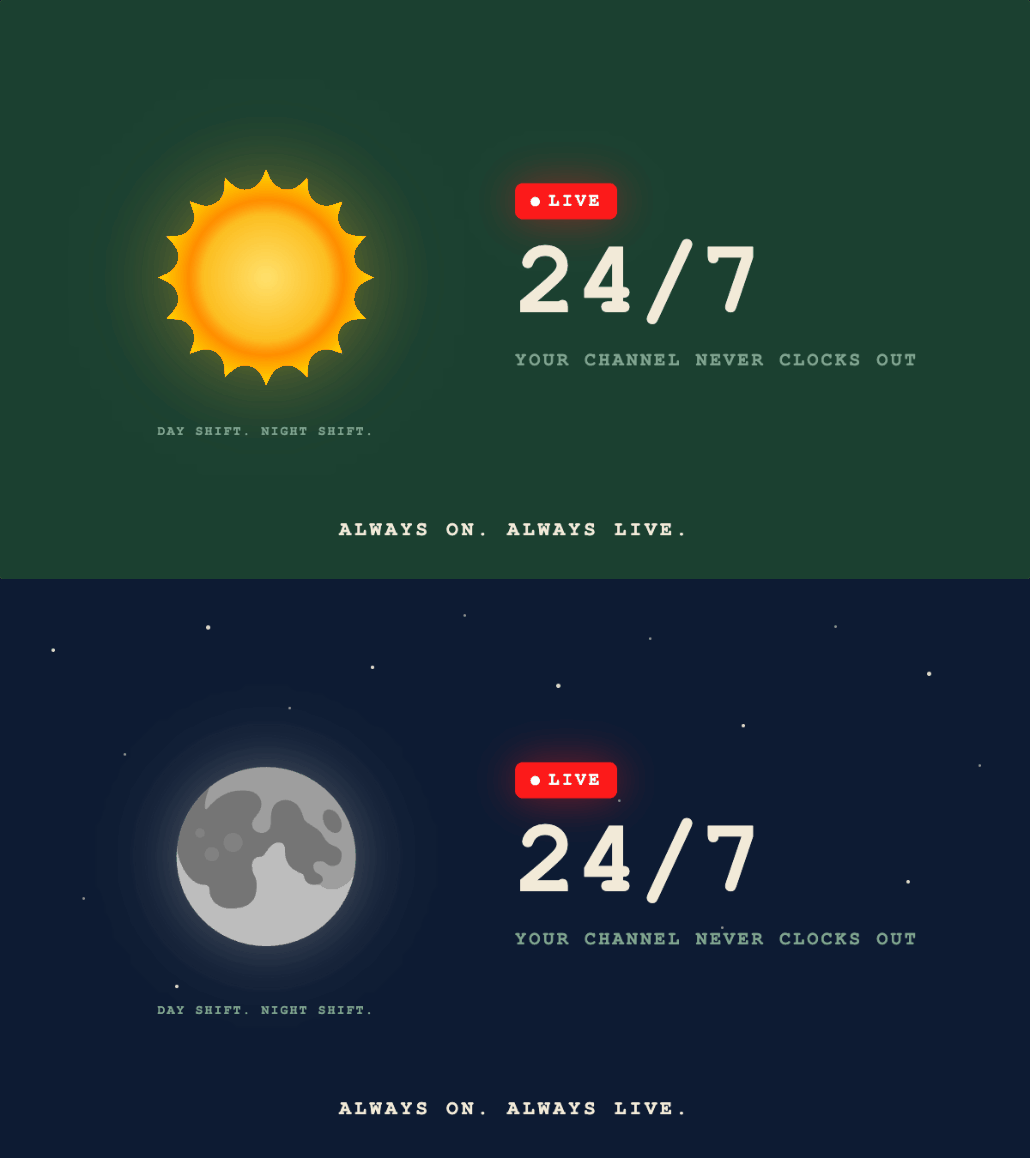
24/7 channels: Run a looping channel that never goes offline. See our 24/7 streaming guide for full setup.
Schedule pre-recorded videos as live streams
Upload your video, set a time, Livepush broadcasts it live.