If you have ever tried to go live from OBS, vMix, or a hardware encoder, you have run into a box asking for a "stream key." It looks like a random string of letters and numbers, the platform warns you to keep it secret, and it is the one thing standing between you and a working broadcast. This guide explains what a stream key actually is, how it pairs with a server URL, how to keep it safe, and exactly where to find it on every major platform.
What Is a Stream Key?
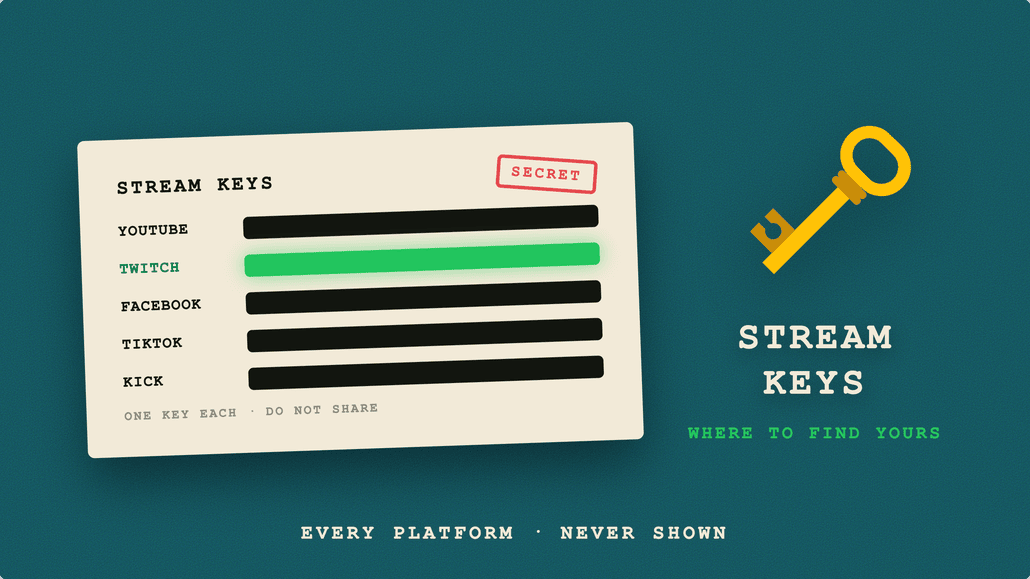
A stream key is a secret credential that identifies and authenticates your channel to a streaming server. Think of it as a password combined with an address label. When your encoder sends video to a platform, the platform needs to answer two questions: who is this, and which channel does this belong to? The stream key answers both.
Without a stream key, a streaming server has no way to know that the incoming video is yours. Anyone could point an encoder at YouTube or Twitch, and the platform would have no way to route the feed to the right account. The key ties the raw video coming out of your encoder to a specific channel, so the platform accepts it, associates it with your profile, and publishes it to your viewers.
The key itself is not the video and it is not your login. You never type it into a website login form. It lives inside your encoder's stream settings, and it is sent quietly in the background every time you press "Start Streaming."
Server URL and Stream Key: How They Work Together
A stream key never works alone. It always pairs with a server URL, sometimes called the ingest URL, RTMP URL, or RTMP server. These are two distinct fields, and both go into your encoder.
- Server URL: the address of the platform's ingest server, for example
rtmp://a.rtmp.youtube.com/live2. This tells your encoder where to send the data. - Stream key: the secret string that identifies your channel, for example
abcd-1234-efgh-5678-ijkl. This tells the server who you are.
Most encoders join these into a single address behind the scenes. The full RTMP endpoint is the server URL with the stream key appended to the end:
rtmp://a.rtmp.youtube.com/live2/abcd-1234-efgh-5678-ijklIf you want a deeper look at the protocol carrying all of this, our explainer on what RTMP is and how it works walks through the handshake, and our comparison of RTMP, SRT, and HLS covers when you might use each one. For the purposes of this article, the important point is simple: the server URL is public, and the stream key is private.
Why Your Stream Key Must Stay Secret
Because the stream key is what authenticates your encoder, anyone who has it can broadcast to your channel. They do not need your email, your password, or two-factor authentication. They just paste your key into their own encoder and go live under your name, on your channel, in front of your audience.
This is the single most common self-inflicted streaming accident. It usually happens one of two ways: someone shares a screenshot of their OBS settings to ask for help, or someone screen shares their encoder while the key is visible on screen. In both cases the key is now public, and it can be abused within minutes.
How to reset a stream key
Every platform lets you reset or regenerate the key. Resetting immediately invalidates the old value, so any leaked copy stops working. You will find a "Reset" or "Revoke" button next to the key in the same settings panel where you copied it. After a reset you must paste the new key back into your encoder, or your next broadcast will fail to authenticate.
Persistent vs Single-Use Stream Keys
Not all stream keys behave the same way, and knowing which type you have saves confusion later.
- Persistent keys stay the same across every broadcast until you manually reset them. Twitch, Kick, and YouTube's default stream key work this way. You paste the key into your encoder once and reuse it every stream, which is convenient but means the key is long-lived and worth protecting.
- Single-use or session keys are generated fresh for each stream and expire when that stream ends. TikTok issues session keys, and so does Facebook Live unless you turn on its persistent stream key option. These are safer by default, but you often have to fetch a new key before each broadcast.
YouTube is worth a special mention because it gives you a default stream key that stays the same across broadcasts, and also lets you create additional named stream keys under Select stream key, Create new stream key, each with its own latency and resolution settings. Reset either kind from the Stream tab if it leaks.
Where to Find Your Stream Key on Every Platform
Every platform hides the stream key in a slightly different place, but the pattern is always the same: find the live or stream settings, then look for the server URL and stream key fields. Here is a quick reference, followed by step-by-step instructions.
| Platform | Where to find the stream key | Key type |
|---|---|---|
| YouTube | YouTube Studio → Go Live → Stream tab → Stream settings | Persistent (default key), extra named keys optional |
| Twitch | Creator Dashboard → Settings → Stream → Primary Stream key | Persistent |
| Live Producer → Streaming software → Stream key | Session (per broadcast), persistent key optional | |
| TikTok | TikTok LIVE Studio or LIVE access → third-party streaming | Session (per broadcast) |
| Kick | Creator Dashboard → Channel → Stream URL and Key | Persistent |
How to find your YouTube stream key
- Go to studio.youtube.com and sign in.
- Click Create in the top right, then Go Live. Your channel needs to be verified, with no live streaming restrictions in the past 90 days; first-time activation has historically taken up to 24 hours.
- In the Live Control Room, select the Stream tab.
- In the Stream settings panel at the bottom, you will see the Stream key field and the Stream URL (
rtmp://a.rtmp.youtube.com/live2). - Click Copy next to the stream key. Use Reset here if you ever need a new one.
How to find your Twitch stream key
- Open your Twitch Creator Dashboard.
- In the left menu, go to Settings, then Stream.
- At the top you will see Primary Stream key. Click Copy to grab it.
- The Twitch ingest server URL is chosen separately in your encoder, usually Auto. The long-standing alias
rtmp://live.twitch.tv/app/still works; Twitch's current published default isrtmp://ingest.global-contribute.live-video.net/app/, with regional servers listed on Twitch's ingest page. - Use the Reset button on this screen if the key leaks.
How to find your Facebook stream key
- Open Facebook's Live Producer at facebook.com/live/producer on desktop.
- Choose Go live, then select Streaming software as your setup.
- Under Stream key, copy the key and the server URL (
rtmps://live-api-s.facebook.com:443/rtmp/). - Facebook keys are tied to the broadcast session by default. Enable Use a persistent stream key if you want to reuse it for recurring streams.
How to find your TikTok stream key
- TikTok live streaming from third-party software requires LIVE access, which in most regions means 1,000 followers, being 18 or older, and an account in good standing; TikTok grants the server URL and key only to eligible accounts.
- Open TikTok LIVE Studio on desktop, or use the LIVE access flow that grants a server URL and key for external encoders.
- Copy the Server URL and Stream key shown for your broadcast.
- TikTok keys are single-use per session, so fetch a fresh one each time. Our dedicated guide on finding and using your TikTok stream key covers the eligibility rules and workarounds in detail.
How to find your Kick stream key
- Log in to Kick and open your Creator Dashboard.
- In the dashboard menu choose Channel, then Stream URL and Key.
- Copy both the Stream URL and the Stream Key.
- Kick keys are persistent, so you can reuse them until you reset them from this same panel.
Plugging Your Stream Key Into OBS
Once you have the server URL and stream key, entering them into OBS takes under a minute:
- Open OBS and go to Settings → Stream.
- For built-in platforms, set Service to the platform name (for example YouTube or Twitch), then either log in or click Use Stream Key and paste it.
- For any other destination, set Service to Custom. Paste the server URL into the Server field and the stream key into the Stream Key field.
- Click OK, then Start Streaming.
That is the whole process. If your stream fails to connect, the two most common causes are a mistyped or extra-spaced key, and a mismatch between the server URL and the platform. If your encoder settings also need tuning for a clean broadcast, our guide to the best OBS settings for 1080p streaming covers bitrate, keyframes, and encoder choice.
How Multistreaming Tools Use Your Stream Keys
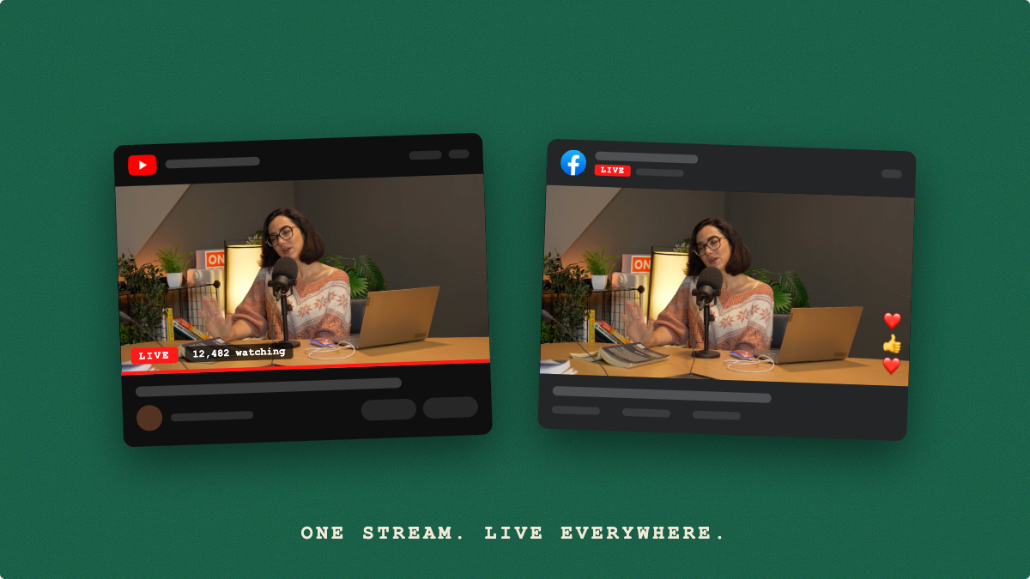
Here is the catch with the setup above: OBS only sends your stream to one server at a time. If you want to be live on YouTube, Twitch, Facebook, TikTok, and Kick simultaneously, you cannot do it from OBS alone, because each platform needs its own key sent to its own server.
This is exactly the problem multistreaming solves. Instead of pasting a single platform's key into OBS, you point OBS at a multistreaming service once, then enter each platform's stream key into that service. The service receives your single encoder feed and forwards a copy to every destination using that platform's own key.
In practice it works like this:
- You copy each platform's server URL and stream key using the steps above.
- You add each platform as a destination, entering its key once. With Livepush you can connect your social media accounts so many destinations authorize automatically, no manual key needed.
- OBS sends one stream to Livepush, and Livepush distributes it to every platform at once using the keys you saved.
You send your video a single time, at your full bitrate, and reach every audience simultaneously. You only ever manage your keys in one place, and when a session key expires or a persistent key needs resetting, you update it once rather than juggling five encoder profiles.
Key Takeaways
A stream key is the secret credential that pairs with a server URL to authenticate your encoder to a specific channel. Keep it private, never show it on screen, and reset it the moment it leaks. Some platforms give you a persistent key you reuse forever, while others hand out a fresh session key for each broadcast. Wherever it lives, the pattern is the same: find the live or stream settings, copy the server URL and the key, and paste them into your encoder. And when you want to be everywhere at once, a multistreaming tool lets you enter each key a single time and go live across every platform together.
RTMP & SRT ingest, included free
Livepush accepts RTMP and SRT from OBS, vMix, Wirecast, and any encoder.