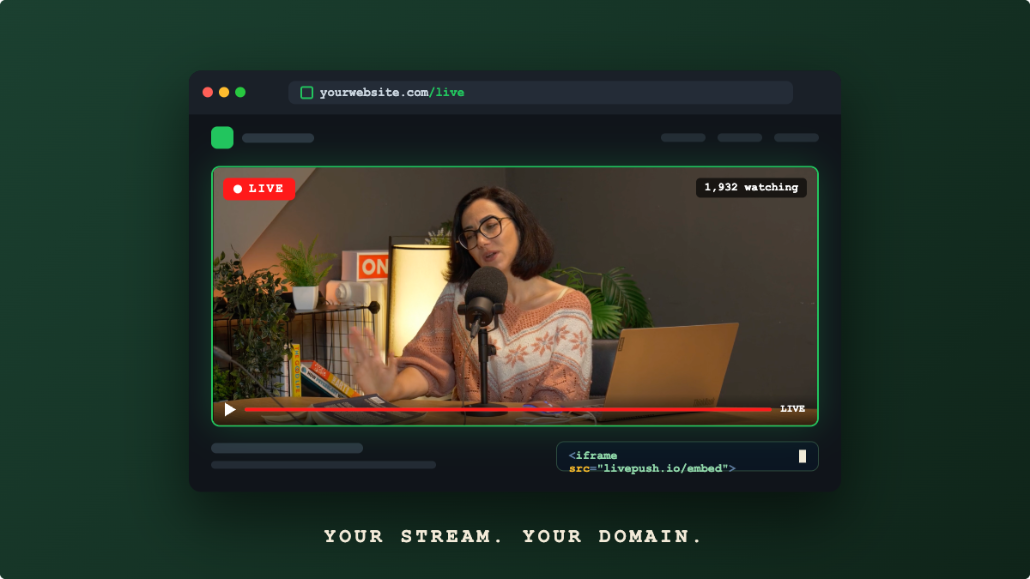
Embedding a live stream on your website lets viewers watch without leaving your page, keeping engagement on your domain instead of sending everyone to YouTube or Facebook.
There are three main methods: iframe embed, HLS URL with a player library, and direct JavaScript integration. Here's how each works and when to use it.
Method 1: Livepush Embeddable Player (Easiest)
If you're using Livepush, you get an embeddable player URL for every stream.
Step 1: Get Your Player URL
- Log in to Livepush
- Open your stream and find its player settings
- Copy the Embed Code (an
<iframe>tag) or the Player URL shown there
The embed code follows this shape (the real URL is the one shown in your dashboard; do not type it from memory):
<iframe
  src="https://YOUR-PLAYER-URL/embed"
  width="100%"
  height="540"
  style="border:0"
  allowfullscreen
  allow="autoplay; encrypted-media">
</iframe>
Step 2: Paste into Your Website
Paste the iframe code into any HTML page where you want the player to appear. It works in:
- Raw HTML pages
- WordPress (using HTML block or Text widget)
- Webflow (Embed element)
- Squarespace (Code block)
- Shopify (Custom HTML section)
The player is responsive and fills the container width automatically.
Customizing the Player
In Livepush Player settings, you can configure:
- Logo: upload your logo to appear in the player corner
- Primary color: match your brand
- Autoplay: auto-start when the page loads
- Background poster: image shown when stream is offline
- Access control: password-protect or restrict by domain
Method 2: HLS URL with hls.js
For maximum control, use the raw HLS URL with hls.js, a lightweight JavaScript library that plays HLS in any browser.
Step 1: Get the HLS URL
Copy the HLS URL shown on your Livepush stream page. It is a .m3u8 playlist link; in the examples below it appears as the placeholder https://YOUR-HLS-URL/index.m3u8.
Step 2: Add hls.js to Your Page
<script src="https://cdn.jsdelivr.net/npm/hls.js@1"></script>Pin a major version rather than @latest so a future release cannot break your page.
Step 3: Create the Video Element and Player
<video id="live-player" controls width="100%" poster="/your-offline-poster.jpg"></video>

<script>
  const video = document.getElementById('live-player');
  const hlsUrl = 'https://YOUR-HLS-URL/index.m3u8'; // paste the HLS URL from your Livepush stream page

  if (Hls.isSupported()) {
    const hls = new Hls();
    hls.loadSource(hlsUrl);
    hls.attachMedia(video);
    hls.on(Hls.Events.MANIFEST_PARSED, () => {
      video.play();
    });
  } else if (video.canPlayType('application/vnd.apple.mpegurl')) {
    // Native HLS (Safari, iOS)
    video.src = hlsUrl;
    video.addEventListener('loadedmetadata', () => video.play());
  }
</script>
This gives you full control over the player UI, controls, and behavior.
Method 3: YouTube/Facebook Live Iframe
If you're streaming to YouTube or Facebook, you can embed their player directly.
YouTube Live Embed
Get the video ID from your YouTube live stream URL (youtube.com/watch?v=VIDEO_ID), then:
<iframe
  width="100%"
  height="480"
  src="https://www.youtube.com/embed/VIDEO_ID?autoplay=1&mute=1"
  style="border:0"
  allow="accelerometer; autoplay; encrypted-media"
  allowfullscreen>
</iframe>
Browsers block autoplay with sound, so pair autoplay=1 with mute=1. If you stream regularly, embed https://www.youtube.com/embed/live_stream?channel=YOUR_CHANNEL_ID instead of a fixed video ID so the player always shows your current live stream.
Limitation: Shows YouTube branding, recommendations, and related videos. No control over player UI.
Facebook Live Embed
Use the Facebook Video plugin:
<div class="fb-video"
  data-href="https://www.facebook.com/YOUR_PAGE/videos/VIDEO_ID/"
  data-width="100%"
  data-allowfullscreen="true">
</div>
<div id="fb-root"></div>
<script async defer src="https://connect.facebook.net/en_US/sdk.js#xfbml=1&version=v24.0"></script>
The Facebook video post must be public for the plugin to render it, and Facebook removes live video replays 30 days after the broadcast, so this embed is for the live window only.
Limitation: Requires Facebook SDK, loads extra Facebook scripts, and shows Facebook UI.
Showing an Offline State
When your stream is offline, the player should show something instead of a broken video element.
With the Livepush embed, this is automatic: you can set a custom poster image and offline message in Player settings.
With hls.js, handle the offline state in JavaScript:
hls.on(Hls.Events.ERROR, (event, data) => {
  if (data.fatal) {
    // Show offline message
    document.getElementById('live-player').style.display = 'none';
    document.getElementById('offline-message').style.display = 'block';
  }
});
Mobile Considerations
- Use
width="100%"on the video/iframe so it scales on mobile - Add
playsinlineattribute to prevent iOS from auto-fullscreening:<video playsinline> - Test on both iOS Safari (native HLS) and Android Chrome (hls.js)
- Autoplay with sound is blocked on mobile, but muted autoplay is allowed
Embedding on WordPress
The simplest WordPress embed uses the HTML block:
- Edit your page/post
- Add a Custom HTML block
- Paste the Livepush iframe code
- Save and preview
For a cleaner implementation, add the player to your theme's page.php or use a shortcode plugin.
Embed live video on your website
Every Livepush stream includes a white-label HLS player.