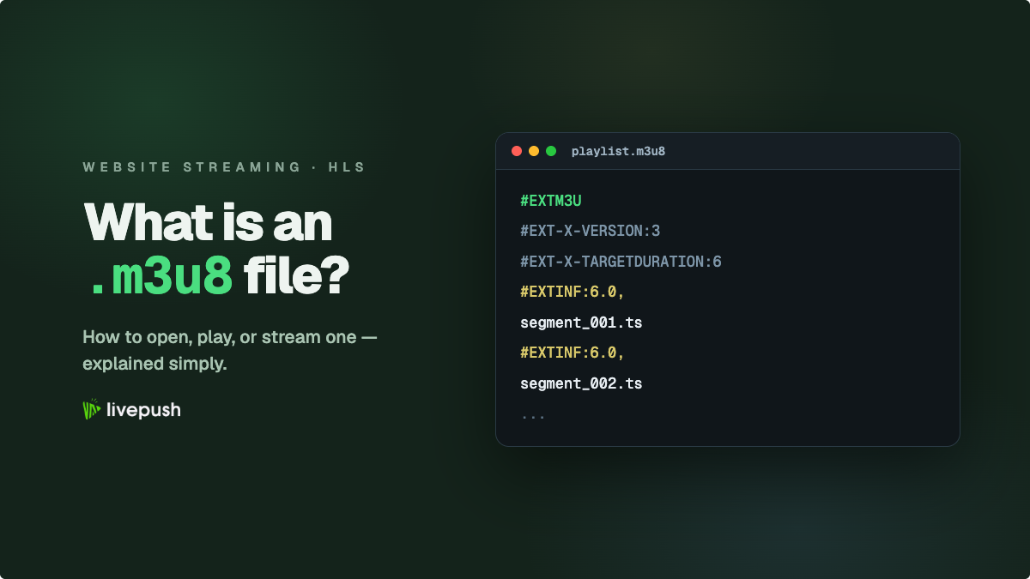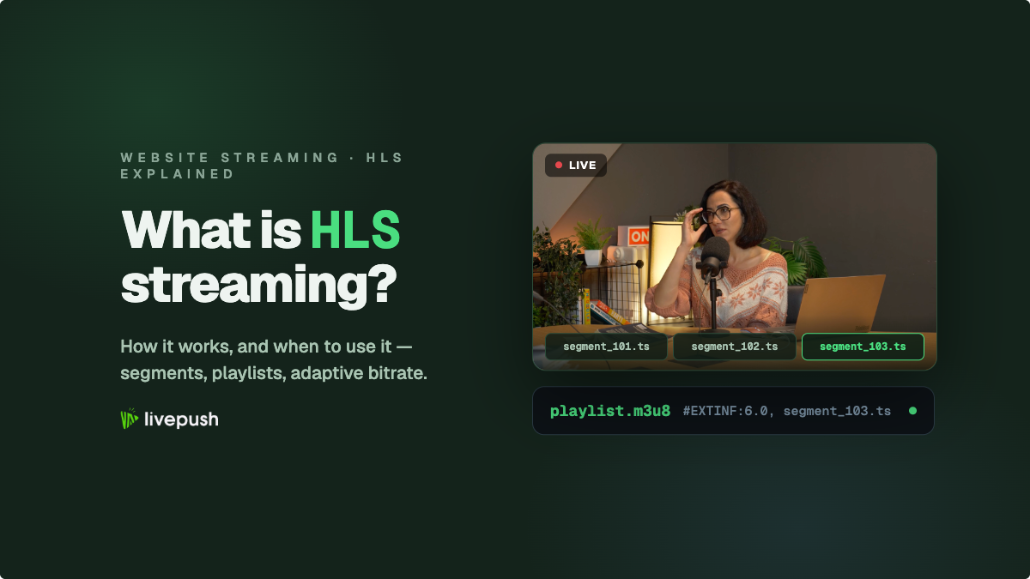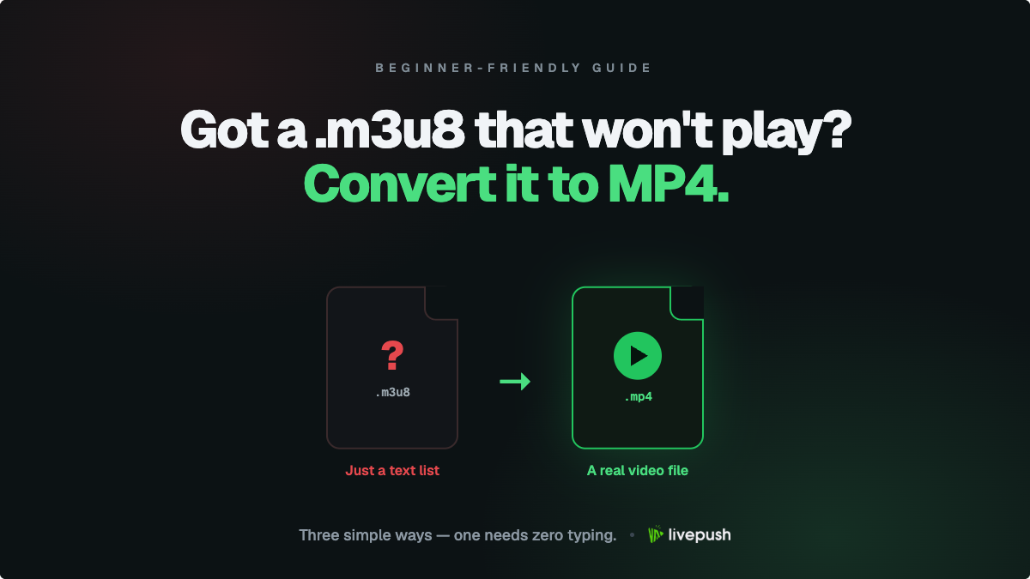
An M3U8 file looks like a video but isn't one. It is a plain-text playlist, the index that an HLS player reads to find the actual video, which arrives as dozens or thousands of small segment files. That is why double-clicking one does nothing useful, why "save as" in the browser gives you a few hundred bytes, and why so many people end up searching for how to convert M3U8 to MP4 so they have a normal file they can keep, edit, or upload.
The good news is that converting M3U8 to MP4 is a solved problem with three reliable tools, one of which takes a single command. This guide covers all three, the handful of errors that stop most people, and the one step most tutorials skip: what to do with the MP4 once you have it. If you want the background first, our M3U8 explainer covers what the file actually contains and how to play one without converting; this article is for when you need the file.
Before You Start: Three Things to Check
You need the real playlist URL. Not the web page the video sits on, the .m3u8 address itself. Open the page, press F12 for developer tools, go to the Network tab, filter by "m3u8", and play the video. The playlist request appears; right-click it and copy the URL. If you see two, one ending in something like master.m3u8 and others with names like 1080p.m3u8, the master lists the quality variants and the others are the actual streams.
Check whether the URL expires. Many playlist URLs carry a signature or token and stop working after a few minutes. Copy it immediately before converting, and if a tool fails with a 403 error, go back and copy a fresh one.
Confirm you have the right to download. Your own streams, content you licensed, recordings a platform offers for download: fine. Someone else's broadcast: usually a terms-of-service violation and often a copyright one, and anything behind DRM cannot be converted by these tools anyway. Everything below assumes the content is yours to keep.
Method 1: M3U8 to MP4 With ffmpeg (Fastest)
ffmpeg is the free command-line tool that nearly every video product is built on, and it handles HLS natively. Install it from ffmpeg.org (Windows users: download the build, unzip, and add the bin folder to PATH; Mac users: brew install ffmpeg; Linux: your package manager). Then open a terminal and run:
ffmpeg -i "https://example.com/path/playlist.m3u8" -c copy output.mp4That is the whole conversion. ffmpeg reads the playlist, downloads every segment in order, and writes them into one MP4. The -c copy flag is the important part: it tells ffmpeg to copy the audio and video streams as they are instead of re-encoding, so the job runs at download speed and the output is pixel-identical to the source.
A few variants you will need sooner or later:
| Situation | Command addition | Why |
|---|---|---|
| Playlist needs a Referer or cookie | -headers "Referer: https://example.com/" before -i | Some servers refuse requests that do not look like they came from the player page |
| Audio comes out silent or missing | Check the source has an audio track with ffprobe "URL.m3u8"; try the variant URL instead of the master | Modern ffmpeg repackages AAC automatically; missing audio usually means the selected variant has no audio or the audio is a separate rendition |
| Source is live and never ends | -t 01:00:00 before the output name | Records one hour then stops; otherwise ffmpeg runs until you press q |
| Master playlist, want a specific quality | Use the variant URL (1080p.m3u8) instead of master.m3u8, or pick the stream with -map | ffmpeg picks the highest-resolution variant by default, which is usually what you want |
| Player refuses the MP4 (HEVC or odd codec) | Replace -c copy with -c:v libx264 -c:a aac | Re-encodes to the most compatible combination; much slower |
If the output plays but seeking jumps around, add -movflags +faststart before the output name; it moves the index to the front of the file so browsers and players can scrub it.
Method 2: M3U8 to MP4 With VLC (No Command Line)
VLC can play an M3U8 URL directly (Media, Open Network Stream on Windows and Linux; File, Open Network on macOS), and it can save what it plays. For a file instead of a window:
- Media, Convert / Save (Ctrl+R); on macOS use File, Convert / Stream.
- On the Network tab, paste the .m3u8 URL and click Convert / Save.
- Set Profile to "Video - H.264 + MP3 (MP4)" or edit the profile and choose MP4 with the video and audio set to "Keep original" if your VLC build offers it.
- Pick a destination file ending in .mp4 and click Start.
VLC shows the progress bar advancing as it downloads; wait for it to finish rather than closing early. The honest caveat: VLC re-encodes by default unless you set both codecs to keep original, so it is slower than ffmpeg and can lose a little quality. It also handles authenticated or header-protected playlists poorly. For a one-off file with no complications, it is fine; for anything that fails, go back to Method 1.
Method 3: Browser Extensions and Online Tools
Browser extensions (search your browser's store for "HLS downloader" or "stream recorder") sit in the page, detect the playlist as the video plays, and offer a download button that stitches the segments into an MP4. They are the easiest route for a single video on a page you are already looking at, because they inherit the page's cookies and headers, which is exactly what trips up ffmpeg on some sites.
Two cautions. Extensions ask for permission to read every page you visit, so install one with a long track record and remove it when you are done. And online "paste a URL, get an MP4" sites have a short lifespan, cap file sizes, and sometimes wrap downloads in ads; they work for small public clips and little else.
When the M3U8 Download Fails
| Symptom | Cause | Fix |
|---|---|---|
| 403 Forbidden or 401 | Expired signed URL, or missing Referer/cookie | Copy the URL again right before running; add -headers |
| 0 KB or tiny output | Tool fetched the playlist text but could not fetch segments | Same as above; check the segment URLs resolve in a browser |
| Output is only a few seconds | You downloaded a live playlist's current window | Use -t for a duration, or wait until the stream ends and the full VOD playlist is published |
| Video plays, no audio | The variant you downloaded carries no audio, or audio is a separate rendition | Download from the master playlist so ffmpeg can pick up the audio rendition, or check the stream with ffprobe |
| Garbled picture, "decryption" errors | Segments are DRM-encrypted (Widevine, FairPlay) | Not convertible; only the authorized player can decode it |
| Plain AES-128 key URL in the playlist | Not DRM, just encryption; ffmpeg fetches the key automatically | Nothing to do unless the key URL needs headers too |
| Very slow | Re-encoding instead of copying, or a throttled server | Use -c copy; nothing fixes server throttling |
A quick test before any of this: paste the playlist URL into our free M3U8 player. If it plays there, the URL is live and public and ffmpeg will download it. If it does not, the problem is the URL, not your command.
What the Numbers Look Like
A one-hour 1080p stream at 5,000 kbps is roughly 2.2 GB of segments, and -c copy writes it to MP4 in about the time it takes to download, two to five minutes on a decent connection. Re-encoding the same hour with libx264 takes 20 to 60 minutes depending on your CPU. That difference is why Method 1 with stream copy is the default recommendation, and why you only re-encode when a player actually rejects the copied file.
From MP4 Back to Live
The reason a lot of people convert in the first place is to reuse a stream: a recorded church service for the overflow audience, a webinar that needs to run again next week, a past broadcast for a new platform. Once you have the MP4, you have options that do not require re-running the show.
Upload it and stream it as live. Our guide to streaming pre-recorded video as live covers the mechanics; with Livepush pre-recorded live, you upload the file, set a start time, and it broadcasts to YouTube, Facebook, Twitch, or an embedded player at that time, with the chat and notifications of a live event and no encoder running on your side. Host it as VOD with its own HLS URL and embed player, which turns the MP4 back into an M3U8, the right way this time, with adaptive quality and a CDN behind it. Or check how it looks in our MP4 player and simply keep it.
Keep It Simple
For your own content, the whole process is: get the playlist URL from the Network tab, run one ffmpeg command with -c copy, add a header if it complains. VLC is the fallback when you would rather click than type, and an extension is the fallback when a site insists on cookies. Everything else in this guide is for the five percent of cases where something is signed, live, or encrypted. And if a stream refuses every method, that is usually the owner telling you it is not yours to download.
Embed live video on your website
Every Livepush stream includes a white-label HLS player.