You went live on Facebook, the stream looked great, and now you want the same broadcast on YouTube. So you go looking for the "connect to YouTube" button inside Facebook, and it is not there. It never has been.
Here is the honest answer up front: there is no native way to connect Facebook Live to YouTube. Facebook will not forward your live stream to another platform, and YouTube will not pull one in. But there are three real, legitimate ways to get your Facebook Live content onto YouTube, and the right one depends on where your stream comes from and whether it has already happened. This guide covers all three.
Why There Is No One-Click Connection
It helps to understand what Facebook's own tools actually do, because the naming is misleading:
- Facebook cross-posting shares a live video to other Facebook Pages you manage or partner with. It never leaves Facebook.
- Facebook Live Producer (the screen with the stream key and preview) is an ingest tool. It accepts video coming in from an encoder. It has no outbound push to anywhere.
- YouTube has no "import a live stream" feature. It only accepts a live feed through its own ingest servers, using its own stream key.
The two platforms are competitors, and neither has an incentive to hand your audience to the other. So the connection has to happen upstream, before your video reaches either platform. That is the key mental model for everything below: you do not connect Facebook to YouTube, you connect your video source to both.
One tempting shortcut deserves a warning. Every Facebook Live has a public HLS playback URL under the hood, and some tools will scrape that feed and re-push it to YouTube. Do not build your workflow on this. It violates Facebook's terms of service, it breaks whenever Facebook changes its player, and it adds a full extra hop of latency and quality loss. The clean solutions all work upstream of Facebook, not downstream of it.
The Three Real Approaches
| Your situation | Best method |
|---|---|
| You control the encoder (OBS, hardware, StreamYard, Zoom) | Multistream to both from the start |
| The stream is produced inside Facebook (Live Producer, paired encoder or phone app) | Reroute the encoder to a multistreamer instead of Facebook's key |
| The stream already happened | Download the recording and upload or premiere it on YouTube |
| Someone else runs the stream and you only manage the Page | Ask for the source feed, or fall back to the replay upload |
Let's walk through each.
Method 1: Go Live to Both From the Start (the Clean Fix)
If you control the encoder, this is the answer. Instead of sending your stream to Facebook and then wondering how to get it onto YouTube, you send it to a cloud multistreaming service that delivers it to both platforms simultaneously:
Your encoder → RTMP to Livepush → Facebook Live
                                → YouTube Live
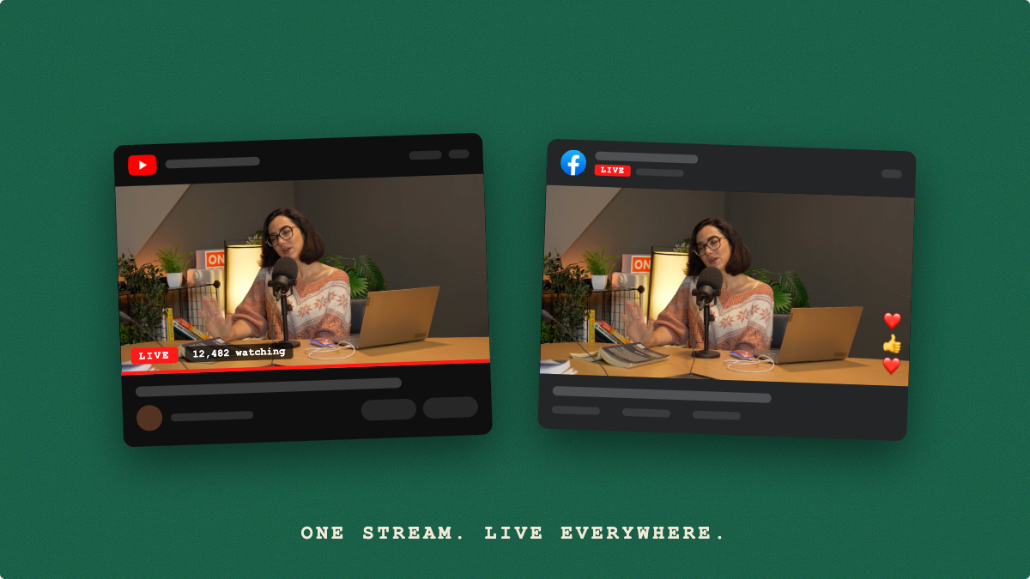
One stream out of your encoder, both platforms live at once, and your upload bandwidth stays exactly the same as streaming to Facebook alone. This is what Livepush multistreaming does: you push a single RTMP stream and it fans out to every destination you have connected.
Setup walkthrough
- Create a Livepush account and a new stream. Log in at app.livepush.io, click New Stream, and name it. Livepush gives you an RTMP URL and a stream key. If stream keys are new to you, our explainer on what a stream key is and how to use it safely covers the basics.
- Connect YouTube. Click Add Destination → YouTube and authorize with your Google account. Livepush's social media account connections handle the authentication, so you never paste YouTube's stream key manually. Note that if your channel has never gone live before, verify it and enable live streaming in YouTube Studio a day ahead; first-time activation has historically taken up to 24 hours.
- Connect Facebook. Click Add Destination → Facebook and authorize. Choose your Facebook Page rather than a personal profile. Note Facebook's requirements since June 2024: the account must be at least 60 days old and the Page needs at least 100 followers before it can go live.
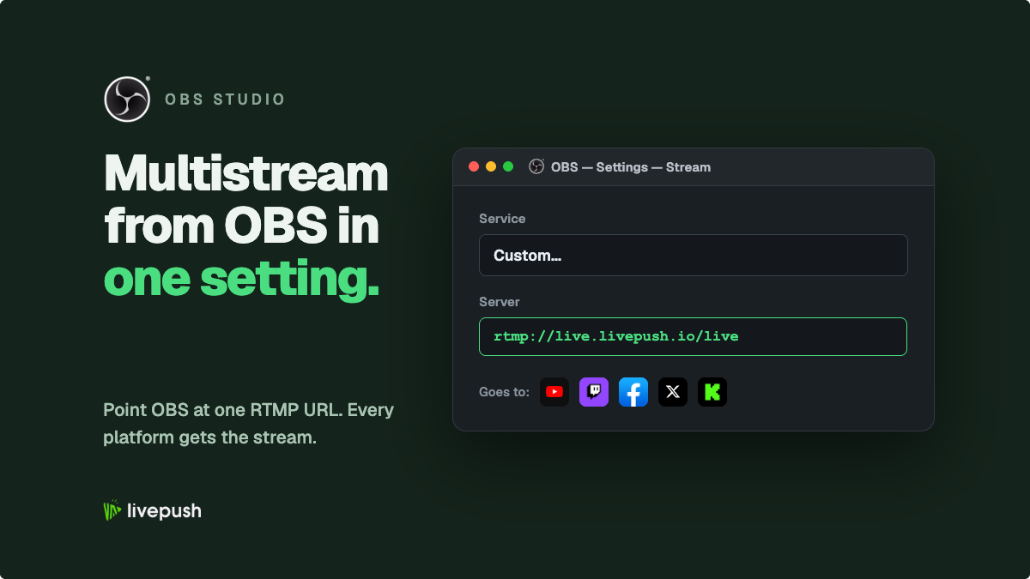
- Point your encoder at Livepush. In OBS that is Settings → Stream → Service: Custom, then paste the Livepush RTMP URL and stream key. Hardware encoders, StreamYard, and Zoom all accept a custom RTMP destination the same way.
- Mind Facebook's bitrate ceiling. Facebook ingests up to 6,000 Kbps for 1080p30 and 9,000 Kbps for 1080p60. Either keep your encoder inside that range, or send a higher-quality stream and let Livepush transcode a lower rendition for Facebook while YouTube receives the full quality.
- Go live. Start streaming from your encoder, confirm both destinations show healthy in the Livepush dashboard, and you are live on Facebook and YouTube at the same time.
For the full platform-by-platform version of this setup, including recommended OBS settings, see our guide to streaming to YouTube and Facebook at the same time. And if you want the deeper comparison of doing the fan-out locally with a plugin versus in the cloud, read how to multistream from OBS.
Before your real broadcast, run a 5-minute test with the YouTube destination set to unlisted. You can verify titles, quality, and latency on both platforms without your subscribers seeing a "gone live" notification for a soundcheck.
Method 2: The Stream Is Produced Inside Facebook's Tools
This is the case the search results rarely address honestly. Plenty of streams are built around Facebook itself: a church or venue with an encoder paired to Facebook Live Producer, a persistent Facebook stream key baked into a hardware box, or a producer who goes live from the Facebook app.
The important realization is that even these streams have an encoder somewhere, and that encoder is just pointed at Facebook's ingest. Facebook is not creating the video, it is receiving it. So the fix is the same upstream move:
- Find the device or software currently holding Facebook's server URL and stream key (Live Producer shows these under Streaming software).
- Replace Facebook's RTMP URL and key with your Livepush RTMP URL and key.
- In Livepush, connect the same Facebook Page as a destination, plus your YouTube channel.
Nothing changes for your Facebook audience. The stream still lands on the same Page, with Livepush passing it through. The only difference is that YouTube now receives it too. If your setup uses Facebook's persistent stream key so the encoder never needs reconfiguring, you get the same convenience here: your Livepush stream key is yours to reuse for every broadcast.
The one true dead end is going live directly from the Facebook mobile app's camera. That video is captured and uploaded inside Facebook's own app, so there is no key to reroute. Switch to a mobile encoder app that supports custom RTMP (Larix Broadcaster, Streamlabs mobile, or similar), point it at Livepush, and you regain the ability to reach both platforms from a phone.
Method 3: After the Fact (the Honest Fallback)
If the broadcast already happened, no service can retroactively make it live on YouTube. What you can do is get the recording over:
- Download the video from Facebook promptly. Facebook deletes live replays 30 days after the broadcast (a policy in force since February 2025) unless you download them or convert them to Reels. For a Page, open Meta Business Suite or the Page's video library, find the finished live video, and use the download option before the 30 days are up.
- Upload it to YouTube. Either publish it as a standard upload, or schedule it as a YouTube Premiere, which plays the video at a set time with live chat alongside it. A Premiere recreates much of the live-event feel for the audience that missed it.
- Optionally, re-stream it as live. If you want the replay to appear as an actual live broadcast on YouTube rather than a premiere, you can loop the recording out as a live stream. Our guide on streaming pre-recorded video as live walks through exactly that workflow.
This route always works, requires no changes to how the original stream was produced, and is the only option when someone else controls the source. Its obvious limit is that YouTube viewers are not part of the live moment.
Facebook's download of a live replay is often lower quality than the original ingest. If you control the encoder, record locally (OBS's Start Recording, or your hardware encoder's SD card) and upload that file to YouTube instead of Facebook's processed copy.
Rights and Permissions: Check Before You Rebroadcast
Getting one broadcast onto two platforms doubles your reach and doubles your exposure to content claims:
- Music is the big one. YouTube's Content ID scans both live streams and uploads. Background tracks that survive quietly on Facebook can get a YouTube stream muted, claimed, or taken down. Use music you have licensed for both platforms, or none.
- Own the content, or have written permission. Only rebroadcast streams you produce or have explicit rights to distribute. Restreaming someone else's Facebook Live to your YouTube channel is a copyright problem even if the tooling makes it easy.
- Platform-specific rules still apply per platform. A simulcast must satisfy both sets of community guidelines at once. Facebook and YouTube also each expect you to hold the rights to what you push through their ingest, which multistreaming from your own encoder satisfies and feed-scraping does not.
The Short Version
You cannot literally connect Facebook Live to YouTube, because neither platform offers that pipe. What you can do is connect your source to both. If you control the encoder, send one stream to a multistreamer and go live everywhere at once. If the stream is built around Facebook's Live Producer, reroute its stream key through the multistreamer and nothing else about your Facebook workflow changes. And if the stream already happened, download the replay and premiere it on YouTube. The first two take about ten minutes to set up with Livepush multistreaming, and once your accounts are connected, every future broadcast lands on both platforms without you thinking about it again.
Stream to multiple platforms without extra bandwidth
Send one stream to Livepush and we fan it out to 40+ destinations.