Here is the situation everyone hits. Instagram Live is a phone feature. The desktop website lets you watch live streams, comment on them, and browse the archive, but there is no "Go live" button that uses your computer's camera. So creators who want a real microphone, a proper camera, on-screen graphics, or their game footage end up searching for a way to run Instagram Live from PC.
The workaround is official, and it has a name: Instagram Live Producer. It turns Instagram into an RTMP destination, which means any streaming program on your PC or Mac can broadcast to it. This guide covers what Live Producer is, who gets it, the exact steps to go live from OBS Studio, the settings Instagram publishes, the features you lose compared with the phone, and how to be live on Instagram and your widescreen platforms at the same time without running two computers.
What Instagram Live Producer Is (and Isn't)
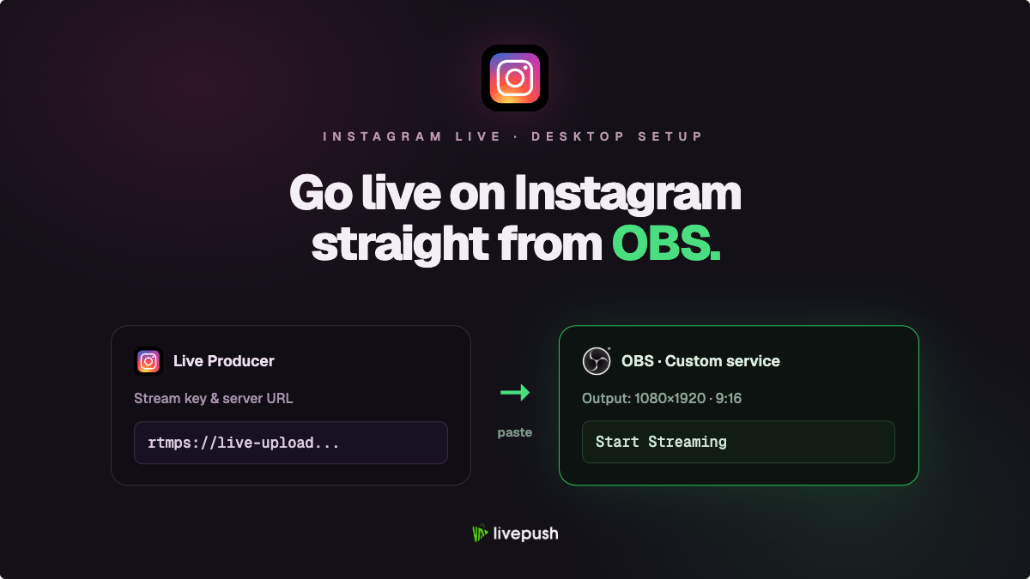
Live Producer is a mode of Instagram's web app that, instead of capturing your webcam, hands you two strings: a server URL and a stream key. You paste them into streaming software, the software captures and encodes your video, and Instagram receives the stream and puts it live on your profile like any other Instagram Live. Instagram announced it in November 2022 as an integration for "expanded production features," which is a fair description: multiple cameras, overlays, screen sharing, proper audio processing, and anything else your software can do.
What it isn't: a desktop app, or a way to go live from a browser alone. The website provides the destination; your software provides the picture. If you have used a stream key on YouTube or Twitch, this is the same idea, and our stream key explainer covers the mechanics.
Who Can Use It
Two requirements, one of which you control.
A professional account. Instagram's own announcement does not spell out an account type, but every streaming vendor that integrates with Live Producer requires a Creator or Business account, and personal accounts do not see the option. Switching is free and reversible: on the phone, Settings, Account type and tools, Switch to professional account. Nothing about your posts or followers changes.
Access. Instagram still describes Live Producer as limited access, and it has never published an eligibility rule. Some vendors quote a public account with 1,000 or more followers, which happens to match TikTok's mobile LIVE gate, but Instagram has not published that figure. Some smaller professional accounts have it; some larger ones do not. The only test that counts is to look: log in at instagram.com, click the plus (Create) icon, choose Live video, and look for the option to stream with broadcast software or via RTMP; that is Live Producer. If it is there, you are in. If the only choice is your webcam, your account does not have it yet; check back periodically, since the rollout has widened over time.
How to Go Live on Instagram From PC With OBS, Step by Step
You need OBS Studio (free, from obsproject.com), a professional Instagram account with Live Producer access, and about fifteen minutes the first time. If OBS itself is new to you, our OBS beginner's guide covers installation and the interface.
1. Set up a vertical canvas in OBS
Instagram Live is portrait. A widescreen scene cropped to portrait loses your camera, your text, or both, so compose in portrait from the start. In OBS, open Settings, Video and set both Base (Canvas) Resolution and Output (Scaled) Resolution to 720x1280, which is Instagram's published spec (1080x1920 is optional; it ingests, but Instagram delivers at 720p). If you also stream widescreen elsewhere, create a separate Profile (Profile menu, New) and a separate Scene Collection for Instagram so you can switch between the two setups without retyping anything.
Then build the scene for a phone: camera filling the top two-thirds, text and graphics in the middle band, and nothing important in the bottom 15% or along the right edge, where Instagram draws comments, hearts, and buttons over your video.
2. Open Live Producer and copy the URL and key
On instagram.com: Create, Live video. Give the stream a title, choose the audience (Public, or Practice to test with nobody watching), and select the option to stream with broadcast software (Live Producer). Instagram shows a Stream URL and a Stream key. Copy both. The URL is an rtmps:// address (secure RTMP) on a Meta-run host, and both values are unique to this session; copy them as shown rather than reusing an address from a guide. Leave this tab open; you will come back to it to actually go live.
Both values are temporary. Instagram generates a new pair every session, and the key dies when the session does. That is a security feature, and it also means step 2 happens before every single broadcast.
3. Paste them into OBS
Settings, Stream. Set Service to Custom..., paste the Stream URL into Server and the stream key into Stream Key. Apply.
4. Dial in the output settings
Instagram publishes a specification for Live Producer. These are its numbers, with the practical choices alongside:
| Setting | Instagram's guidance | Recommended in OBS |
|---|---|---|
| Aspect ratio | 9:16 vertical | Canvas 720x1280 (1080x1920 optional) |
| Resolution and frame rate | 720x1280 at 30 fps recommended; 60 fps supported; 480p and 360p listed as lower options | 720x1280 at 30 fps (Instagram's spec); 60 fps only for fast motion; 1080x1920 ingests but is downscaled |
| Video bitrate | 2,250-6,000 kbps | 3,500 to 4,500 kbps at 720p30, up to 6,000 kbps at 60 fps |
| Video codec | H.264 | x264 or your hardware encoder (NVENC, AMF, Apple VT) |
| Rate control | Not specified | CBR |
| Keyframe interval | Not specified | 2 seconds |
| Audio | AAC, 44.1 kHz, stereo, up to 256 kbps | 160 kbps, 44.1 kHz |
Note the audio sample rate. Almost every other platform expects 48 kHz; Instagram's spec says 44.1 kHz. OBS sets this under Settings, Audio, Sample Rate, and changing it requires a restart, which is one more reason to keep a separate Profile for Instagram. If you use the same bitrate math as any other platform, keep the total under about 70% of your upload speed; the bitrate calculator gives you a starting number.
5. Start streaming, then go live
Click Start Streaming in OBS. Switch to the Instagram tab; within a few seconds the preview in Live Producer shows your OBS output. Check the framing on the preview, and if you can, on a phone logged into a second account. When it looks right, click Go live. Until you do, nobody sees anything, so take your time here.
6. End the stream
Click End live video in Instagram first, then Stop Streaming in OBS. Turn on Save Live to archive in the Instagram phone app before you start (Settings, Archiving). Archived lives stay in your Live Archive for 30 days, and you can download them from there (Profile, Archive, Live Archive, Share or Download). After 30 days the copy is gone, so download it, or record locally in OBS as well.
What Works, and What You Give Up
Live Producer streams are real Instagram Lives, but the phone app does some things the RTMP route does not. Instagram's own list, as of its published documentation:
| Feature | Live Producer | Phone app |
|---|---|---|
| Viewer comments and likes | Yes | Yes |
| Pin and report comments | Yes | Yes |
| Save to Live Archive | Yes | Yes |
| Live Rooms (guests and co-hosts) | No | Yes |
| Live Shopping, Fundraisers, Q&A | No | Yes |
| Assign a Live Moderator | No | Yes |
| Native simulcast to other apps | No | No |
| Session length | About an hour, in practice | Up to 4 hours |
The session length deserves a caveat: Instagram has not published a hard number for Live Producer, but creators consistently report streams ending around the one-hour mark, well short of the phone's four-hour limit. Plan your show accordingly, and if you run long, be ready to open a fresh Live Producer session with a fresh key.
Comment moderation is the other real loss. Without a Live Moderator you are reading and managing comments yourself, from a browser tab, while also running OBS. Pin the comments you want people to see, and consider having a friend on the phone app to keep an eye on the chat.
Instagram Plus Everything Else: Multistreaming
Most creators who go to the trouble of streaming to Instagram from a PC are already live somewhere else. That raises a problem OBS cannot solve alone: OBS has one streaming output, Instagram wants portrait, and YouTube or Twitch want widescreen.
The clean answer is a multistreaming service. With Livepush, you create a stream, add Instagram as a custom RTMP destination (paste the Live Producer URL and key, exactly as you would in OBS), and point OBS at Livepush instead of Instagram. Livepush forwards your feed to Instagram and to whatever else is in the destination list. Livepush supports vertical live streams, so the 9:16 picture arrives at Instagram as 9:16. Because Instagram's key changes every session, you update that one destination before each stream; your other destinations stay put.
For the widescreen platforms you have two options. The simple one is to accept a vertical stream on YouTube too, which YouTube now surfaces in the Shorts live feed. The better one, if you have the hardware, is to run a second, horizontal canvas in OBS and send it to a second Livepush stream with YouTube, Twitch, and Facebook as destinations. Two uploads leave your PC, one per format, and every additional platform costs you nothing more. Our guide to streaming vertical and horizontal at once covers the two-canvas setup in detail, and the OBS multistreaming guide explains why the cloud route beats a local plugin for upload bandwidth.
If TikTok is on your list as well, the same custom-RTMP approach applies once your account has LIVE access; our TikTok stream key guide covers how to get that key.
Troubleshooting
| Problem | Likely cause | Fix |
|---|---|---|
| OBS says "Failed to connect" | Key from a previous session, or a stray space | Open Live Producer fresh, copy both values again, paste into empty fields |
| Preview never appears in Live Producer | Wrong service in OBS, or a firewall blocking RTMPS | Service must be Custom with the rtmps:// URL; try with VPN off |
| Video is letterboxed or cropped | Canvas is 16:9 | Set Base and Output resolution to 720x1280 in Settings, Video |
| Audio sounds wrong or out of sync | Sample rate mismatch | Set OBS to 44.1 kHz for the Instagram profile and restart OBS |
| Stream ends on its own around an hour | Live Producer session limit | Plan for it; start a new session with a new key if you need longer |
| Broadcast software option missing | Personal account, or account not yet enabled | Switch to a professional account; if it still doesn't appear, wait for wider rollout |
| Blocky picture in motion | Bitrate too low | Raise toward 6,000 kbps, or drop to 30 fps |
Before Your First Real Broadcast
Do a Practice-audience test end to end: vertical canvas, fresh key, OBS connected, preview confirmed on a phone, go live, end, save. It takes ten minutes and it surfaces every mistake (the wrong sample rate, a camera too low in the frame, a key copied with a trailing space) while nobody is watching.
Then the workflow is a habit: open Live Producer, copy the new key, paste it into OBS or your multistream dashboard, start OBS, check the preview, go live. Instagram made the door; the software you already use walks through it.
Stream to multiple platforms without extra bandwidth
Send one stream to Livepush and we fan it out to 40+ destinations.