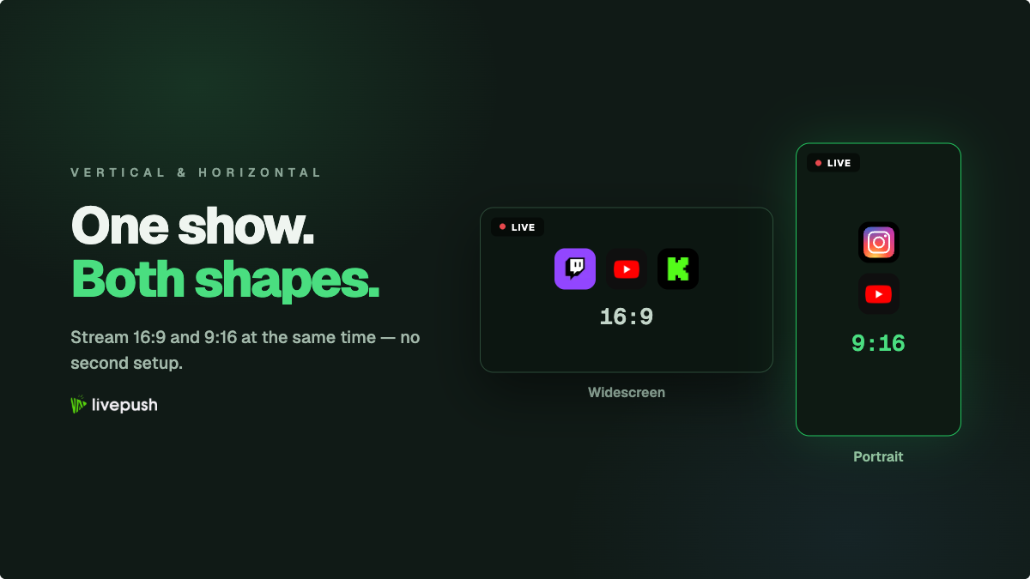
For a decade the choice was binary. Stream widescreen for Twitch and YouTube, or stream portrait for TikTok and Instagram, and accept that whichever audience you didn't pick got a badly cropped version of your show. In 2026 that choice finally dissolved. Twitch launched Dual Format, YouTube added dual stream with encoder support, and OBS grew a second canvas. You can now stream vertical and horizontal at the same time, a proper 16:9 feed and a proper 9:16 feed, from one PC, to every platform your audience uses.
This guide covers the three ways to do it, what each one costs in CPU and upload, the exact settings for the vertical feed, and how to design a portrait scene that doesn't look like a widescreen scene squeezed through a letterbox. Terms are explained as they come up; if you already know what a canvas and an encode are, skim the first section and head for the routes.
Why Vertical Streaming Changed in 2026
Three things came together. Twitch first showed Dual Format at TwitchCon Rotterdam in May 2025, tested it with a small group of channels for a year, and launched it for every streamer on June 17, 2026, a few weeks after TwitchCon Europe 2026: one broadcast, shown horizontal on desktop and vertical to phone viewers holding the device upright, with a single chat. YouTube announced dual-format live streaming at Made on YouTube in September 2025 (vertical and horizontal under one URL with shared chat), rolled it out gradually through 2026, and on August 20, 2026 opened encoder support to creators generally, so you can push your own 9:16 feed instead of letting YouTube crop it for you. And Instagram's Live Producer, TikTok LIVE, and YouTube's Shorts feed remained stubbornly vertical, which means anyone who wants to be found on a phone has to show up in 9:16.
The common thread is that platforms stopped treating vertical as a mobile compromise and started treating it as a first-class format with its own feed, its own discovery, and in YouTube's case its own metrics. The tooling followed. OBS Studio's Enhanced Broadcasting (the feature Twitch uses to accept several encodes from one client) now carries a second canvas, and plugins like Aitum Vertical make that canvas a real portrait workspace rather than a hack.
Three Ways to Do Dual Format Streaming
Every method comes down to the same idea: your PC produces two pictures, one wide and one tall, and something delivers each picture to the platforms that want it. The differences are in who does the delivering and how many times your machine has to encode and upload.
| Platform-native dual format | OBS plugin to each platform | Cloud multistream | |
|---|---|---|---|
| Platforms covered | Twitch or YouTube, one at a time | Any platform with a stream key | Any platform, all at once |
| Encodes on your PC | 2 (one per canvas) | 2 minimum, more if platforms need different bitrates | 2 (one per canvas) |
| Upload from your PC | Both feeds to one platform | Both feeds multiplied by every destination | Each feed once, regardless of destinations |
| Chat | One unified chat on that platform | Separate per platform | Separate per platform, or unified through a multi-chat tool |
| Setup difficulty | Medium | High | Medium |
| Best for | Creators living on one platform | High-upload connections and tinkerers | Anyone streaming to three or more places |
The rest of this guide walks through each route. They are not mutually exclusive: plenty of streamers use Twitch Dual Format for their Twitch audience and a cloud service to carry the same two feeds everywhere else.
Route 1: Twitch Dual Format and YouTube Dual Stream
Twitch Dual Format
Twitch's implementation lives inside OBS Studio's Enhanced Broadcasting. Enhanced Broadcasting is Twitch's system for letting your PC send multiple quality variants of your stream directly, instead of relying on Twitch's servers to transcode. Dual Format extends it with a second canvas: the vertical one.
The setup, on a current OBS build (32.x):
- Install a vertical canvas plugin. Aitum Vertical is the common choice; StreamElements' SE.Live also provides one. Do not install both at once; they conflict. Restart OBS after installing.
- Open Settings, Stream. With Twitch as the service, enable Enhanced Broadcasting. Under Additional Canvas, pick the vertical canvas the plugin created. Apply, and restart if prompted.
- Open the plugin's vertical dock (Docks menu) and set its canvas to 1080x1920. Build your portrait scenes there; the vertical canvas has its own scene list, so you compose it independently of your main scenes.
- Go live as usual. Both canvases stream. The vertical dock does not need to stay open once you are live.
Twitch shows desktop viewers the horizontal feed and mobile viewers the vertical one; a phone viewer can rotate to landscape to get the widescreen version. Twitch added server-side transcoding for Dual Format streams for Partners and many Affiliates at launch in June 2026, which matters because without it your PC also encodes the quality ladder for viewers on slow connections. Check Advanced Broadcast Settings on the Stream Settings page of the Creator Dashboard to see whether your channel has it. Twitch documents the current state in its Dual Format help article. Dual Format is available to every Twitch channel; if Enhanced Broadcasting shows no Additional Canvas option, update OBS and the canvas plugin, since that is where the setting lives.
YouTube dual stream
YouTube's version lives in the Live Control Room (YouTube Studio, Create, Go live). In the stream settings there is a Dual stream toggle with two modes:
- Auto: YouTube generates the vertical feed from your horizontal one. Zero extra work, zero control over what gets cropped.
- Encoder: YouTube gives you a second stream key. You push a dedicated 9:16 feed to it from your vertical canvas, using OBS's second output or a plugin, and YouTube pairs the two under one watch page with one chat.
Two rules to know before you flip it. Decide before you go live: YouTube does not let you add the vertical format after the stream has started, and once it is running in both formats you cannot drop one until the stream ends. And the vertical feed does not get everything the horizontal feed gets: as of late August 2026, clickable links, mid-roll and pre-roll live ads, 4K, Premieres, and live redirects are horizontal-only, while memberships work on both and only the vertical feed is eligible for Shorts-feed discovery. In practice that means your monetization lives on the wide feed and your discovery lives on the tall one, which is a reasonable trade for most channels. YouTube's encoder settings guide still lists the bitrate ladder for each resolution; a 1080x1920 vertical feed follows the same numbers as 1080p landscape.
Route 2: OBS Plugin, Straight to Each Platform
If your destinations are not Twitch or YouTube, or you want the vertical feed on TikTok while the horizontal feed goes to Kick, you can skip native dual format and have OBS push each canvas to its own destination. Aitum Vertical can stream its canvas to a separate RTMP URL and key, so you set the main OBS output to your horizontal platform and the vertical canvas output to your vertical platform. Our OBS multistreaming guide covers the multi-output plugins that make this possible and, more importantly, their limits. If the OBS output settings themselves are unfamiliar, start with our OBS Studio beginner's guide.
Those limits bite quickly here. Every destination is a separate upload from your PC. Horizontal to Twitch at 6,000 kbps plus vertical to TikTok at 4,500 kbps is 10,500 kbps sustained, and your bitrate should stay at or below about 70% of your measured upload, so a 15 Mbps upload is the realistic floor for just two platforms. Add YouTube to each format and you are at 21,000 kbps before headroom, which calls for a 30 Mbps upload. If platforms want different bitrates you also multiply the encodes, which is where dropped frames come from. If you have fiber and a modern GPU it works; on cable, cellular, or a venue's Wi-Fi it does not.
Route 3: Cloud Multistream, One Upload Per Format
The cloud route keeps the two-canvas setup and changes only where the feeds go. Your horizontal canvas sends one stream to a multistreaming service; the service forwards it to every horizontal destination. Your vertical canvas sends one stream to the same service; the service forwards it to every vertical destination. Your PC uploads each format exactly once no matter how many platforms you add, and your encoder does the same two jobs it did in Route 1.
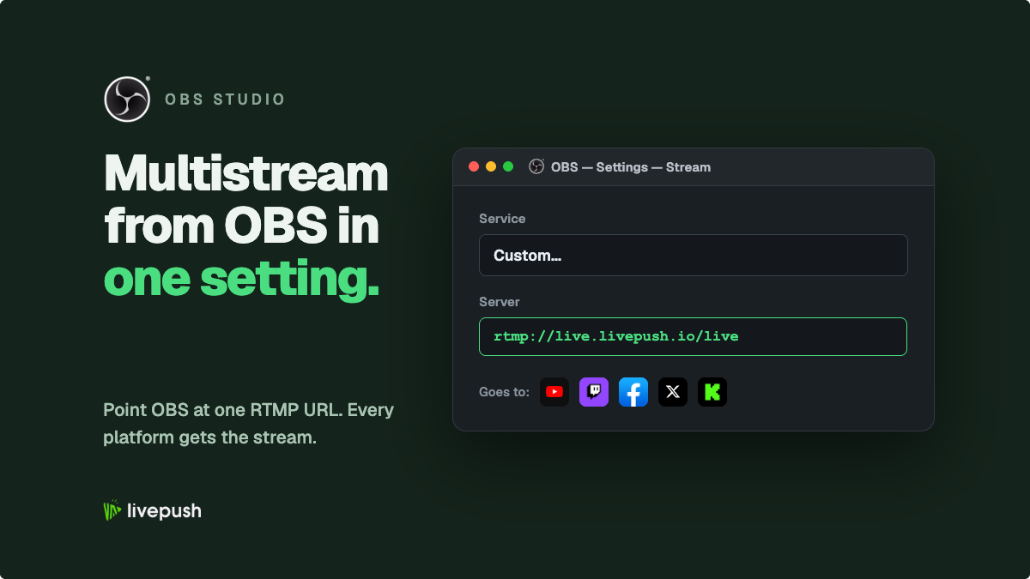
With Livepush multistreaming, that looks like two streams in your dashboard: a landscape stream with Twitch, YouTube, Kick, and Facebook as destinations, and a portrait stream with TikTok, Instagram (via its Live Producer key), and a YouTube vertical key as destinations. Livepush supports vertical live streams, so the 9:16 feed is delivered to those destinations as 9:16, not squeezed into a widescreen frame. Destinations connect either by linking the platform account or as a custom RTMP endpoint, which is how Instagram and TikTok stream keys are added. Both streams show up in one place for monitoring, and if a destination rejects the connection you see it there rather than discovering it from chat.
The honest tradeoff: a cloud hop adds a second or two of latency and you are paying for a service (Livepush's free tier covers 20 hours a month and three destinations, which is enough to test the whole workflow). In exchange you get an upload that never grows, and a PC that only ever talks to one server.
Designing the Vertical Scene
Cropping the middle of your widescreen scene is the mistake everyone makes first. A 16:9 layout has your camera in a corner, chat down one side, and the game filling the rest; crop that to 9:16 and you get half a game, no camera, and part of an alert. Vertical is a different composition, not a smaller one.
- Stack, don't spread. Game or main content in the top two-thirds, camera below it or as a rounded inset, chat and alerts in the bottom band. Phone viewers expect this layout from every short-form app.
- Crop the content, don't scale it. A 1920x1080 game capture scaled to fit a 1080-wide canvas is unreadable. Crop to the action (the center of the game, the presenter's head and shoulders) and let it fill the width.
- Mind the safe zones. Platforms overlay their own UI on vertical video: username and caption at the bottom, buttons down the right edge. Keep anything you need seen out of the bottom 15% and the right 12%.
- Make text bigger than feels right. A phone screen is a fraction of a monitor. Alerts and chat need roughly 1.5x the font size of your horizontal scene.
- Share the audio. Both canvases should use the same audio mixer so viewers on either feed hear the same thing. Aitum Vertical uses the main OBS mixer by default; leave it that way.
Test on a real phone before your first proper dual stream. OBS's preview cannot show you what a thumb covers.
Vertical Live Stream Settings
| Setting | Recommended | Notes |
|---|---|---|
| Resolution | 1080x1920 | 720x1280 if CPU/GPU or upload is tight |
| Frame rate | 30 fps for talk/IRL, 60 fps for fast games | Match your horizontal feed's frame rate to keep audio sync simple |
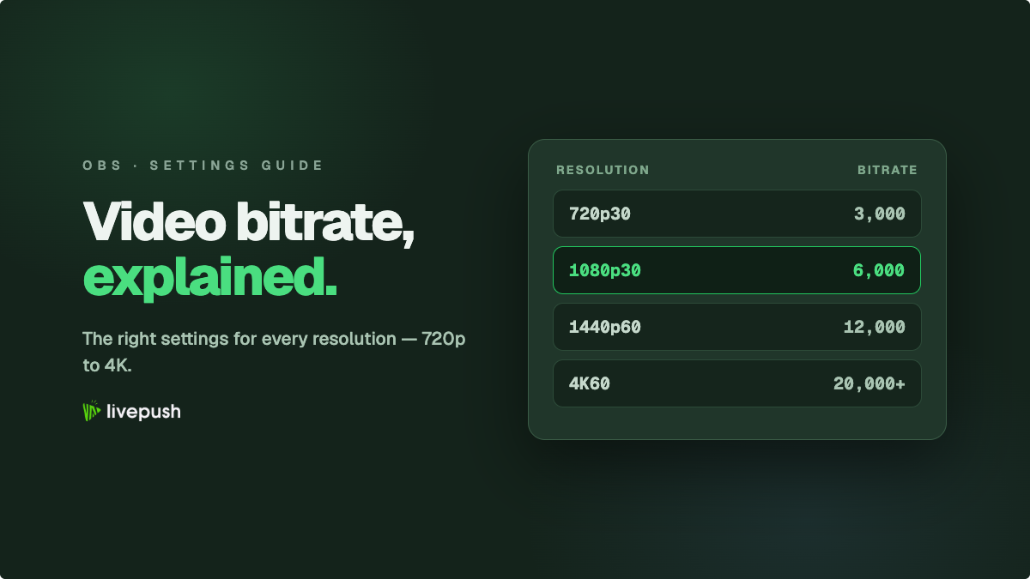
| Bitrate at 30 fps | 4,500-6,000 kbps | Instagram publishes 2,250-6,000 kbps for Live Producer |
| Bitrate at 60 fps | 6,000-9,000 kbps | Check each platform's ceiling; Instagram tops out at 6,000 |
| Rate control | CBR | Same as horizontal |
| Keyframe interval | 2 seconds | Same as horizontal |
| Encoder | Hardware (NVENC, AMF, Apple VT) | Two simultaneous encodes on x264 is heavy on most CPUs |
| Audio | AAC, stereo, 160 kbps | Shared mixer with the horizontal canvas |
Bitrate is the lever that decides whether fast motion looks crisp or blocky; our video bitrate guide explains how to pick the number for your content and upload speed. If your total (horizontal plus vertical) approaches your upload capacity, drop the vertical feed to 720x1280 first; phone screens hide the difference far better than monitors do.
Which Route Should You Pick?
Use Twitch Dual Format if Twitch is your home and you mostly want your mobile Twitch viewers to stop watching a letterboxed stream. Use YouTube dual stream in Auto mode if you want Shorts-feed exposure for a live stream and cannot be bothered with a second canvas; move to Encoder mode once you care how it looks. Use the plugin-to-each-platform route only if your upload is comfortably above 30 Mbps and you enjoy the tinkering. Use the cloud route the moment you are live on three or more platforms across both formats, because it is the only one where adding a destination costs nothing on your end.
If you are also chasing TikTok, remember that the platform gates LIVE access; our TikTok live guide covers the follower requirement and how to get a stream key once you qualify.
Common Mistakes
Both feeds at 60 fps on a mid-range CPU. Two x264 encodes at 60 fps will starve the game you are playing. Use a hardware encoder, or run the vertical feed at 30 fps.
Turning on dual format before the horizontal stream is stable. If you are already fixing dropped frames, adding a second encode doubles the problem. Our dropped frames guide comes first.
Forgetting that stream keys expire. Instagram's Live Producer key changes every session, and YouTube's vertical key is separate from your main one. Update your outputs (or your cloud destinations) before each stream.
Trying to switch formats mid-stream. Neither Twitch nor YouTube lets you add or remove the vertical feed once live. Decide before you hit Start.
Reading chat from one platform only. Vertical viewers on TikTok or Instagram are talking too. A multi-chat overlay that merges every platform's messages into one feed is the fix, and it works on both canvases.
Two pictures, two encodes, one upload per format, and a scene actually designed for a phone. That is the whole recipe. The platforms did the hard part this year; the rest is a Saturday afternoon of setup.
Stream to multiple platforms without extra bandwidth
Send one stream to Livepush and we fan it out to 40+ destinations.