Your stream looks fine while you're sitting still. Then the confetti drops, the rain starts, or the fight breaks out, and the whole picture dissolves into smeared blocks for three seconds. Or worse: you cranked the number up to fix it, and the platform rejected your stream outright. Either way, someone in chat has already typed the diagnosis: "your bitrate is wrong."
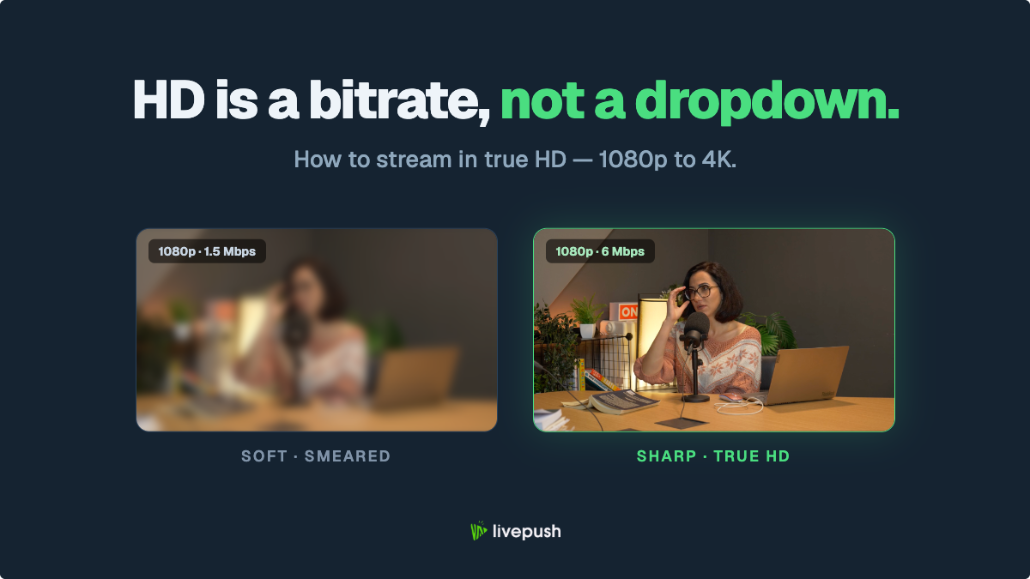
They're probably right. Bitrate, not resolution, is the number one quality lever in live streaming. Two streams at identical 1080p can look like different decades depending on the bitrate behind them. This guide gives you the exact video bitrate to set for every resolution and platform, in tables you can act on in about sixty seconds, and then explains the why underneath for everyone who sticks around.
What Is Video Bitrate, Actually?
Bitrate is how much data your encoder sends per second to describe your video. It's measured in kilobits per second (Kbps) or megabits per second (Mbps); 6,000 Kbps and 6 Mbps are the same number in different units. Streaming software and platform docs almost always use Kbps, so this guide does too.
The classic analogy holds up: bitrate is water flowing through a pipe. Resolution is how big the picture is; bitrate is how much water you have to fill it. A big frame with a trickle of data comes out muddy. A smaller frame with a generous flow comes out crisp. When people say a stream is "starved," they mean the pipe is too narrow for the picture it's trying to carry.
Motion is what stresses the pipe. A static frame barely changes between moments, so it compresses beautifully. Confetti, rain, grass in a racing game, or a fast camera pan means thousands of pixels change every frame, and the encoder has to describe all of it inside your bitrate budget. When it can't, it throws detail away, and you get the blocky smear everyone recognizes.
One distinction before the tables: video bitrate and audio bitrate are separate settings. Your audio bitrate (typically 128–192 Kbps AAC) is tiny next to video but rides on the same connection, so the totals below include it. When a platform lists a bitrate cap, it almost always means the video bitrate.
The decision: think of bitrate as your quality budget, spent per second, and stop treating the resolution dropdown as the quality setting. Resolution decides how big the picture is; bitrate decides whether it survives motion.
The Best Bitrate for Streaming at Every Resolution
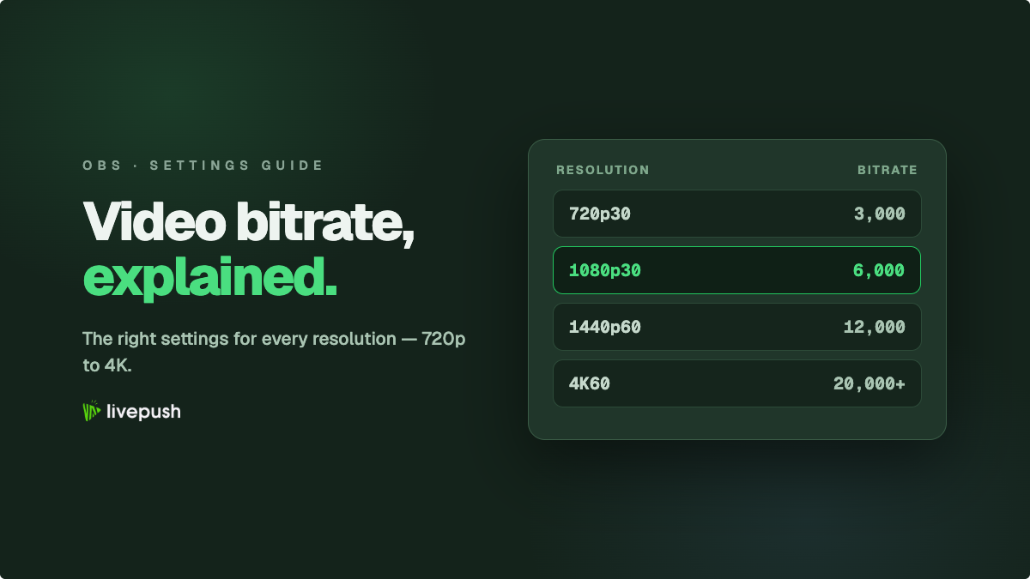
Here is the centerpiece. Find your resolution and frame rate, set the video bitrate in the recommended range, and you're done. These numbers assume H.264, the codec nearly every platform still requires for ingest; if you're streaming with HEVC or AV1 where supported, you can cut them by roughly 25–40%, as our H.264 vs H.265 comparison explains.
| Resolution | FPS | Video Bitrate | Audio Bitrate | Upload Speed Implied |
|---|---|---|---|---|
| 720p | 30 | 3,000–4,000 Kbps | 128–160 Kbps | ~6 Mbps |
| 720p | 60 | 4,500–5,000 Kbps | 128–160 Kbps | ~8 Mbps |
| 1080p | 30 | 4,500–6,000 Kbps | 160 Kbps | ~10 Mbps |
| 1080p | 60 | 6,000–8,000 Kbps | 160 Kbps | ~12 Mbps |
| 1440p | 60 | 9,000–13,000 Kbps | 160–192 Kbps | ~20 Mbps |
| 4K | 30 | 20,000–35,000 Kbps | 192 Kbps | ~35–50 Mbps |
| 4K | 60 | 30,000–50,000 Kbps | 192 Kbps | ~50–70 Mbps |
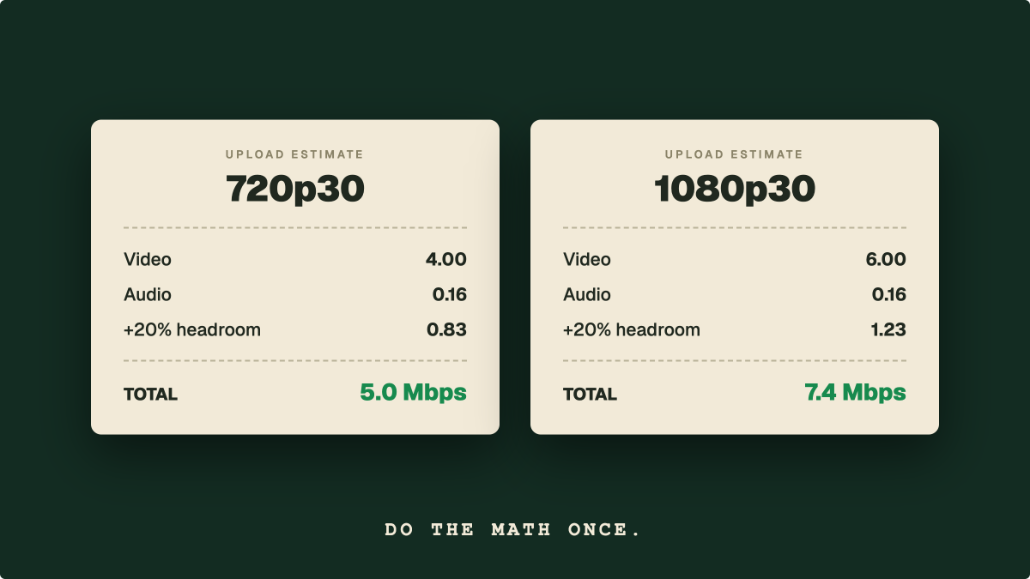
The upload column is the connection those bitrates imply, with headroom baked in; the math behind that margin, and how to test what your connection actually sustains, lives in our live streaming bandwidth guide. This article decides what your encoder should send. That one decides whether your connection can carry it. Keep the two questions separate and both get easier.
Two rules for reading the ranges:
- High motion sits at the top, low motion at the bottom. A shooter at 1080p60 wants 8,000 Kbps; a podcast at 1080p60 is comfortable at 6,000.
- Never set a bitrate your connection can't carry with room to spare. A perfect bitrate that drops frames looks worse than a modest one delivered cleanly.
If you'd rather not eyeball it, the free Livepush bitrate calculator takes your resolution, frame rate, and upload speed and hands back a number, including multistream scenarios.
The decision: pick your row, start at the middle of the range, and adjust one step up or down after your first test stream. Don't improvise a number.
Platform Caps: What Twitch, YouTube, Facebook, and Kick Will Accept
The table above tells you what looks good. Platforms tell you what's allowed, and the two don't always agree. As of 2026, here's the practical landscape (platforms adjust these periodically, so treat the exact figures as current rather than eternal):
| Platform | Practical Max Video Bitrate | Notes |
|---|---|---|
| Twitch | 6,000 Kbps over standard RTMP; 7,500 Kbps (1080p) or 9,000 Kbps (1440p HEVC) via Enhanced Broadcasting for Partners and Affiliates | Exceeding 6,000 on a plain RTMP stream risks rejection or playback errors |
| YouTube | No published cap; recommends 17,000 Kbps for 1080p60 and 50,000 Kbps for 4K60 (H.264) | Transcodes everything; the more you send, the better the renditions |
| Facebook Live | 6,000 Kbps at 1080p30, 9,000 Kbps at 1080p60 | Published ranges; H.264 only, keyframe no more than 4 s |
| Instagram Live | 2,250–6,000 Kbps | Vertical 9:16, 720x1280 at 30 fps recommended |
| Kick | 8,000 Kbps | CBR over RTMPS; viewers see at most 720p60 until the channel passes an engagement threshold |
| Livepush (ingest) | No hard cap | Accepts your full-quality stream and adapts per destination |
Twitch is the platform where "your bitrate is wrong" most often means "too high." The 6,000 Kbps ceiling is real, and it's why competitive Twitch streams at 1080p60 always look slightly stressed during action: 6,000 Kbps is the bottom of the healthy range for that tier. Many Twitch streamers deliberately run 936p60 or 720p60 instead, spending the same 6,000 Kbps on fewer pixels for a cleaner picture.
YouTube is the opposite. It re-encodes every incoming stream into multiple renditions, so your job is to feed its transcoder the best source you can. Higher bitrates in, better renditions out. YouTube also assigns more efficient codecs at 1440p and above, a quirk our high definition streaming guide covers in detail; if your upload supports at least 9,000 Kbps (YouTube's floor for 1440p60 is 8,000 and its recommendation is 34,000), streaming 1440p to YouTube is a cheap quality win.
The decision: if you stream to one platform, set your bitrate to the lower of two numbers, the recommended range from the master table or the platform cap. Twitch at 1080p60 over standard RTMP means 6,000 Kbps, full stop. YouTube means the top of your range.
Bitrate for 1080p: The Number Most Streamers Actually Need
Since 1080p is where most creators live, let's settle it plainly. The right bitrate for 1080p is 4,500–6,000 Kbps at 30fps and 6,000–8,000 Kbps at 60fps. Below 4,000 Kbps, 1080p stops earning its label; motion turns to mush and a well-fed 720p stream would genuinely look better.
Frame rate is the multiplier people forget. Going from 1080p30 to 1080p60 doubles the frames your bitrate has to describe each second. If you switch to 60fps and leave your bitrate untouched, you just cut every frame's data budget in half, and the stream looks softer even though nothing else changed.
The decision: at 1080p, 6,000 Kbps is the safe default for either frame rate; push toward 8,000 for 60fps gaming on platforms that allow it, and drop to 720p60 instead of starving 1080p60 when you're capped.
Match Your Bitrate to Your Content, Not Just Your Resolution
The ranges have a top and a bottom because content varies enormously in how hard it is to compress:
- Fast games, sports, IRL cameras in motion: top of the range. This is the content that exposes a starved bitrate within seconds.
- Talking heads, podcasts, interviews: bottom of the range, and often below it. A static shot of a person against a fixed background compresses so well that 1080p30 can look clean at 3,500–4,000 Kbps.
- Slides, screen shares, coding streams: lower still. Mostly static frames with occasional changes need surprisingly little data, though small text benefits from staying at 1080p rather than downscaling.
This is the guilt-free secret of low-motion streamers: you can stream at a lower bitrate than the tables suggest and nobody will notice. The tables are sized for the hard case.
The decision: streaming motion-heavy content, take the top of your range. Streaming a face or a slide deck, take the bottom, and bank the saved bandwidth as stability.
CBR vs VBR vs CQP: Which Rate Control to Use
Your encoder offers a few ways to spend the bitrate budget:
- CBR (constant bitrate) sends the same data rate at all times, calm scene or chaos. Predictable for your connection and for the platform's ingest server.
- VBR (variable bitrate) spends less on easy scenes and bursts higher on hard ones. Great for files, risky for live: the burst arrives exactly when the action peaks, which is exactly when you can least afford dropped frames.
- CQP (constant quality) targets a quality level and lets bitrate float wherever it must. Excellent for local recordings, unusable for streaming because the spikes are unbounded.
Platforms are built around a steady inbound stream, which is why every major service recommends CBR for live.
The decision: CBR for streaming, always. Use VBR or CQP for recordings only.
Multistreaming: One Bitrate or Three?
Here's where good bitrate math goes to die. Stream to three platforms directly from your machine and you're running three encodes and sending three streams; a 6,000 Kbps stream to Twitch, YouTube, and Kick simultaneously needs your connection to carry 18,000 Kbps plus headroom. Most home uploads can't, so each stream degrades, and you end up cutting bitrate everywhere to keep anything alive.
The alternative is to send one full-quality stream to a cloud service and let it do the fan-out. With Livepush multistreaming, your encoder sends a single stream at your ideal bitrate, and Livepush's servers relay it to every destination, respecting each platform's cap on their bandwidth rather than yours. Your upload carries one stream's worth whether you broadcast to two platforms or eight, and your bitrate decision stays as simple as the single-platform case.
When one relay serves platforms with different caps, set your source bitrate for the most generous platform, not the strictest. Livepush adapts down for destinations with lower limits, such as Twitch's 6,000 Kbps over standard RTMP, so your YouTube viewers still get the full-quality feed.
The decision: never split your upload across platforms locally. One stream out at full quality, cloud relay handles the rest.
Where to Set Your OBS Bitrate
In OBS, the video bitrate lives at Settings → Output → Streaming, in the Bitrate field (switch Output Mode to Advanced to see the full set of encoder options). Enter the number from the master table, set Rate Control to CBR, and you've made the single highest-impact change available.
Bitrate doesn't work alone, though. Encoder choice, keyframe interval, presets, and profile all shape how well your budget gets spent, and our best OBS settings for 1080p guide walks through every one of those fields with recommended values. Set your bitrate here, then finish the job there.
The decision: open OBS, set CBR and your table number now, and schedule ten minutes with the OBS guide before your next stream.
The Sixty-Second Version
If you skipped to the end: find your resolution and frame rate in the master table, take the middle of the bitrate range, clamp it to your platform's cap, set CBR, and confirm your connection carries it with headroom using the bandwidth guide. Nudge up for fast motion, down for talking heads. That's the whole game.
The people telling you "your bitrate is wrong" usually can't tell you what's right. Now you can tell them.
Multistream without multiplying your upload
One stream to Livepush, free for 20 hours/month.