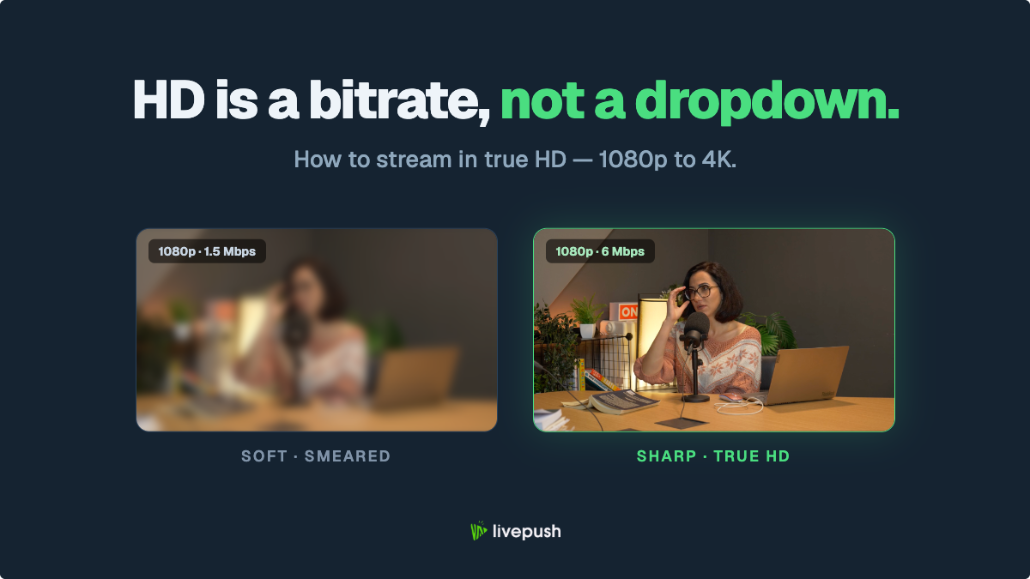
A high definition stream is not something you get by picking "1080p" from a dropdown. Plenty of streams labeled HD look soft, smeared, and blocky the moment anything moves, while some 720p streams look genuinely crisp. The difference is rarely the resolution number. It's whether the bitrate, frame rate, upload connection, and encoder behind that number can actually support it.
This guide explains what HD streaming really requires, from 720p up to 4K: which resolutions count as HD, the three levers that decide how your stream looks, the exact bitrate and upload numbers for each tier, and why platforms re-encode everything you send. If you're here for OBS-specific configuration, our best OBS settings for 1080p guide covers every encoder field in detail; this article is about the decisions that come before you open those settings.
What Actually Counts as High Definition?
"HD" is a marketing-friendly label that covers a wide quality range:
- 720p (1280×720): The minimum bar for HD. Fine for talking heads and slow content, and a smart choice on limited upload connections.
- 1080p (1920×1080): Full HD. This is what most viewers expect when they see an HD badge, and it's the sweet spot for most live streamers.
- 1440p (2560×1440): QHD. Not technically "Ultra HD", but on YouTube it unlocks better compression (more on that below), so it often looks disproportionately good.
- 4K (3840×2160): Ultra HD. Four times the pixels of 1080p, with bandwidth and hardware demands to match.
Here's the part the badges hide: a platform will happily label your stream "1080p HD" even if you sent it at 2,500 Kbps and it looks like a watercolor painting during motion. Resolution describes how many pixels there are. It says nothing about how much data each pixel gets. That's the job of bitrate, and it's why the number in the corner of the player and the actual quality on screen so often disagree.
The Three Levers That Decide How Your Stream Looks
Perceived quality comes down to three settings, and they compete for the same budget:
- Resolution: How many pixels per frame.
- Frame rate: How many frames per second.
- Bitrate: How much data per second is available to describe all of those pixels.
Multiply resolution by frame rate and you get the number of pixels your bitrate has to cover every second. 1080p60 has four and a half times the pixel throughput of 720p30. If the bitrate doesn't scale with it, the encoder compensates by throwing away detail, and you get smearing, blocking, and mushy motion.
This is why bitrate matters more than resolution. A 720p60 stream at 5,000 Kbps will look sharper in motion than a 1080p60 stream at 3,500 Kbps, even though the second one carries the bigger label. When your bandwidth is limited, dropping resolution (or frame rate) so the bitrate is comfortable almost always looks better than keeping the big number and starving it.
If you have to choose, feed fewer pixels well rather than more pixels badly. A well-fed 720p stream beats a starving 1080p stream every time.
How to Stream in HD: Resolution, Bitrate, and Upload Speed
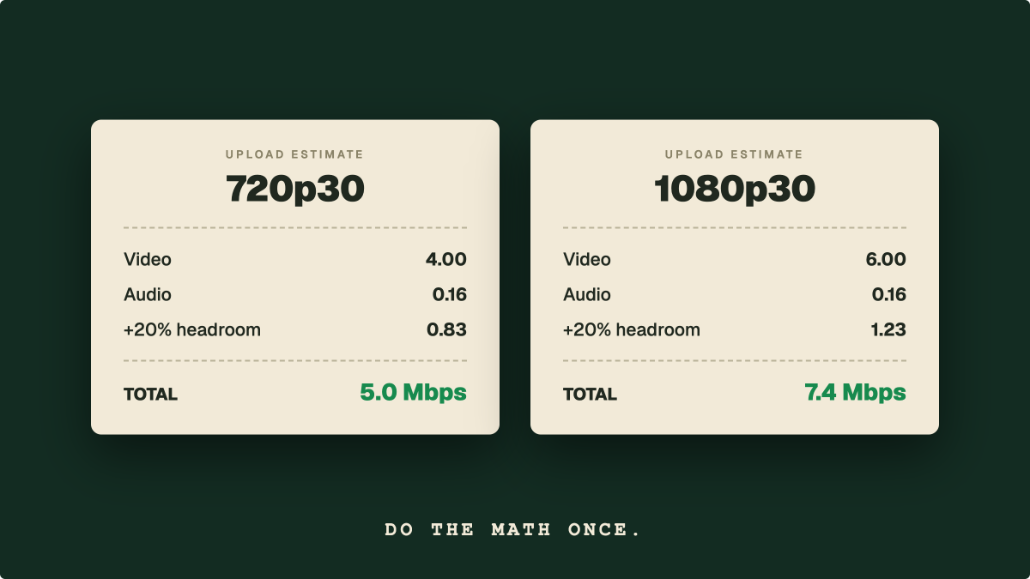
Here are the numbers that make each HD tier actually look like HD. Bitrates assume H.264, the codec most platforms still require for ingest. The upload column includes roughly 40% headroom for protocol overhead and connection fluctuation.
| Resolution | FPS | Recommended Video Bitrate | Upload Speed Needed |
|---|---|---|---|
| 720p | 30 | 3,000–4,000 Kbps | 6 Mbps |
| 720p | 60 | 4,500–5,000 Kbps | 8 Mbps |
| 1080p | 30 | 4,500–6,000 Kbps | 10 Mbps |
| 1080p | 60 | 6,000–8,000 Kbps | 12 Mbps |
| 1440p | 30–60 | 9,000–13,000 Kbps | 20 Mbps |
| 4K | 30 | 20,000–35,000 Kbps | 35–50 Mbps |
| 4K | 60 | 30,000–50,000 Kbps | 50–70 Mbps |
Two important qualifiers:
- These are stable upload numbers, not speed test peaks. A connection that tests at 20 Mbps but dips to 6 Mbps during peak hours cannot reliably carry a 1080p60 stream. Our live streaming bandwidth guide covers how to test your real, sustained upload and plan around it.
- Content matters. A static podcast frame compresses far more easily than a fast-paced shooter or a sports feed. High-motion content should sit at the top of each bitrate range; low-motion content can sit at the bottom and still look clean.
If you want a number tailored to your exact resolution, frame rate, and connection, the free Livepush bitrate calculator does the math for you, including multistream scenarios.
Why Platforms Re-Encode Your Stream (and What Survives)
Whatever you send, you are not what viewers watch. Every major platform re-encodes (transcodes) your incoming stream into multiple renditions so it can serve viewers on everything from fiber to a weak phone signal. Your stream gets compressed twice: once by your encoder, once by theirs.
This has a practical consequence: the quality of your outgoing stream is the ceiling, and the platform's transcode decides how much of it survives. Detail you never sent can't be recovered, and detail you did send can still be crushed by an aggressive platform encode.
Platform ingest caps for live video:
| Platform | Published Ingest Bitrate | Max Live Resolution |
|---|---|---|
| YouTube | No published cap; recommends 42,000–50,000 Kbps for 4K over H.264 | 4K 60fps |
| Twitch | 6,000 Kbps over standard RTMP; 7,500 Kbps (1080p) or 9,000 Kbps (1440p) via Enhanced Broadcasting | 1080p60 over RTMP; 1440p60 via Enhanced Broadcasting for Partners and Affiliates |
| Facebook Live | 6,000 Kbps (1080p30), 9,000 Kbps (1080p60) | 1080p 60fps |
| Instagram Live | 2,250–6,000 Kbps | 720x1280 (vertical) |
| Livepush (ingest) | No hard cap | 4K |
One quirk worth knowing: YouTube assigns better codecs to higher resolutions. Streams at 1440p and above are typically transcoded with VP9 or AV1 instead of the older AVC used for 1080p renditions. These codecs are dramatically more efficient, so a 1440p stream often looks visibly better than a 1080p stream of the same source, even for viewers watching at 1080p. If your upload can handle 9,000–13,000 Kbps, streaming to YouTube at 1440p is one of the cheapest quality upgrades available.
Twitch is the opposite case for a plain RTMP stream: with a 6,000 Kbps cap and nothing above 1080p, 1080p60 or even 936p60 at the full 6,000 Kbps is the practical ceiling, and sending "more" gains you nothing. Only Enhanced Broadcasting, for Partners and Affiliates, goes further, with 1440p HEVC at up to 9,000 Kbps.
Why Your "HD" Stream Looks Soft
When a stream is technically 1080p but looks like 480p, it's almost always one of these:
- Starved bitrate. The most common cause by far. The resolution demands more data than you're sending, so the encoder blurs detail to fit. Check your numbers against the table above.
- Upscaling. If your source (camera, capture card, game canvas) is 720p and you output at 1080p, you're stretching pixels, not adding detail. Match your output resolution to your best real source, or downscale, never upscale.
- Wrong downscale filter. If you capture at 1440p or 4K and stream at 1080p, the filter that shrinks the image matters. Lanczos preserves noticeably more sharpness than bilinear. In OBS it is the Downscale Filter dropdown under Settings, Video, directly below the Output (Scaled) Resolution; the OBS settings guide covers it alongside the other Video settings.
- Dropped frames. When your connection can't keep up, frames get discarded before they reach the platform, causing stutter and smearing. See our dropped frames fix guide for diagnosis and fixes.
- Platform compression. If your local recording looks great but the live stream doesn't, the platform's transcode is the bottleneck. Your options: send a higher-quality source (up to the platform cap), or on YouTube, step up to 1440p for the better codec tier.
There's a related failure mode on the viewer side: if the player keeps switching to lower renditions or pausing, that's a delivery problem rather than an encoding one. Our guide on why live streams buffer walks through separating the two.
Hardware vs Software Encoding at HD Resolutions
At 1080p and above, encoding is real work, and where it happens matters.
- Hardware encoding (NVENC, AMD AMF, Apple VideoToolbox) runs on a dedicated chip on your GPU. Modern NVENC (RTX 20-series and newer) is so close to x264 quality at streaming bitrates that it's the default recommendation: near-zero CPU cost, and it scales to 1440p and 4K without breaking a sweat.
- Software encoding (x264) runs on your CPU. It can edge out hardware encoders at low bitrates on slower presets, but at 1080p60 those presets demand serious CPU, and at 4K they're impractical for most machines.
The short version: use NVENC if you have a supported NVIDIA GPU, especially at 1080p60 and above. The full encoder settings (presets, profiles, B-frames, keyframe interval) are covered in the 1080p OBS settings guide, so we won't duplicate them here.
Keeping HD Quality While Streaming to Multiple Platforms
Here's where a lot of otherwise well-configured HD streams fall apart. If you run separate outputs to YouTube, Facebook, and Twitch from your own machine, two things happen: your encoder does the work multiple times, and your upload bandwidth gets split between destinations. A connection that comfortably carries one 6,000 Kbps stream chokes on three, and every stream degrades.
The fix is to send one stream and let a cloud service do the distribution. With Livepush multistreaming, you send a single full-quality HD stream to Livepush, and its servers relay it to every connected platform. Your upload requirement stays at one stream's worth no matter how many destinations you add, and Livepush adapts the output per platform (for example, keeping a Twitch output at 6,000 Kbps without forcing you to lower quality for YouTube).
To be clear about the tradeoffs: a relay service can't exceed any platform's ingest cap, and it can't add quality your source stream doesn't have. What it does is remove the bandwidth splitting and duplicate encoding that degrade quality when you multistream locally. One good stream in, faithful copies out.
Livepush's free plan includes 3 simultaneous destinations and 20 hours/month, enough to test HD multistreaming on your real connection before committing.
A Realistic HD Streaming Checklist
Before your next stream, run through this:
- Test your real upload speed several times, at the hour you actually stream, and use the lowest result as your budget.
- Pick the highest resolution your bitrate can feed properly using the table above. Don't pick the resolution first and hope.
- Match output to source. Never upscale; downscale with Lanczos if needed.
- Use CBR and a 2-second keyframe interval, and NVENC if available (details in the OBS guide).
- Watch the dropped-frames counter for the first five minutes. Anything above 0.5% means your bitrate is too high for your connection.
- Check the actual output on a second device, at full screen, with motion on screen. That's what your viewers see, not your OBS preview.
True high definition streaming is less about chasing the biggest resolution and more about honesty: an accurate picture of your bandwidth, a bitrate that matches your content, and a workflow that doesn't split your connection across platforms. Get those three right and the HD badge on your stream will finally mean what viewers think it means.
Multistream without multiplying your upload
One stream to Livepush, free for 20 hours/month.