Somewhere on YouTube right now, a lofi radio channel that nobody is actively operating has thousands of people watching it. That is the strange magic of the 24/7 live stream: it works for you while you sleep, shows up in search and recommendations as a live badge, and gives your channel a permanent front door that is always open.
This guide is the operations manual. We already cover the general concept in our 24/7 live streaming setup guide; this article is specifically about YouTube, because YouTube has quirks (a 12-hour archive rule, stream keys that behave in particular ways, Content ID scanning live broadcasts) that decide whether your channel hums along for months or dies at 3 a.m. on a Tuesday.
What a 24/7 YouTube Stream Actually Is
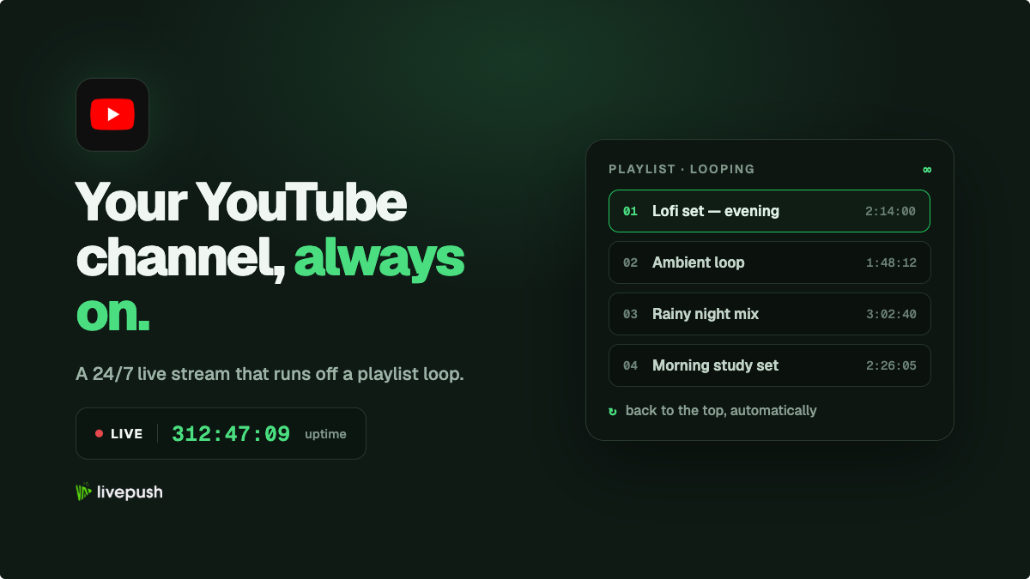
Under the hood, a 24/7 stream is just a normal YouTube live broadcast that never ends. Something, somewhere, is feeding YouTube a continuous RTMP signal, and that signal is usually a playlist of pre-recorded videos looping forever. Viewers see a live video with live chat; YouTube sees an ordinary broadcast that happens to have been running for six weeks.
The channels doing this well fall into a few families: music radio (lofi, jazz, synthwave), ambient content (fireplaces, rain on windows, train rides), always-on info (market tickers, weather, news), and community channels that loop sermons, lectures, or past event replays between live sessions. What they share is content that makes sense to drop into at any moment. Nobody joins a 24/7 stream at the beginning, because there is no beginning.
The Two Ways to Run One (And Who Each Is For)
Every 24/7 setup is one of two architectures: a computer you own running an encoder forever, or a cloud service looping your files for you.
| OBS on your own hardware | Cloud playlist service | |
|---|---|---|
| Upfront cost | Free software, but a dedicated PC or a rented VPS | Subscription (Livepush 24/7 looping starts on the Editors plan at $39/mo) |
| Reliability | Depends on your power, internet, OS updates, and luck | Auto-restart and monitoring built in |
| Your upload bandwidth | Consumed 24/7 by the stream | Zero after the initial video uploads |
| Updating content | Edit the playlist source on the machine | Add/remove/reorder videos while live |
| Electricity and wear | A PC running hot around the clock | None on your side |
| Best for | Tinkerers who enjoy the infrastructure | Anyone who wants the channel, not the babysitting |
The OBS route is a fine way to discover exactly how many things can interrupt a computer: Windows updates, thermal throttling, a router reboot, a power flicker, a cat. If you go this way, use a wired connection, disable every form of automatic update and sleep, and accept that you are now the night-shift engineer. Our OBS settings guide covers the encoder side.
The cloud route moves the whole problem to infrastructure built for it. With Livepush 24/7 YouTube playlists you upload your MP4s once, arrange them into a playlist, enable looping, and connect your YouTube channel. The stream originates in a data center with redundant power and bandwidth, and your laptop can be off.
Setting Up the YouTube Side
Whichever architecture you choose, the YouTube half looks the same:
- Enable live streaming in YouTube Studio. You need a verified channel with no live streaming restrictions in the past 90 days. Activation has historically taken up to 24 hours on first use, so do it a day before you plan to launch.
- Create a stream in the Live Control Room and copy the stream key. Use the default persistent key rather than a scheduled one-off event; it stays valid across reconnects.
- Set latency to Normal. Ultra-low latency buys interactivity you do not need on a looping channel and costs stability.
- Turn off auto-stop (and auto-start, if you want manual control of launch day). Auto-stop ending your broadcast during a brief reconnect is a classic way 24/7 channels die.
- Fill in title, thumbnail, and category properly. This stream is a permanent asset; it will collect search impressions for months, so treat the metadata like a flagship video.
- Enable DVR so viewers can scrub back a stretch of the recent stream.
Then point your encoder or cloud playlist at the ingest URL and key, start the feed, and confirm in the Live Control Room that YouTube reports Excellent connection health.
The 12-Hour Rule and Other YouTube Quirks
Archives simply stop existing past 12 hours. YouTube auto-archives live streams only if they run under 12 hours. A 24/7 stream will never get a replay video, and there is no setting that changes this. Plan for it: your source files are your archive, and anything you want searchable as VOD should be uploaded separately as normal videos.
Content ID watches live streams too. YouTube scans broadcasts in real time, and a claimed track can get your stream interrupted or terminated mid-loop. On a channel that runs unattended, you will not be there to appeal in the moment. The only safe playlist is one where you hold streaming rights to every second of audio: your own music, properly licensed library tracks, or artists you have written agreements with. "I bought the album" is not a streaming license.
Strikes hit harder when you are always live. A Community Guidelines strike blocks live streaming for 14 days, which for a 24/7 channel means the entire channel goes dark for two weeks. Keep the content unambiguous and boring, in the legal sense.
Concurrent viewers reset if the stream ends. Your live viewer count, chat, and the URL viewers have bookmarked all belong to the current broadcast. When a stream dies and restarts, you start from zero. This is why reconnection speed matters so much: YouTube holds a broadcast open for a short, unpublished grace period when the encoder goes silent and then ends it (with Auto-stop off it waits longer), so a cloud service that reconnects in seconds usually survives while a crashed PC does not.
Encoding Settings That Hold Up for Weeks
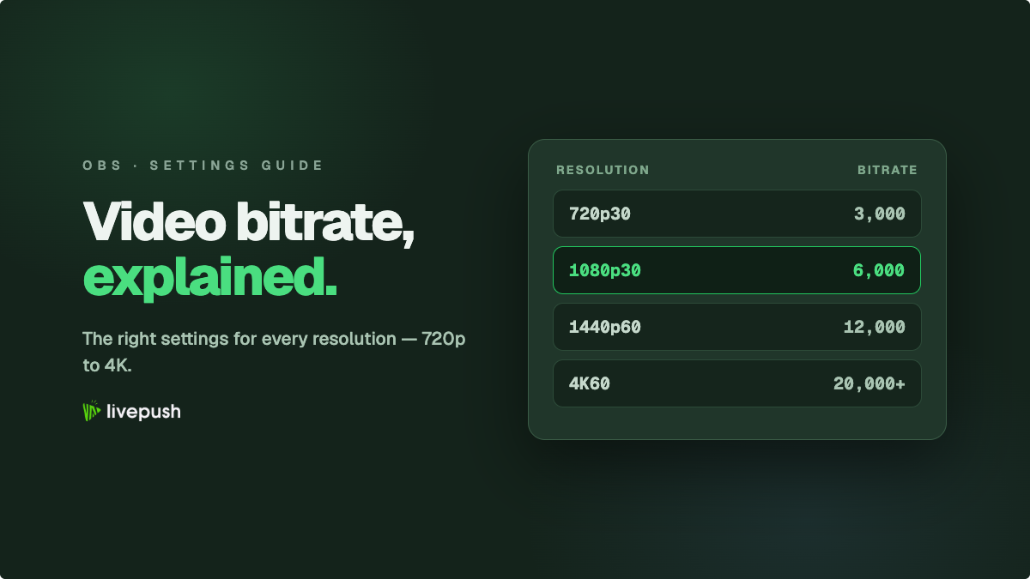
A 24/7 stream is an endurance event, so choose settings for stability over showing off. If your content is music with static or gently animated art, 720p at 30 fps around 3,000 to 4,500 kbps is plenty and keeps costs and risk down (YouTube's own floor for 720p is 3,000 kbps). Full 1080p30 should not go below 5,000 kbps, and 6,000 to 8,000 kbps is a comfortable range for an unattended stream; YouTube's recommended figure for 1080p30 is higher still, around 14 Mbps, but that is a recommendation rather than a requirement. Whatever you pick, use constant bitrate, a 2-second keyframe interval, and H.264 with AAC audio, and make sure every file in your playlist shares one resolution, frame rate, and audio format. Mismatched files are the number one cause of mysterious 3 a.m. failures on encoder-based setups, because the transition between clips forces a format change mid-stream.
Our video bitrate guide has the full ladder, and if you are unsure your connection can sustain the number you picked (relevant only for the self-hosted route), the bandwidth guide shows how to test properly.
What a 24/7 Stream Actually Does for a Channel
It's fair to ask whether all this is worth running. The channels that keep 24/7 streams up for years are getting four compounding things from them.
A permanent live badge. YouTube surfaces live content in search results, the home feed, and the Live tab, and the red LIVE badge earns clicks that an ordinary thumbnail doesn't. A 24/7 channel is present in those surfaces every hour of every day, including the hours when no sane person would schedule a broadcast.
Watch time at industrial scale. Ambient and music loops get left on for hours; a hundred people leaving your stream on in the background all afternoon is a quantity of watch time an upload rarely matches, and watch time feeds both the recommendation system and Partner Program thresholds.
A place to send people that is never stale. Every social bio, video description, and community post can point at the stream, and the link is always live. Compare that with linking your latest upload, which goes stale weekly.
Chat as a community room. A persistent stream accumulates regulars who treat the chat as a hangout. For music and study-stream channels especially, the chat becomes the product as much as the video.
The corresponding honest note: a 24/7 loop mostly amplifies a channel; it rarely is one by itself. Growth still comes from content people choose on purpose, so pair the loop with regular uploads and treat the stream as the always-open lobby.
Building a Playlist That Doesn't Get Stale
The technical loop is the easy half; the content loop is what keeps a channel growing. A few patterns from channels that last:
Make the loop long enough that regulars don't notice. Two hours of content looping feels like a loop by the second visit. Eight to twelve hours feels like a channel. You can build toward this: launch with what you have and keep appending.
Refresh on a schedule. Add a few new tracks or segments weekly. With a cloud playlist this is a two-minute job that happens without restarting the broadcast, which is precisely the workflow the OBS route makes painful.
Design for the drop-in viewer. Persistent on-screen branding, a lower-third that says what the channel is, and chapters of content that work from any starting point. Assume every viewer arrived 4 hours and 17 minutes into your loop, because statistically they did.
Use the live tab as a funnel, not the whole channel. The 24/7 stream earns impressions and subscribers; your uploaded videos convert them into deeper viewers. Channels that are only a loop plateau sooner than channels where the loop feeds a library.
Launch Checklist
Before you announce anything: stream has been running clean for 24 hours, connection health shows Excellent, audio levels are consistent across every file, metadata and thumbnail are final, DVR is on, auto-stop is off, chat moderation is set (unattended chat on a live stream needs either moderators or strict filters), and you have confirmed the loop transition looks clean at least twice. Then tell people. An always-on channel is the one kind of launch where nothing forces you to launch broken; the stream will still be live tomorrow.
Run a 24/7 live channel
Livepush loops your playlist indefinitely, with no computer running.