OBS Studio and Streamlabs Desktop are the two programs most streamers choose between on day one, and the comparison is lopsided in a way that first-timers rarely expect: they share the same engine. Streamlabs is built on OBS's open-source core. The encoder that compresses your video, the scene and source system, the way a stream key gets you onto Twitch, all identical underneath. What differs is everything wrapped around that core, and the wrapper is exactly what decides which one is right for you.
This OBS vs Streamlabs comparison covers the differences that matter in practice: performance on real hardware, what Streamlabs bundles that OBS leaves to plugins, multistreaming, price, platform support, and the kind of streamer each one suits. It ends with the third option that both camps increasingly use.
Streamlabs vs OBS: The Short Version
| OBS Studio | Streamlabs Desktop | |
|---|---|---|
| Price | Free, open source, no paid tier | Free app; Ultra plan about $27/month or $189/year for the full library and extras |
| Engine | OBS | Built on OBS |
| Interface | Dock-based, utilitarian, highly configurable | Guided, web-style, beginner-friendly |
| Alerts and widgets | Via browser sources and third-party services | Built in, linked to your Streamlabs account |
| Themes and overlays | Community packs, installed by hand | Library inside the app; full library needs Ultra |
| Resource use | Lighter | Heavier (web-based UI, background services) |
| Multistreaming | Plugin or external service | Included with Ultra, via Streamlabs cloud (free app: one horizontal plus one vertical destination via Dual Output) |
| Plugins | Large ecosystem, plugin manager since OBS 32 | Curated app store, part of it paid |
| Platforms | Windows, macOS, Linux | Windows and macOS (Intel and Apple Silicon); no Linux build |
| Account required | No | Yes, for most features |
| Best for | Anyone who wants control and the lightest footprint | Beginners who want alerts, overlays, and setup done for them |
Performance: The Difference You Can Measure
Streamlabs Desktop's interface is built with web technology and keeps its widgets, chat, and account services running inside the app. That costs memory before you add a single source, and it adds some CPU load during a stream. Independent comparisons in 2026 put Streamlabs at roughly two to three times OBS's idle memory and a modest CPU overhead at matched settings; the numbers vary by machine, but the direction never changes.
Whether that matters depends on the PC. A desktop with a recent GPU doing the encoding (NVIDIA NVENC, AMD AMF, Intel QSV) has headroom to spare and you will not notice. A laptop, an older quad-core, or a single PC that is also running the game you are streaming has no headroom, and the overhead shows up as the thing every streamer hates: dropped or lagged frames. If you have ever read our dropped frames guide because of encoding lag, the lighter program is the one to run.
OBS Studio itself has gotten better at this. Version 32 added a basic plugin manager for enabling and disabling installed plugins, an experimental Metal renderer for Apple Silicon Macs, and a 6,000 kbps default bitrate, and 32.1 rebuilt the audio mixer. None of it added weight.
Setup and Interface
Here Streamlabs earns its following. First launch walks you through logging in, importing your OBS scenes if you have any, picking a theme, and connecting alerts, and ten minutes later you have an on-brand stream with follower notifications, a chat box, and a starting-soon screen. OBS gives you an empty canvas and a Settings dialog with nine tabs. It is not hard, as our OBS beginner's guide shows, but it does not hold your hand, and every alert, overlay, or chat box is a browser source you add and configure yourself.
The trade is control. OBS's dock layout can be rearranged into anything, every setting is exposed, and the plugin ecosystem (vertical canvases, advanced scene switchers, source cloning, NDI, and hundreds more) covers needs Streamlabs' app store does not. Streamlabs is easier to start and harder to bend.
Alerts, Overlays, and Themes
Streamlabs' built-in alerts are its real product. Followers, subs, tips, raids, and bits trigger animations that you style inside the app, tied to the Streamlabs tipping system (which, to its credit, takes no cut of tips). The theme library gives you a coordinated look in one click; the free tier includes a few hundred, the full library sits behind Ultra.
OBS has none of this natively, and it does not need to: the same alerts come from Streamlabs' own web widgets, StreamElements, or any other alert service as a browser source, which means OBS users often run Streamlabs alerts without running Streamlabs. Overlays are image and browser sources you position yourself, from free packs or a designer. More steps, zero lock-in. A multi-platform chat overlay, for instance, is a single browser source in either program.
Multistreaming
Neither program streams to two platforms natively; OBS has one output, and Streamlabs' multistream is a cloud feature of the Ultra plan where Streamlabs' servers forward your feed. The free Streamlabs app does allow one horizontal plus one vertical destination through Dual Output; anything beyond that needs Ultra. OBS users get the same result with a plugin (at the cost of extra upload and encoding on their PC) or with a multistreaming service that takes one stream and fans it out.
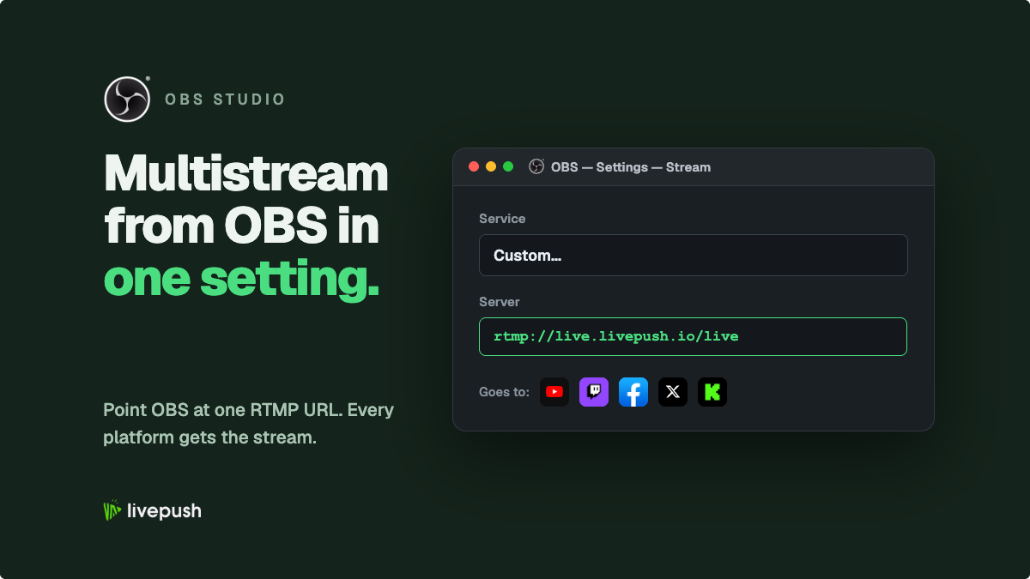
The service route is the one that does not care which program you use. Point OBS or Streamlabs at Livepush as a custom RTMP destination and the forwarding to YouTube, Twitch, Facebook, Kick, TikTok, and the rest happens in the cloud, with your PC doing the work of a single stream. Our OBS multistreaming guide covers the plugin-versus-cloud trade in detail; the conclusion holds for Streamlabs too.
Price
OBS Studio is free with no paid tier, funded by sponsors and donations. Streamlabs Desktop is free to stream with; Ultra, at roughly $27 a month billed monthly or $189 a year in 2026, unlocks the full theme and overlay library, the complete app store, cloud multistreaming, watermark-free clip exports, and premium versions of Streamlabs' mobile, console, and editing tools. Whether that is worth it depends entirely on whether you would otherwise pay for overlays, a multistream service, and an editor separately; for someone who wants all three, it can be, and for someone who wants a clean 1080p60 stream to Twitch, it is $27 a month for things OBS does for free.
Platform Support
OBS runs natively on Windows, macOS, and Linux, with portable builds and no account. Streamlabs Desktop runs on Windows and macOS, with Intel and Apple Silicon builds, but has no Linux version. If you stream from Linux, the decision is made for you; on a Mac, both run, and OBS's lighter footprint is the usual tiebreaker.
Is Streamlabs Better Than OBS? Who Should Use Which
Pick OBS Studio if you want the lightest footprint, you stream from Linux, you plan to grow into plugins (vertical canvases, scene automation, NDI), you would rather not be tied to an account, or your PC is close to its limit. Most streamers who have been at it for a year end up here.
Pick Streamlabs Desktop if you are starting from zero on Windows, you want alerts, overlays, and a tip page working in your first session, and you value a guided setup over configurability. Plenty of streamers never need more than this.
Switching is cheap. Streamlabs imports OBS scene collections on first run, and OBS's Scene Collection > Import reads Streamlabs Desktop collections straight from disk, so starting on one does not trap you.
The Third Option: OBS Alternatives in the Browser
A growing number of streamers skip the desktop encoder for some or all of their shows. Browser-based studios run the camera, screen share, guests, and overlays in a web page and send the stream from the cloud, which means no installer, no CPU load on your machine, and the ability to go live from a laptop that could never run a game and an encoder at once. They give up the deep control of OBS, and they are the wrong tool for high-end game streaming, but for talk shows, interviews, webinars, church services, and anything else where the content is a camera and a screen, they have quietly become the default. Our StreamYard alternatives guide compares the main ones, and Livepush's own browser studio pairs with its multistreaming so one session goes everywhere.
The Honest Summary
Same engine, different wrapper. OBS is lighter, freer, and more capable once you learn it; Streamlabs is friendlier for the first month and heavier forever. Beginners on Windows who want everything built in are well served by Streamlabs. Everyone else, and everyone on Linux, should start with OBS, read the 1080p settings guide, and add the alert widgets they need as browser sources. And whichever you choose, the moment you want to be live on more than one platform, the answer is the same for both: one stream out of your PC, a service in the cloud doing the rest.
Multistream from OBS with one upload
Connect OBS to Livepush and go live to 40+ platforms at once.