Kick made its name with one number: streamers keep 95% of subscription revenue, against the 50 to 70% typical elsewhere. That split, plus the fact that anyone can go live without follower gates or affiliate hoops, has pulled a steady stream of creators over from Twitch, some to relocate and many more to simulcast. Whichever camp you're in, the actual setup takes about ten minutes.
This guide walks through it end to end: account, stream key, the exact encoder settings Kick publishes, going live, and then the part most guides skip, which is how to stream to Kick without abandoning the audience you already have somewhere else.
What You Need Before You Start
Not much. A Kick account (free, created at kick.com), a streaming program (we'll use OBS Studio, which is free and what most Kick streamers run), and an upload connection that can sustain your chosen bitrate with headroom. If you're not sure what your connection can handle, run a speed test and read our bandwidth guide first; the short version is you want your bitrate to use no more than about 70% of your measured upload speed.
Kick has no waiting period for live access. Once your account exists, your channel can broadcast.
Step 1: Find Your Stream URL and Key
Log in to Kick and open the Creator Dashboard. In the menu, choose Channel, then Stream URL and Key. Kick shows you two things:
- A server URL starting with rtmps://. The S matters: Kick ingests over encrypted RTMPS.
- Your stream key, a long string that identifies your channel to Kick's servers.
The key is a credential, not a setting. Anyone who has it can stream as you, so never show it on screen and regenerate it immediately if it leaks. If stream keys are new to you, our stream key explainer covers how they work across every platform; the concept on Kick is identical to Twitch and YouTube.
Step 2: Connect OBS to Kick
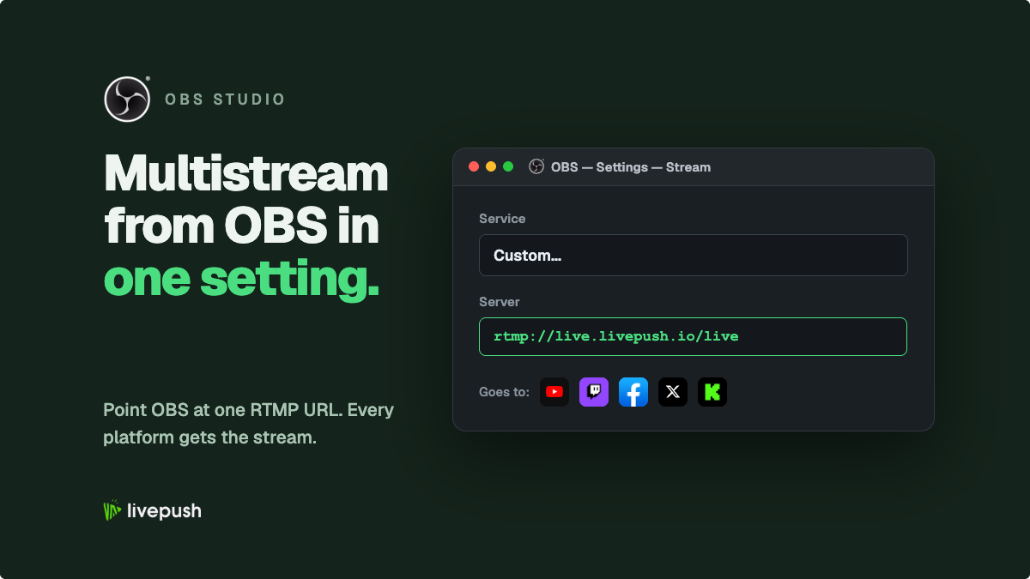
In OBS: File, Settings, Stream. Set the service dropdown to Custom..., paste Kick's server URL into the Server field and your stream key into the Stream Key field, and click Apply. That's the entire connection.
(OBS Studio does not list Kick as a built-in service, so Custom is the path. Streamlabs Desktop does offer a Kick login, but the Custom method is universal and also what you'll use in vMix or any hardware encoder.)
Step 3: Dial In Your Output Settings
These are based on Kick's own recommendations, which top out higher than you might expect:
| Setting | Recommended | Notes |
|---|---|---|
| Resolution | 1920x1080 max | 1280x720 if hardware or bandwidth is tight |
| Frame rate | 60 fps max | 30 fps is fine for non-gaming content |
| Bitrate | 6,000-8,000 kbps for 1080p60 | 8,000 kbps is Kick's ceiling |
| Rate control | CBR | VBR is not supported |
| Keyframe interval | 2 seconds | Same as every major platform |
| Encoder | NVENC / AMD HW / x264 | Hardware encoding frees your CPU for the game |
| Audio | Stereo, 48 kHz max, AAC | Kick does not publish an audio bitrate; 160 kbps is a safe default |
One catch: Kick only shows 1080p to viewers once your channel passes an engagement threshold it manages automatically. Until then viewers see at most 720p60 even if you send 1080p, so new channels should not expect the full resolution advantage on day one.
That 8,000 kbps ceiling is still genuinely useful: Twitch holds non-affiliates to 6,000 kbps (Affiliates and Partners got 7,500 kbps at 1080p in June 2026), so fast-motion gameplay from a new channel can look cleaner on Kick at the same resolution. If you want to understand what these numbers actually do, our video bitrate guide and 1080p OBS settings walkthrough go deeper.
Step 4: Set Your Title and Category, Then Go Live
Before starting the stream, go back to the Creator Dashboard and set your stream title and category (Kick's equivalent of Twitch directories: game titles, Just Chatting, music, and so on). Discovery on Kick leans heavily on category browsing, so an accurate category is not optional garnish; it is where your first viewers come from.
Then hit Start Streaming in OBS. Your dashboard shows a preview, viewer count, and chat. You're live on Kick.
A worthwhile first-day habit: do a ten-minute test stream before your announced debut. Stream yourself setting up, watch the output on your phone over cellular (not your home Wi-Fi, which hides problems), and check that motion looks clean, audio is in sync, and the dashboard reports a stable connection. Almost every embarrassing first-stream problem is catchable in a test nobody watches.
Streaming to Kick From Your Phone
Kick also supports going live from a phone for IRL-style content through its separate KICK - Go Live app (iOS and Android), or through a mobile encoder such as Streamlabs Mobile pointed at your Kick RTMPS URL and stream key. Set your title and category on the Kick website first. Phone streaming is the right tool for out-and-about content, and the wrong one for gaming or anything where production quality matters, since you give up scenes, overlays, and encoder control entirely. Many Kick streamers use both: OBS at the desk, the app in the wild. (If you've fought with mobile streaming gates on other platforms, note the contrast: TikTok famously restricts RTMP access, as we cover in our TikTok stream key guide, while Kick just lets you stream.)
Kick vs Twitch: The Practical Differences
The philosophical debates are for other websites; here is the operational comparison that matters when you're deciding where your hours go:
| Kick | Twitch | |
|---|---|---|
| Who can stream | Anyone, immediately | Anyone, immediately |
| Max bitrate | 8,000 kbps | 6,000 kbps for non-affiliates; 7,500 kbps at 1080p and 9,000 kbps at 1440p for Affiliates and Partners since June 2026 |
| Sub revenue split | 95/5 in creator's favor | Typically 50/50 for most streamers |
| Monetization bar | Low, reviewed via dashboard | Affiliate: 50 followers plus activity thresholds |
| Audience size | Smaller, growing fast | The incumbent, far larger |
| Discovery | Category browsing, less algorithmic | Mature but crowded directories |
The honest summary: Kick pays better per viewer and is easier to get started on; Twitch has more viewers to find you. Which is precisely why the answer for most creators isn't choosing.
Getting Paid: The 95/5 Split
Kick's monetization runs through its Creator Program. The headline is the split: creators keep 95% of subscription revenue, so a $5 Kick sub pays you $4.75, versus about $3.00 from a $5.99 Tier 1 Twitch sub on the standard 50/50 split. Viewers can also tip directly. Eligibility thresholds are low (a few cumulative streamed hours, a verified identity, and payout details on file; Kick has dropped the old follower requirement in most regions) and Kick adjusts them from time to time, so check the current requirements in your creator dashboard rather than trusting any blog post's numbers, including ours.
The honest caveat: Kick's live audience is still smaller than Twitch's, so the better split applies to a smaller pool of potential viewers. Which brings us to the strategy that resolves exactly that trade-off.
The Smart Play: Stream to Kick Without Leaving Your Other Platforms
The dilemma for an established streamer is that moving to Kick means restarting, but ignoring it means missing the platform where discovery is currently cheapest. The answer most growing creators land on is simulcasting: be live everywhere, let the audience pick the house they like.
You could add Kick as a second output in OBS directly, but every extra platform streamed from your PC multiplies upload bandwidth and encoding load; three 6,000 kbps outputs is 18,000 kbps of sustained upload plus triple the encoder work, which is where dropped frames come from. Our OBS multistreaming guide covers the local approach and its limits.
The cleaner architecture is one stream up, many streams out. With Livepush multistreaming, OBS sends a single stream to Livepush, and Livepush's servers forward it to Kick, Twitch, YouTube, Facebook, and 40+ other destinations simultaneously. Kick connects as a custom RTMP destination: paste in the same server URL and stream key from Step 1, and it sits alongside your other platforms in one dashboard. Your PC does exactly the work of a single-platform stream no matter how many places you're live.
One diligence note: platform partner programs sometimes carry exclusivity or simulcast conditions (Twitch has changed its rules here more than once). Kick's own Partner Program is a live example: Partners must switch on the Multistreaming toggle under Partner Income before simulcasting to Twitch or YouTube, and the Kick payout is halved for the length of that session. If you're in a paid program anywhere, skim its current terms before turning on the firehose.
A Few Notes on Actually Growing There
Setup is minutes; growth is months, and Kick's version of it has a particular shape. Discovery leans on category pages rather than a heavy recommendation algorithm, which cuts both ways: a new streamer in a mid-sized category is more findable on Kick than on Twitch, and picking the category where you can be in the first few rows matters accordingly. Consistency of schedule counts double on a platform where viewers browse rather than get pushed content. And because much of Kick's audience arrived from elsewhere, cross-pollination works: clip your Kick moments for TikTok and Shorts, and let your simulcast presence on the bigger platforms funnel viewers toward the channel where, thanks to that 95/5 split, each of them is worth roughly twice as much to you.
Quick Troubleshooting
Stream won't connect: re-copy the key fresh from the dashboard, confirm the service is Custom with the rtmps:// URL, and try with any VPN off. Stream looks blocky in motion: raise bitrate toward 8,000 kbps, or drop resolution; blockiness is bitrate starvation. Dropped frames: that's your connection, not Kick; lower the bitrate and read our dropped frames fix. Stream keeps disconnecting: wired ethernet over Wi-Fi, always, and check whether something else on the network is uploading.
Set up once, test with a private unlisted run if you like, and then the only remaining problem is the one every platform shares: being interesting on camera. No encoder setting fixes that one.
Stream to multiple platforms without extra bandwidth
Send one stream to Livepush and we fan it out to 40+ destinations.