Aspect ratio is the shape of your picture: how wide it is compared with how tall. It sounds like the least important setting in a streaming setup until a TikTok viewer sees a thin strip of your stream between two black bars, or your retro console capture turns up stretched like a funhouse mirror. Then it is the only setting that matters.
This guide explains the four ratios you will actually meet, starting with the 16:9 aspect ratio that almost every platform defaults to, the pixel resolutions each one maps to, which platforms expect which, how to set the canvas in OBS so your scene is designed for the right shape, and what to do when your source and your destination disagree.
What an Aspect Ratio Is
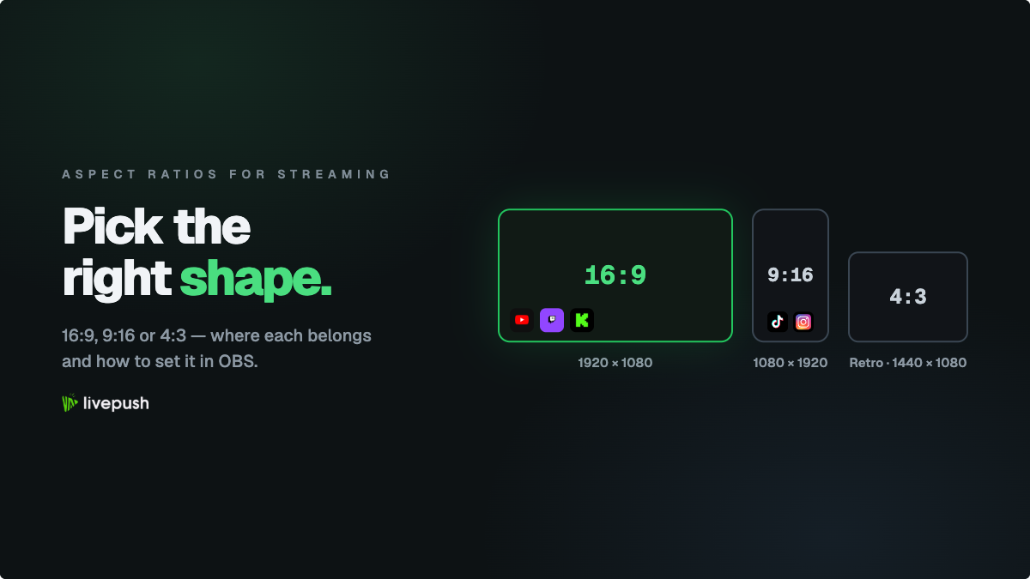
Take any picture, measure its width and height, and reduce the two numbers to their simplest ratio. A 1920x1080 frame reduces to 16:9. A 1080x1920 frame, the same frame turned upright, is 9:16. A 640x480 frame is 4:3. The ratio says nothing about how many pixels there are, only the shape; 1280x720 and 3840x2160 are both 16:9, which is why a 720p stream and a 4K stream fit the same screen without bars.
Resolution and aspect ratio are therefore two different decisions. Resolution is how much detail you send (and how much bitrate it needs; our video bitrate guide covers that trade). Aspect ratio is whether the picture is landscape, portrait, or square. You pick the ratio for the platform and the resolution for your upload speed and hardware.
The Four Ratios That Matter
| Ratio | Shape | Common resolutions | Where you meet it |
|---|---|---|---|
| 16:9 | Widescreen landscape | 1280x720, 1920x1080, 2560x1440, 3840x2160 | YouTube, Twitch, Facebook, Kick, every desktop and TV player, OBS default |
| 9:16 | Full-screen portrait | 720x1280, 1080x1920, 1440x2560 | TikTok LIVE, Instagram Live, YouTube Shorts and vertical live, Twitch mobile vertical feed |
| 4:3 | Old TV, nearly square landscape | 640x480, 800x600, 1024x768, 1440x1080 | Retro consoles, older webcams and capture devices, document cameras, archive footage |
| 1:1 | Square | 720x720, 1080x1080 | Some social feed video, picture-in-picture camera boxes, a few streaming overlays |
Two others show up occasionally. 21:9 (ultrawide, 2560x1080 or 3440x1440) is a monitor shape that no platform streams natively, so it gets letterboxed or cropped. 4:5 (1080x1350) is an Instagram feed format for posts, not live.
The 16:9 Aspect Ratio: The Default, and Why
Every major landscape platform standardized on 16:9 because televisions did, and streaming software followed. OBS sets its canvas to your monitor's resolution on first run, which is 16:9 on almost every modern display; YouTube's encoder guide lists every recommended resolution in 16:9; Twitch's player, Facebook's player, and Kick's player all assume it. If you stream from a desk to any of those, you want 16:9 and the only remaining question is which resolution.
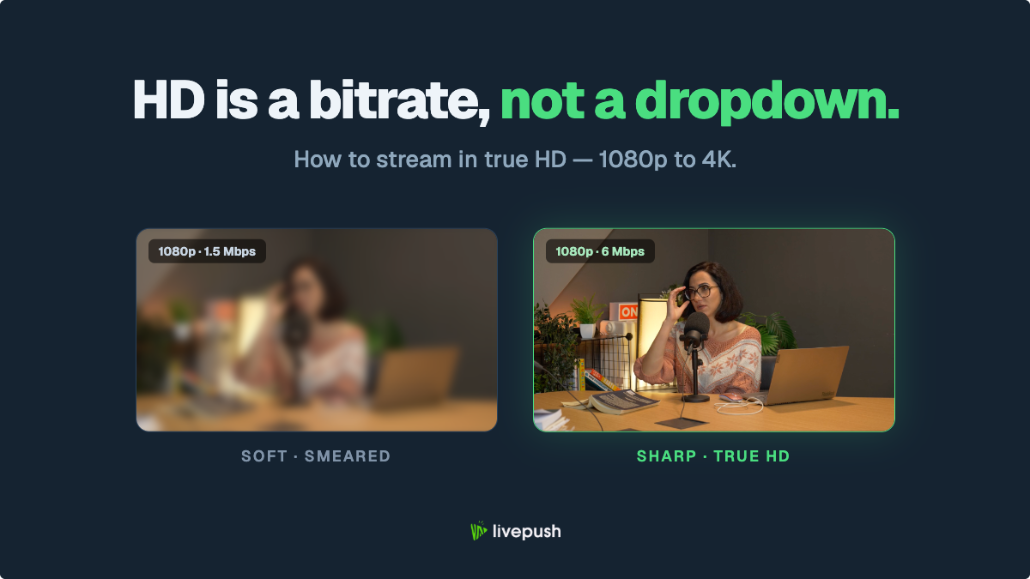
The usual answer is 1920x1080 if your upload and encoder can carry it at 6,000 kbps, and 1280x720 if they cannot. Our HD streaming guide walks through that choice, and the 1080p OBS settings guide has the exact encoder settings.
The 9:16 Aspect Ratio: The Phone Shape
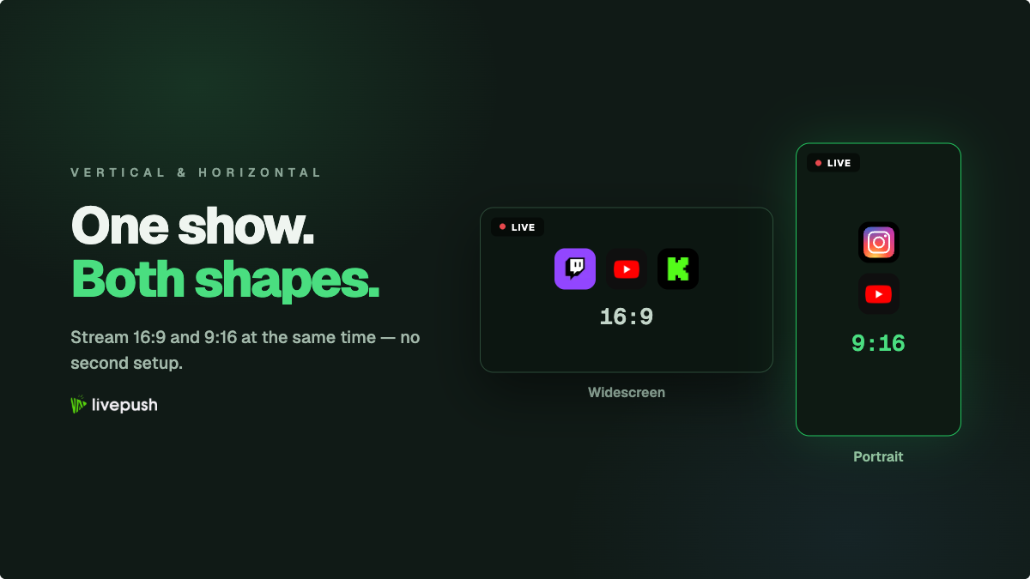
Vertical video stopped being a compromise in 2026. TikTok and Instagram have always been portrait-only; YouTube now runs vertical live streams in the Shorts feed and offers dual-format broadcasts; Twitch launched Dual Format, which shows phone viewers a 9:16 feed. The common thread: if your audience watches on phones held upright, 9:16 is the shape that fills their screen, and a 16:9 stream in that player is either shrunk to a strip or cropped to its middle third.
Streaming 9:16 is not just rotating the canvas. The composition changes: camera in the top two-thirds, text and alerts in the middle band, nothing important in the bottom 15% or along the right edge where the platform draws its own buttons. Our guide to streaming vertical and horizontal at once covers the layout rules and the two-canvas setup for creators who need both shapes live simultaneously.
The resolution choice mirrors landscape: 1080x1920 is the standard, 720x1280 is the lighter option, and Instagram's own Live Producer guidance recommends 720x1280 at 30 fps.
4:3 vs 16:9: When the Old Shape Shows Up
4:3 is what television looked like for sixty years, and a surprising amount of streaming still touches it: a retro console through a capture card, a classroom document camera, an older webcam that tops out at 640x480, a VHS transfer. The question is never "should I stream in 4:3" (no platform wants it) but "how do I put a 4:3 source into a 16:9 stream".
Three options, in order of preference:
- Pillarbox. Center the 4:3 source at its native height; black (or a designed background) fills the sides. The picture is undistorted and the viewer sees everything. Use the empty sides for your camera, chat, or game art.
- Crop. Scale the source to fill the 16:9 width and lose the top and bottom. Works for some games where the action is central; ruins anything with a HUD at the edges.
- Stretch. Never. A stretched 4:3 picture is visibly wrong to every viewer and makes your stream look amateur in one frame.
In OBS, a 4:3 source dropped onto a 16:9 canvas is pillarboxed automatically if you resize it with Ctrl+F (fit to screen) rather than dragging the corners. Hold Alt while dragging an edge to crop instead of scaling.
Setting the Canvas in OBS
Two settings under Settings, Video control shape and size:
- Base (Canvas) Resolution is the workspace you compose on. It decides the aspect ratio of everything you see in the preview.
- Output (Scaled) Resolution is what OBS actually sends. It should have the same ratio as the canvas, or OBS will squash the picture to fit.
For landscape, set both to 16:9 values (canvas 1920x1080, output 1920x1080 or 1280x720). For portrait, set both to 9:16 values (canvas 1080x1920, output 1080x1920 or 720x1280). OBS's dropdown only lists landscape sizes; type the portrait values in by hand. Keep a separate Profile per shape (Profile menu, New) so switching between a 16:9 stream and a 9:16 stream is two clicks rather than a retype. If OBS is new to you, our OBS beginner's guide covers where all of this lives.
One trap: changing the canvas does not re-lay-out your scenes. Sources keep their pixel positions, so a camera placed bottom-right on a 1920x1080 canvas ends up off-screen on a 1080x1920 one. Build portrait scenes separately in a portrait scene collection.
What Each Platform Wants
| Platform | Expected ratio | Notes |
|---|---|---|
| YouTube (desktop live) | 16:9 | Vertical live streams (9:16) show in the Shorts feed; dual stream sends both |
| Twitch | 16:9 | Dual Format adds a 9:16 feed for mobile viewers |
| Facebook Live | 16:9 | Vertical is accepted and shown full-screen in the mobile app |
| Kick | 16:9 | |
| TikTok LIVE | 9:16 | Landscape streams are shrunk into the portrait player |
| Instagram Live | 9:16 | Live Producer guidance: 720x1280, 30 fps |
| LinkedIn Live | 16:9 | |
| Your own website (embed player) | Any | The player takes the shape of the stream; set the container's aspect ratio in CSS |
The last row deserves a note. An embedded player is the one destination with no opinion about shape: a 9:16 stream in a portrait container, a 4:3 archive stream in a 4:3 container, all render without bars. If you host streams through Livepush, the HLS player follows the source ratio, and Livepush delivers vertical streams as vertical to the platforms that want them.
Video Resolution Per Ratio: A Quick Reference
Same picture, three shapes, with the bitrate that tends to look clean at 30 fps. (Double the bitrate for fast motion at 60 fps, and check your number against the bitrate calculator.)
| Target quality | 16:9 | 9:16 | 4:3 | Bitrate at 30 fps |
|---|---|---|---|---|
| SD | 854x480 | 480x854 | 640x480 | 1,000-1,500 kbps |
| HD | 1280x720 | 720x1280 | 960x720 | 2,500-4,000 kbps |
| Full HD | 1920x1080 | 1080x1920 | 1440x1080 | 4,500-6,000 kbps |
| QHD | 2560x1440 | 1440x2560 | 1920x1440 | 9,000-13,000 kbps |
Pixel count drives bitrate, not shape: 1080x1920 needs the same bitrate as 1920x1080 because it has the same two million pixels.
Common Mistakes
Mismatched canvas and output. Canvas 1920x1080 with output 1280x1080 squashes the picture. Keep the ratio identical.
Cropping a 16:9 scene to make a 9:16 stream. You lose your camera, your overlays, or both. Vertical needs its own composition.
Stretching a 4:3 source. Pillarbox it and fill the sides with something designed.
Sending 16:9 to TikTok or Instagram and wondering why it looks small. Those players are portrait; design for 9:16 or send a second vertical feed.
Picking resolution by shape instead of by upload. The ratio comes from the platform; the resolution comes from what your connection can carry. Mixing the two decisions is how people end up streaming 4K portrait at 3,000 kbps.
Shape for the platform, resolution for the pipe, and a scene composed for the frame it will actually be seen in. That is the entire subject, and it is worth getting right once so you never have to think about it again.
Multistream from OBS with one upload
Connect OBS to Livepush and go live to 40+ platforms at once.