A stream with no overlay is a raw camera feed. A stream with bad OBS overlays has a neon frame covering the minimap. Between the two is what every streamer wants: a clean webcam frame, alerts, chat on screen, and a "starting soon" screen, and OBS Studio does all of it without a plugin.
This guide shows how to add overlays to OBS in all three forms (static images, animated video, and live browser widgets), how to layer and size them, where to get free stream overlays that are actually free, and how to fix the common problems.
OBS Overlays: The Three Kinds
An overlay is any source that sits on top of your main content in an OBS scene. There are three kinds:
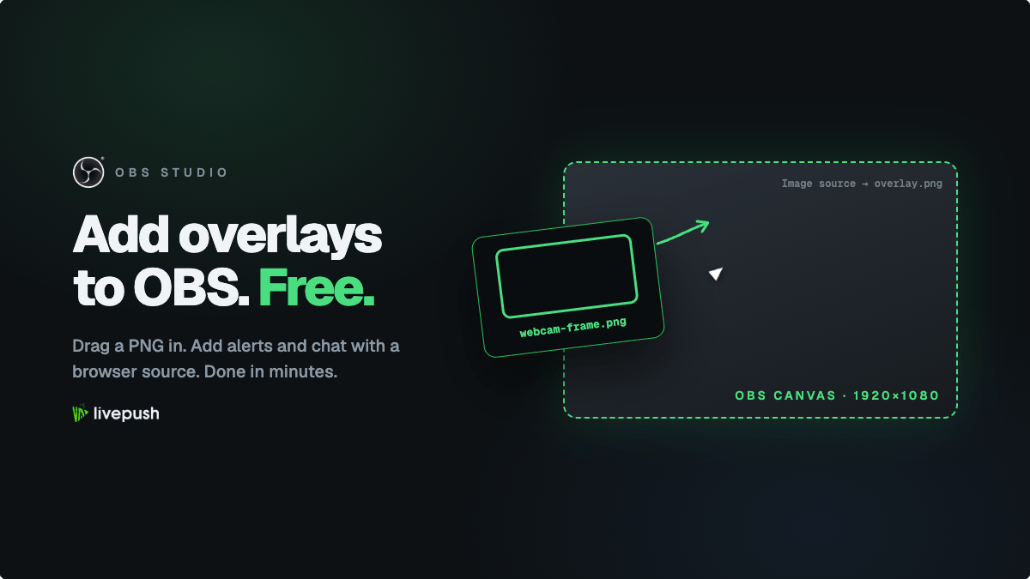
- Static images. A transparent PNG: webcam frames, lower thirds, logos, social labels. Added with the Image source.
- Animated video. A short looping clip with transparency. Added with the Media Source, almost always as a WebM with an alpha channel.
- Browser widgets. A web page rendered inside OBS: alerts, chat boxes, goal bars, timers. Added with the Browser source and a URL from the widget service. OBS's own tutorial on alerts and chat boxes says it plainly: "you do NOT require any plugins to use alerts in your stream."
Most finished overlays stack all three. If you are still finding your way around the Scenes and Sources docks, read our OBS Studio beginner's guide first.
File Formats That Work in OBS
| Format | Transparency | OBS source to use | Best for |
|---|---|---|---|
| PNG | Yes, full alpha | Image | Frames, lower thirds, logos, labels |
| JPG | No | Image | Full-frame backgrounds only |
| GIF | One-bit only, hard edges | Image or Media Source | Simple loops, emotes; avoid for frames |
| WebM (VP8/VP9 with alpha) | Yes, full alpha | Media Source | Animated frames, stingers, looping effects |
| MP4 | No transparency (H.264 carries no alpha channel) | Media Source | Full-screen video, "starting soon" backgrounds |
| HTML / URL | Yes, via CSS | Browser | Alerts, chat, timers, goal bars, anything live |
OBS lists the supported image types (.bmp, .tga, .png, .jpeg, .jpg, .gif, with alpha "where applicable") and media types (.mp4, .ts, .mov, .flv, .mkv, .avi, .gif, .webm) in its knowledge base. Rule of thumb: if it never moves, PNG. If it moves and needs transparency, WebM. If it changes based on what viewers do, browser widget.
Step 1: Add a Static Overlay (Image Source)
- In the Scenes dock, select the scene you want to decorate.
- In the Sources dock, click + and choose Image.
- Name it ("Webcam frame") and click OK.
- Click Browse, pick your PNG, and click OK again.
- Drag the red bounding box into place, or drag a corner handle to resize.
For a full-canvas frame, select the source and press Ctrl+F (fit to screen), which OBS documents in its overview guide alongside Ctrl+S for stretch, Ctrl+D for centre, and Ctrl+R to reset. Then place your camera and game capture below the frame so they show through its cut-outs.
Step 2: Add an Animated Overlay (Media Source)
- Click + in the Sources dock and choose Media Source.
- Name it, click OK, then click Browse next to Local File and pick your WebM.
- Tick Loop. It is off by default, and without it the animation plays once and goes blank, because Show nothing when playback ends is on by default.
- Leave Restart playback when source becomes active on.
- Click OK and position the source like any other.
Use hardware decoding when available is off by default and worth switching on for a 1080p animated frame. OBS keeps transparency in a WebM encoded with VP8 or VP9 and an alpha channel, which is why most overlay shops ship WebM.
Step 3: Add an OBS Browser Source Overlay (Alerts, Chat, Widgets)
An OBS browser source overlay powers almost every "live" element on a stream; the browser source is a full Chromium browser rendered inside your scene.
- In your alert or widget service, copy the overlay URL (Overlay, Widget, or Alert URL depending on the service).
- In OBS, click + in the Sources dock and choose Browser.
- Name it ("Alerts", "Chat box") and click OK.
- Paste the URL into the URL field.
- Set Width and Height. The 800 by 600 default is wrong for almost everything: use 1920 by 1080 for a full-canvas alert layer and around 400 by 600 for a chat box.
- Click OK and drag the source where you want it.
Two properties trip people up. Custom CSS ships with a default that makes the page background transparent (body { background-color: rgba(0, 0, 0, 0); margin: 0px auto; overflow: hidden; }); clear it and your widget gets a solid white box. Shutdown source when not visible unloads the page when the scene is inactive, which is good for a chat box and bad for alerts, because an unloaded page cannot queue them.
The URL is a credential: anyone who has it can fire fake alerts on your stream, so keep the properties dialog off camera.
Alerts and a Chat Overlay for OBS as Browser Sources
Alerts
StreamElements and Streamlabs both give you an alert box widget for free: connect your Twitch, YouTube, or Facebook account, customise the alert, copy the widget URL, and add it as a Browser source at canvas size. OWN3D Pro works the same way through its Scene Builder. Test every alert with the service's test button before you go live.
Chat
The quick route is the platform's own pop-out: on Twitch, click the gear icon at the bottom of chat and choose Popout Chat; on YouTube, click the three-dot menu at the top of the live chat panel and choose Popout chat. Paste the new window's URL into a Browser source. Both render with a solid background and show only that platform's chat.
A dedicated chat overlay for OBS is the better route. StreamElements and Streamlabs both include a free Chat Box widget with a transparent background, your choice of font and colours, and a URL you add exactly like the alert box. Nerd or Die, OWN3D, and most overlay shops sell styled chat boxes that work the same way.
Merged chat when you stream to several platforms
If you multistream, one chat box per platform means three boxes fighting for space, and viewers on YouTube never see what Twitch said. Livepush multi-chat pulls messages from YouTube, Facebook, and Twitch into one combined feed and gives you a single URL to add as an OBS Browser source, with font, size, and colour controls so it looks like part of your scene. It needs the platform accounts linked in Livepush (not just stream keys), and Facebook chat requires a paid plan. One rule to respect: Twitch's simulcasting guidelines ask that you do not show a merged multi-platform chat on the Twitch broadcast itself, so read the merged feed on a second monitor and show the merged overlay only on your YouTube, Facebook, and Kick outputs, or use a Twitch-only chat box on the stream everyone sees. Our OBS multistreaming guide covers the setup, and Livepush multistreaming handles the fan-out to 40+ destinations from one OBS stream.
Layering: The Sources Order Is the Z-Order
OBS has no separate layer panel; the Sources list is the layer stack. As the sources guide says, "A Source that is listed above another Source in the list will be on top and might hide what's beneath it." A typical gaming scene, top to bottom: alerts (Browser, 1920x1080), chat box (Browser), overlay frame (Image), webcam, game capture.
Drag sources up and down the list or use the arrow buttons at the bottom of the dock. Once a source is placed, click the padlock icon so you stop dragging your frame by accident; the eye icon hides a source without deleting it. A trick that saves hours: build your overlay elements in their own scene called "Overlay", then add that scene as a source inside each real scene (Sources, +, Scene), so one change applies everywhere.
Sizing to the Canvas
Overlay packs assume a 1920x1080 canvas. Check yours in Settings, Video, Base (Canvas) Resolution. On a 1280x720 canvas a 1080p overlay still fits with Ctrl+F, but its text gets smaller than intended. OBS warns that changing the base resolution later means "you will have to re-align or re-size the sources", so pick your canvas before you decorate it. Our 1080p OBS settings guide covers the canvas and output choices.
Vertical streams are a different canvas entirely: a 1080x1920 canvas for TikTok, Shorts, or Twitch Dual Format needs overlays designed for portrait, not a rotated landscape frame. Our guide to streaming vertical and horizontal simultaneously explains the two-canvas setup, and the aspect ratio guide covers the maths.
Starting Soon, BRB, and Studio Mode
Starting-soon and BRB screens are full-screen scenes you switch to before going live and when you step away. OBS has a BRB screen tutorial using the sources above. The recipe: a Media Source with a looping background video (MP4 is fine here) with Loop ticked, an Image source with your logo PNG on top, and a Browser source with a countdown timer widget (Nerd or Die's Maker, StreamElements, and Streamlabs all have free ones). Switch between scenes with Studio Mode (the button in the Controls dock): the left pane is your preview, the right pane is what viewers see, and Transition swaps them. As OBS puts it, "Viewers cannot see when Studio Mode is enabled or not."
Animated Overlays in OBS and What They Cost
Animated frames look great and cost resources. OBS's encoding performance guide warns that "Using a lot of browser sources in a scene (or scene collection) can use a lot of system resources." In practice: turn on hardware decoding for WebM loops, combine browser widgets where you can (StreamElements' overlay editor puts alerts, labels, and chat into one URL), keep each source's width and height to what you need, and lower the custom frame rate on anything static. If OBS reports rendering lag after you add a pack, the overlay is the likely cause; our dropped frames guide explains how to tell rendering lag from network drops. A static PNG frame costs almost nothing, so if your PC is already working hard, use the PNG version of your frame and spend the animation budget on alerts, which only render when they fire.
Where to Get Free Stream Overlays
All of these were checked in October 2026. The table covers where to get OBS overlays free of charge and what each shop holds back for paid tiers; "free" means no watermark and no trial.
| Source | What is free | What is paid | How it goes into OBS |
|---|---|---|---|
| StreamElements | Overlay editor, alerts, labels, chat box, themes; "all for free" | None required for the core overlay tools | One overlay URL as a Browser source |
| Streamlabs | "A large number of overlays and widget themes in the theme library" | The full library is part of Ultra (subscription) | Widget URLs as Browser sources; themes install into Streamlabs Desktop or its OBS plugin |
| OWN3D Pro | A set of free overlay packs (Pure, Chroma, Avoid, CleanValo, GlitchPro at the time of checking), free widgets, up to 6 installable scenes | Stream Pass subscription or individual premium packs | Scene Builder generates a URL for a Browser source |
| Nerd or Die | Dozens of items tagged Free (panels, social kits, seasonal alerts); Maker tool for stingers, timers, webcam frames, "no watermark, no caps" | Full packs and some "suggested price" items | PNG and WebM downloads; Maker widgets as Browser sources or files |
| Canva | Free static and animated Twitch overlay templates at 1920x1080 | Downloading with a transparent background is a Canva Pro feature | Export PNG (or MP4) and add as Image or Media Source |
Canva is the best place to design your own frame, but without Pro you cannot export the transparency. StreamElements is the most OBS-friendly hosted option because everything ends up as one URL, while Streamlabs' themes are built for Streamlabs Desktop or its OBS plugin; if you are weighing the two apps, see our OBS vs Streamlabs comparison.
Design Rules That Keep Overlays Out of the Way
- Respect safe zones. Platforms draw their own UI at the edges and across the bottom third on vertical. Keep anything important at least 5% in from each edge.
- Design for a phone. On a mobile screen your 1080p frame is about 400 pixels wide. Use 28px or larger for anything viewers must read.
- Never cover gameplay. No chat box over the minimap, ammo counter, or health bar.
- Less is more. Frame, alerts, chat: three well-placed elements read as professional. Eight animated panels read as a 2014 Twitch stream.
- Match one palette. Two colours plus white across frame, chat, and alerts.
OBS Overlays Not Working: Common Problems
| Problem | Likely cause | Fix |
|---|---|---|
| Black or white box instead of transparency | No alpha channel (JPG, PNG exported with a background, or WebM encoded without alpha) | Re-export as PNG with the background hidden, or as VP9 WebM with alpha; for a Browser source, restore the default Custom CSS |
| Browser source is blank | Wrong or expired URL, service needs a login, or page blocked by a firewall | Paste the URL fresh from the service dashboard, right-click the source and choose Refresh, and test the URL in a normal browser |
| Image is stretched or blurry | Ctrl+S (stretch) used instead of Ctrl+F (fit), or a 720p asset on a 1080p canvas | Press Ctrl+R to reset, then Ctrl+F; use assets built for your canvas size |
| WebM plays once then disappears | Loop is off and Show nothing when playback ends is on (the defaults) | Tick Loop in the Media Source properties |
| Alerts work in the service preview but not in OBS | Shutdown source when not visible is on, the alert source is in an inactive scene, or the service account is connected to the wrong channel | Keep the alert source in every live scene (or a shared Overlay scene), turn off shutdown-when-not-visible, and reconnect the platform account |
| OBS stutters after adding an animated pack | Too many browser or media sources rendering at full rate | Combine widgets into one overlay URL, lower the custom frame rate, enable hardware decoding, or swap the animated frame for its PNG version |
The last tip for OBS overlays: build one scene well, with a frame, an alert layer, and a chat box, and stream with it for a week before adding anything else. Every problem in the table above is easier to spot with three sources than with twelve.
Multistream from OBS with one upload
Connect OBS to Livepush and go live to 40+ platforms at once.