Every YouTube live stream sent from an encoder starts the same way: it needs a server address and a YouTube stream key. The address is public. The key is a secret that tells YouTube which channel the video belongs to, which is why so many "YouTube live not working" posts trace back to a key that was copied wrong, reset, or expired.
This guide covers the YouTube stream key end to end: where it lives, the default key versus keys you create yourself, the server URLs, OBS setup, YouTube's recommended encoder settings, eligibility, troubleshooting, and multistreaming.
What a YouTube Stream Key Actually Is
A stream key is a long, randomly generated string, something like xxxx-xxxx-xxxx-xxxx-xxxx, that your encoder appends to the ingest server address when it connects. YouTube matches the key to your channel and routes the video to the right live stream. It functions as a password: anyone who has it can broadcast on your channel without your login, which is why YouTube hides it behind a Reveal button and why you should never show it on screen.
Our stream key explainer covers how keys work across platforms. YouTube works like Twitch or Kick, with one difference: it lets you keep several keys at once.
How to Find Your YouTube Stream Key in Live Control Room
The key lives in the YouTube Live Control Room, the dashboard YouTube Studio opens when you start a live stream. Finding it is a matter of knowing which tab to click. Two ways in:
- Go to studio.youtube.com, click Create, then Go Live.
- Or on youtube.com, click the camera icon, then Go live.
From Live Control Room:
- Click the Stream tab in the left menu.
- The first time, give the stream a title, category, and privacy setting, then click Create stream.
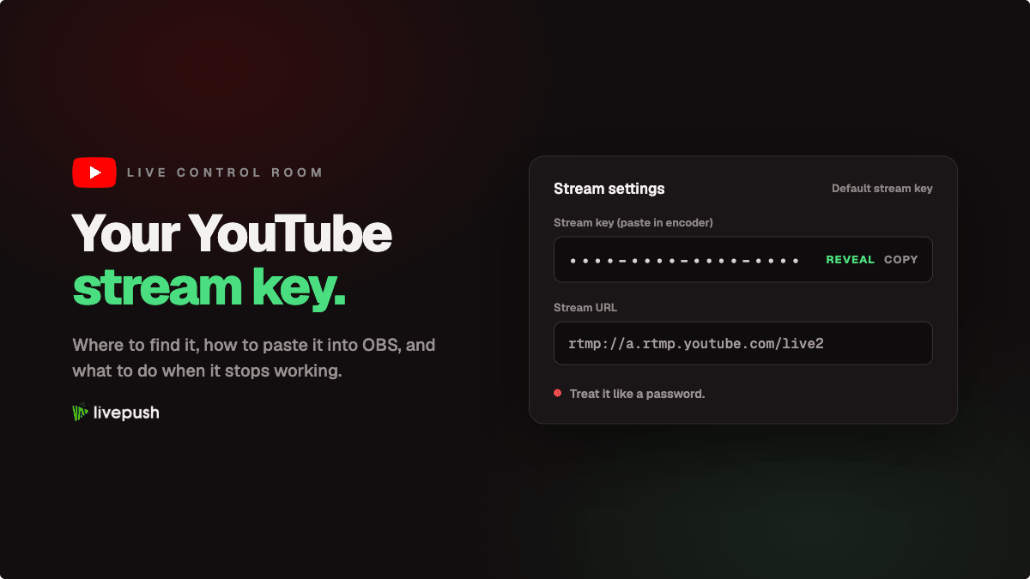
- In the Stream settings panel you will see Stream key (hidden by default, with Reset and Copy buttons), Stream URL, and Stream latency.
- Click Copy next to the stream key. That is the value your encoder needs.
The Select stream key dropdown above shows Default stream key (RTMP, Variable). "Variable" means YouTube detects resolution and frame rate from whatever the encoder sends.
YouTube's own steps are on the encoder streaming help page and the manage live stream settings page.
Default Key vs Keys You Create Yourself
The default stream key is persistent. It stays valid until you, or a channel manager, click Reset. Paste it into OBS once and you can go live with the same settings for years. Only the owner and managers can reset it.
You can create additional named keys. In the Select stream key dropdown, choose Create new stream key, give it a name, pick a protocol (RTMP by default, HLS also offered), optionally turn on manual resolution, and click Create. The new key persists like the default one, so you can keep a "Studio PC" key and a "Laptop at events" key without resetting either.
Auto-generated keys belong to one scheduled stream. When you schedule a stream from the Manage tab, you can pick which key the event will use. Choose an auto-generated key and YouTube creates one just for that event, and it stops accepting video when the event ends. If your encoder is still holding that key the next week, nothing you send will show up, one of the most common "my stream key is not working" reports.
The practical rule: use the default key or a custom key for anything you repeat, and an auto-generated key only when you want one that dies with the event.
The Server URL, the Backup Server, and RTMPS
Your encoder needs the address as well as the key. Live Control Room shows it in the Stream URL field, and for RTMP it reads:
rtmp://a.rtmp.youtube.com/live2YouTube also publishes a backup ingest address, shown when you expand the stream key details:
rtmp://b.rtmp.youtube.com/live2?backup=1The backup server is for redundancy: send the same stream to both addresses at once and YouTube fails over to the backup if the primary drops. YouTube is strict that primary and backup "must have the exact same settings for failover to work properly," down to keyframe interval and audio sample rate.
RTMPS is the encrypted version. Click the lock icon next to the Stream URL and the address switches to rtmps:// on port 443. YouTube's RTMPS help page recommends it, since plain RTMP sends your key and video in the clear. OBS lists YouTube - RTMPS as its default YouTube service, so most OBS users are already encrypted.
HLS ingest is the route for HDR or HEVC video. Create a new stream key with HLS as the protocol and the Stream URL becomes an https:// address with the key embedded in it. YouTube's HLS setup page notes that HLS adds latency and disables ultra-low latency mode, so for a normal 1080p H.264 stream, stay on RTMP or RTMPS.
Copy these addresses from your own Stream tab, not from this article, because YouTube says the URL format can change.
Pasting the Key Into OBS Studio
OBS Studio offers two ways to connect to YouTube, both under File, Settings, Stream with Service set to YouTube - RTMPS.
Option 1: Connect Account (recommended by OBS). Click Connect Account, sign in to Google, and grant OBS access. OBS fetches your stream key, and a Manage Broadcast button appears for creating a broadcast or selecting a scheduled stream. This is the easiest route for a single-PC streamer who wants chat and stream health inside OBS.
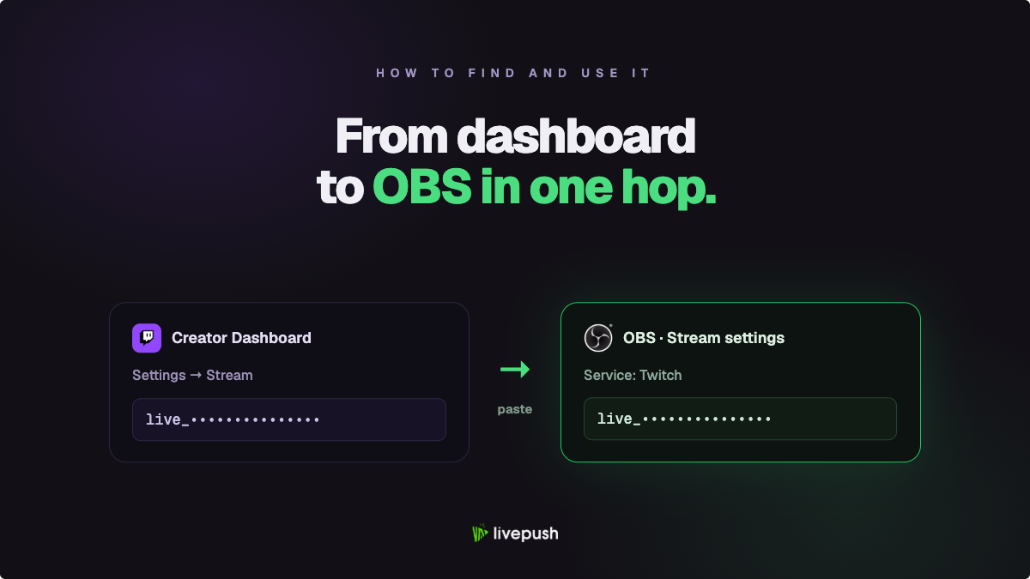
Option 2: Use Stream Key. Click Use Stream Key, paste the key from Live Control Room, and click Apply. OBS uses YouTube's default RTMPS server automatically. Use this when you would rather not sign in to Google on that machine, when you want a specific custom key, or when you are pointing OBS at a multistreaming service instead of YouTube.
Either way, click Start Streaming in OBS, then return to Live Control Room, where the preview fills in within a few seconds. With the default key, YouTube waits for you to click Go Live before viewers see anything, unless you turned on auto-start. If you are new to OBS, our OBS Studio beginner guide walks through scenes and sources first.
Recommended Encoder Settings for YouTube
YouTube publishes its encoder recommendations on the live encoder settings page. Unlike Twitch and Kick, YouTube does not enforce a hard bitrate cap, so the numbers below are the recommended range for H.264.
| Resolution and frame rate | H.264 bitrate range | Keyframe interval | Audio |
|---|---|---|---|
| 1080p at 60 fps | 6 to 17 Mbps | 2 seconds | AAC, 128 kbps stereo, 44.1 kHz |
| 1080p at 30 fps | 5 to 14 Mbps | 2 seconds | AAC, 128 kbps stereo, 44.1 kHz |
| 720p at 60 fps | 3 to 8 Mbps | 2 seconds | AAC, 128 kbps stereo, 44.1 kHz |
| 720p at 30 fps | 3 to 8 Mbps | 2 seconds | AAC, 128 kbps stereo, 44.1 kHz |
| 1440p at 60 fps | 8 to 34 Mbps | 2 seconds | AAC, 128 kbps stereo, 44.1 kHz |
| 2160p (4K) at 60 fps | 14 to 50 Mbps | 2 seconds | AAC, 128 kbps stereo, 44.1 kHz |
Other settings YouTube lists: CBR rate control, progressive scan, square pixels, a closed GOP, and a keyframe interval that never exceeds 4 seconds. HEVC and AV1 are accepted at lower bitrates (4 to 12 Mbps for 1080p60), but HEVC needs HLS ingest, so H.264 is still the practical choice.
Two reality checks. First, 17 Mbps at 1080p60 is more than most home connections can sustain; YouTube re-encodes everything it receives, so 4,500 to 9,000 kbps at 1080p still looks clean and is a far safer target. Second, your bitrate should use no more than about 70% of your measured upload speed; our bandwidth guide explains why, and the 1080p OBS settings guide turns these numbers into a working OBS profile.
Who Can Stream on YouTube
A perfect key does not help if the channel is not eligible. According to YouTube's live streaming getting-started page, streaming from an encoder or webcam requires:
- A verified channel (phone verification, done once).
- No live streaming restrictions in the past 90 days.
- Being at least 16 years old.
- Live streaming enabled, which happens when you first open Live Control Room. The first activation can take up to 24 hours.
There is no subscriber requirement for encoder streaming. The often-quoted 50-subscriber rule applies only to mobile live streaming from the YouTube app, per the mobile live stream requirements. Users aged 13 through 17 get a private default privacy setting; adults default to public.
Scheduled Streams and Which Key They Use
Scheduling decides which key your encoder must hold. In Live Control Room, click Manage, then Schedule stream. The dialog asks for a key: Reuse settings copies the settings and key from a previous stream, or the Select stream key dropdown lets you attach the default key, a custom key, or a new auto-generated key for that event only. At the scheduled time, start your encoder with the matching key, wait for the preview, and click Go live. If auto-start is enabled for that key, the stream starts the moment video arrives.
One quirk: if the default key is already in use by a live or waiting stream, a second event on the same key will not pick up your video until the first ends. Attach a different key to overlapping events.
How to Reset Your YouTube Stream Key and Keep It Safe
To reset a YouTube stream key, go back to the place you copied it from. Open the Stream tab in YouTube Live Control Room, find Stream key under Stream settings, and click Reset. YouTube generates a new value immediately and the old one stops working the next time an encoder connects with it. You then paste the new key into every encoder that uses it.
Reset the key when it appeared on screen or in a recording, when a former collaborator had access to the encoder, when someone else goes live on your channel (the clearest sign it leaked), or when you hand off hardware that had the key saved.
Prefer RTMPS so the key is encrypted in transit, and prefer named custom keys per device or collaborator so that revoking one person's access means resetting one key. If you connected OBS by account, the Google account becomes the credential to protect.
YouTube Stream Key Not Working: Troubleshooting
Match your symptom below.
| Symptom | Likely cause | Fix |
|---|---|---|
| Encoder connects, Live Control Room says "No data" or "Waiting" | Encoder is sending to a different key than the one shown, often an expired auto-generated key | Check which key is selected in the Stream tab, copy it fresh, and paste it into the encoder |
| Encoder refuses to connect, "Failed to connect to server" | Wrong Stream URL (typo, missing /live2, or rtmp hostname on an RTMPS connection), or firewall blocking port 1935 or 443 | Copy the Stream URL from Live Control Room. Try with any VPN off |
| "Invalid stream key" or immediate disconnect | Key was reset, a space or line break was pasted with it, or Stream URL and Stream Key were swapped | Reveal the key, click Copy rather than selecting by hand, paste into the Stream Key field only |
| Stream was working, now fails after a reset | Every encoder still has the old key | Update the key in every encoder and multistreaming destination that used it |
| Two encoders fighting, stream flickers or drops | Two devices sending to the same key at once; YouTube accepts one stream per key | Stop one encoder. For redundancy, send the second to the backup URL with identical settings |
| "Your channel is not eligible" or no Go Live button | Live streaming not enabled, channel unverified, a restriction in the past 90 days, or under 16 | Verify the channel, wait for the 24-hour activation, check Channel status in YouTube Studio |
For dropped frames and disconnects that are not key problems, our dropped frames fix covers the network side.
Using Your YouTube Stream Key With a Multistreaming Service
If YouTube is one of several platforms you stream to, the key becomes something you hand to the service that sits between OBS and the platforms. Our what is multistreaming explainer covers the idea in full; this section covers the YouTube key specifically.
With Livepush multistreaming, you add YouTube as a destination in one of two ways. Login with YouTube connects your Google account and Livepush fetches the stream key and server for you, the same way OBS's Connect Account does. Or you choose Custom RTMP and paste the Stream URL and stream key from Live Control Room, the route for a specific custom key or a channel you cannot sign in to. The YouTube destination then sits alongside Twitch, Facebook, Kick, and the rest of the 40+ supported destinations.
OBS now points at Livepush instead of YouTube, using the Custom service with the Livepush ingest address and key. One stream goes up from your PC, and Livepush's servers fan it out to every destination at full quality. Streaming directly from OBS to three platforms means three encodes and three times the upload bandwidth, as our OBS multistreaming guide explains, and that is where dropped frames come from.
If you reset the YouTube key, update it in Livepush too. If you connected by login, nothing changes on reset, since Livepush reads the current key from your account.
Before You Go Live
Set the default YouTube stream key once, paste it into OBS or your multistreaming dashboard once, and the YouTube half of your setup is done until you choose to reset it. Spend the time you save on a test stream: unlisted, ten minutes long, watched from your phone over cellular. Every key, URL, and bitrate problem in this article shows up in that test, when nobody is watching, instead of at the top of the stream you announced.
Stream to multiple platforms without extra bandwidth
Send one stream to Livepush and we fan it out to 40+ destinations.